Disclaimer
All screenshots in the article were taken in the Dutch version of Nmbrs Accounting.
In Nmbrs Accounting, the management of users and their rights is very important for the effective and secure management of data within a domain.
Here are the main aspects of users:
- Access management
For each user within a domain can be determined which administration(s) they have access. This ensures that users only have access to relevant data necessary for their work. - Roles and rights
Roles are used in Nmbrs Accounting to control the rights of a user. By assigning specific roles, users can get specific rights. - Add additional users
Adding additional users to a domain is possible when a user with the 'Management' role has chosen the bundle Medium, Large, or Unlimited in the Store. This is done at an additional monthly cost per added user.
Only a user with the 'Management' role can assign one or more roles to the additional users in the domain.
For a detailed description, see article Assign or change user roles in domain. - Grant or deny access
A user with the 'Management' role has the power to grant or deny access to specific administrations within the domain at any time.
For a detailed description, see article Access control of administration(s) in domain.
Access to users and their role(s) overview
To access:
- click on the Switch domain icon above the navigation bar and then clcik on My domain
OR - click on the Settings icon in the navigation bar
- then, in the now-opened screen, in the Domain section click on Users.
Rights per user role overview
The screen with the user details of the domain is always opened in the Default view.
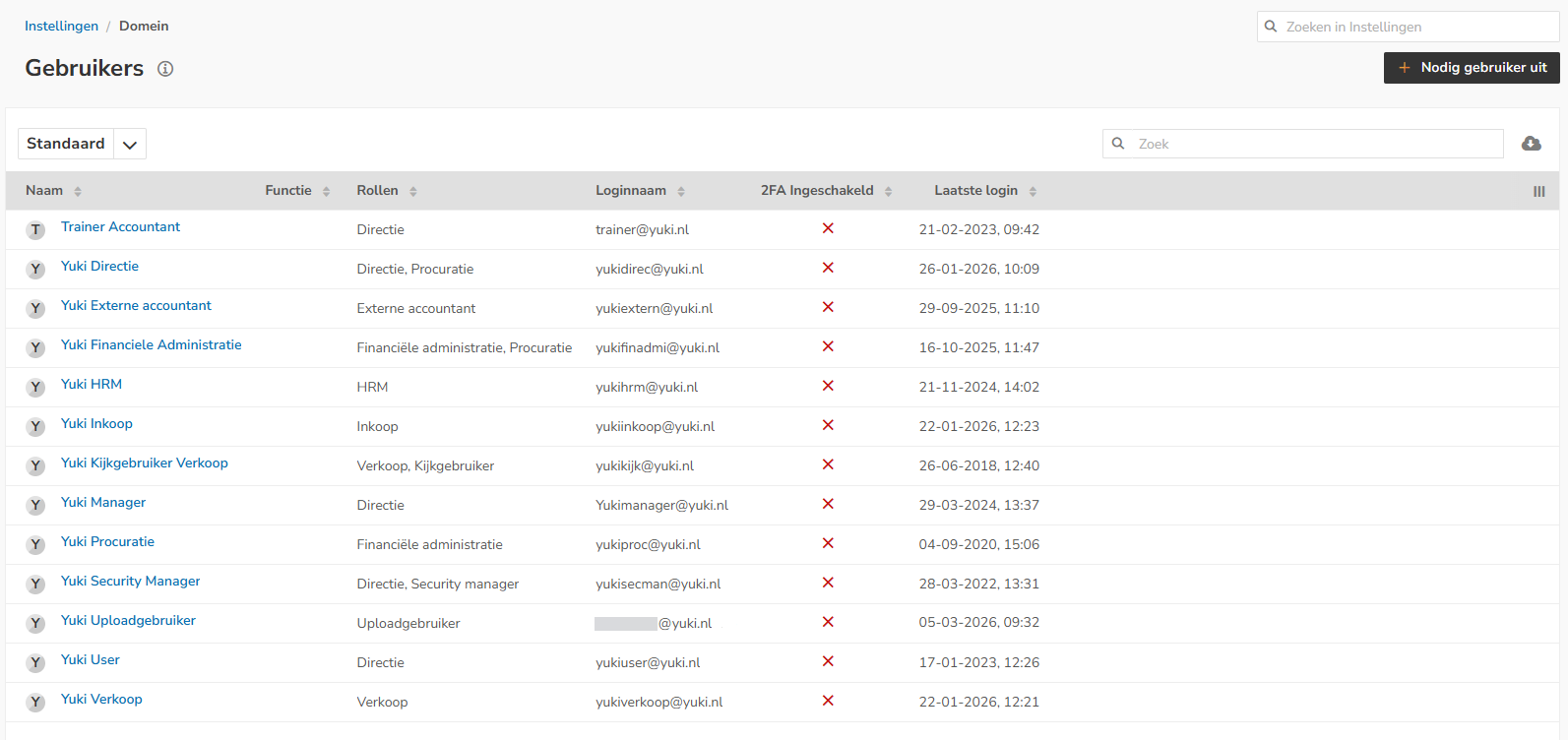
This screen shows the log-in name and roles (with the associated rights) which each user currently has in the domain.
Below the (additional) rights per role are described
Rights per role
At the moment you can assign the following roles in a domain in Nmbrs Accounting:
- Back Office
ATTENTION!
Only when the accountant has activated the self accounting feature for your domain, a user with the “Management” role in the domain can assign the role “Back Office” to a user.
For a detailed description, see article Assign 'Back office' role (self-accounting) to user(s) in your domain. - Read-only user
- Upload user
- Sales
- Purchase
- Financial administration
- External accountant
- HRM
- Management
- Security manager
- Procurement
- Read-only user.
ATTENTION!
The accountant can assign special roles in the accountant portal to the back office, see article Assign or change back office roles.
Below, you will find a description of the additional rights per role in a domain.
Special role Read-only user (only in combination with another role)
An user with this role can only view all the data in a domain. So it is not possible to create, change or upload documents when an user has this role.
The 'Read-only user' role must be combined with one of the other roles. When you want somebody to view all the financial data without being able to change this data you can assign the 'Financial administration' role as well as the 'Read-onlu user' role to this person.
Only a user with the 'Management' role can combine the 'Read-only user' role with any of the other roles.
ATTENTION!
To assign the 'Read-only user' role, first create a user with the desired role.
After saving this user, you can then assign the 'Read-only' role to the user in question using the pencil icon on the 'Extras' tab in the contact card.
Rights Upload user
- Upload documents via the Nmbrs Accounting web version or the Nmbrs Accounting app
Email documents to Nmbrs Accounting
Ask questions to accountant or other domain users via Nmbrs Accounting
- View documents with security level 'all users'
- Create new documents
- View projects and create new projects
- View, create and change contacts
- Manage personal email box
- View calendar and create new appointments
- View and create tasks.
Rights Sales
Someone with the 'Sales' role has all the rights of the 'Upload user' role plus the following rights:
- Create and send sales invoices
- View sales and revenue lists
- View sales data per customer
- View outstanding invoices per customer.
Rights Purchase
Someone with the 'Purchase' role has all the rights of the 'Upload user' role plus the following rights:
- View Purchase list
- View purchase invoices and expense claims
- View balance list of suppliers.
Rights Financial administration
Someone with the 'Financial administration' role has all the rights of the 'Purchase' role plus the following rights:
- View and handle points of attention in administration (PO Box)
- View financial monitor
- View bank statements
- View profit and loss account
- View balance sheet
- Zoom in on ledger accounts
- View all documents in the archive folders 'Sales', 'Purchase', 'Bank', 'Human resources', 'Tax' and 'Other financial'. In the 'Human resources' folder only the financial documents.
- Perform invoice actions from the document (see article Invoice actions)
- Perform actions from the GL account card
- Perform actions from the debtors and/or creditors card (match, write off, change payment method, etc)
- Perform actions from a bank transaction (match, record and split)
Rights External accountant
An 'External accountant' has the rights of someone with the 'Financial administration' role. This role also provides access to several additional overviews and features:
- View and handle points of attention in administration (PO Box)
- View journal entries
- Create general journal entries
- Match outstanding balance
- Perform actions from GL account card (like accrue costs, changing GL account, change VAT rate, etc.) (see article Editing features of GL account)
- View trial balance
- Export financial data
- Create XML audit file
- Block administrations
- Create or change default values of contact.
Rights HRM
Someone with the 'HRM' role has all the rights of the 'Upload user' role plus the following rights:
- View the archive folder 'Human resources'.
- Create tabs in 'Human Resources' folder. In this way access to confidential documents like salary details, employment contracts and assessment interviews can be blocked for the basic user.
Rights Management
Someone with the 'Management' role has all the rights of the 'HRM', 'Purchase', 'Sales' and 'Financial administration' (except the recently added) roles. Furthermore this role provides access to several additional features:
- View and handle points of attention in administration (PO Box)
- Create task types
- Create work types
- Create archive folders (This is the only role with this right)
- Create tabs in archive folders (HRM is also allowed to do this but only in the 'Human resources' folder)
- Add, change or delete users
- Manage access control
- Record bank transactions that are still outstanding in the debtors or creditors account. These can only be recorded directly in the costs or revenue via the PO Box.
He or she doesn't have the rights of the 'External accountant' role automatically. In order to get these rights the 'External accountant' role must also be assigned to this user.
Special Security manager role
This role can only be assigned by a user with the 'Management' role.
The owner of the domain doesn't have the 'Security manager' role but however has all the corresponding rights.
The 'Security manager' role is intended to give somebody else besides the owner the rights to be able to assign the Procuration roles to users.
Additionally this role gives access to several extra features:
- Enable payment list security
- Enable payment discount.
ATTENTION!
To assign the 'Security manager' role, first create a user with the desired role.
After saving this user, you can then assign the Security' role to the user in question using the pencil icon on the 'Extras' tab in the contact card.
Special role Procurement
This role can only be assigned by a user with the 'Management' role.
When payment list security is enabled, this role is required in combination with the 'Financial administration' role in order to be able to create SEPA payment files.
ATTENTION!
To assign the 'Procurement' role, first create a user with the 'Financial administration' role.
After saving this user, you can then assign the Procurement' role to the user in question using the pencil icon on the 'Extras' tab in the contact card.
Was this article helpful?
That’s Great!
Thank you for your feedback
Sorry! We couldn't be helpful
Thank you for your feedback
Feedback sent
We appreciate your effort and will try to fix the article