Disclaimer
All screenshots in the article were taken in the Dutch version of Nmbrs Accounting.
A SEPA file contains one or more groups of items consisting of business payments or direct debit orders from the same payer. For business payments, all items in the group have the same payer account number; for direct debit orders, they have the same account number of the benficiiary. Business direct debits include payments from customers.
After entering the SEPA collector ID and creating the SEPA direct debit mandates in Nmbrs Accounting, follow these steps to collect your sales invoices via a SEPA direct debit file:
- specify once when setting up a bank account whether you will use a not aggregated or a aggregated direct debit file
ATTENTION!
If the Aggregated direct debit file option is enabled for your bank account in Nmbrs Accounting, a journal entry is automatically created from the final SEPA direct debit file. As a result, all outstanding amounts (invoices) will be marked as 'Collected'.
If this option is not enabled (i.e., not aggregated direct debit file), Nmbrs Accounting will not create a journal entry, and all invoices will remain open in the 'Payments in transit' overview.
For a detailed description, see article Create account (bank account, credit card and/or online payment provider). - create a draft SEPA direct debit file
- finalize a SEPA direct debit file (not aggregated and aggregated direct debit file entry)
- submit SEPA direct debit file to the bank.
A user with the 'Management', 'Financial administration', 'External accountant' or 'Procuration' role can create, change, delete or finalize a draft SEPA direct debit file and send it to the bank.
A user with the 'Back office' role in the domain can only create and change draft SEPA direct debit files.
Create draft SEPA direct debit file
To create a draft SEPA direct debit file, follow these steps:
- click on the Bank icon on the navigation bar and then click on Collect.
The To collect overview is opened: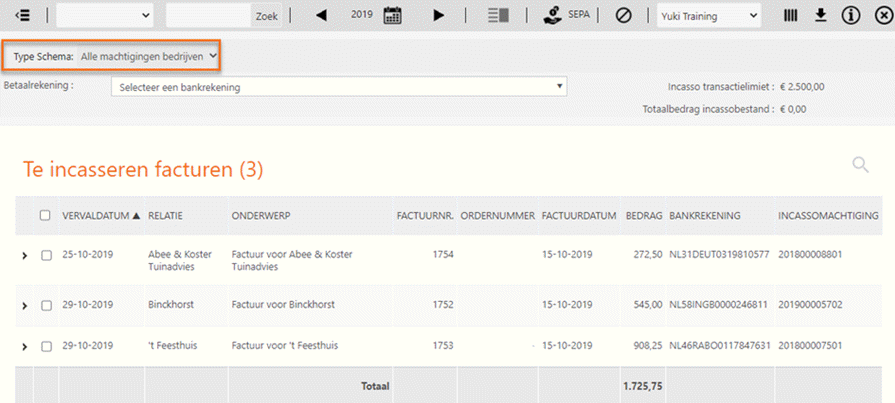
TIP!
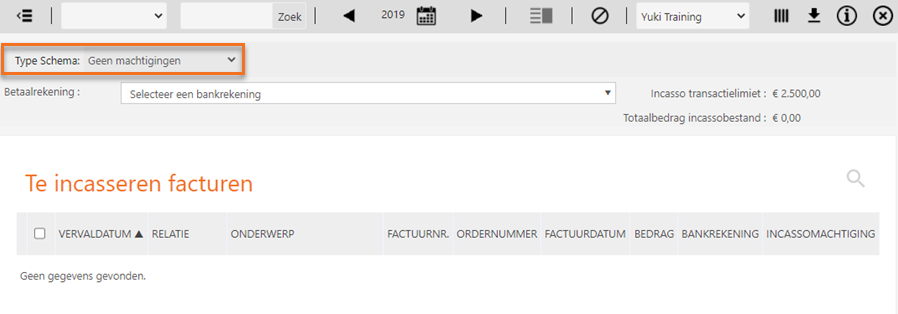
Only invoices to be collected of one mandate type can be included in a SEPA direct debit file. Check the No mandates scheme type if there are still invoices that you want to collect. If so, create one or more new mandates or make sure that the data of the mandate(s) is complete.
Set, if necessary, one or more sales invoices to the status In process by clicking on the Mark as in process button. The invoices disappear from this overview. These invoices can now be viewed and handled in the 'In process' overview.
Select the items that you want to collect.
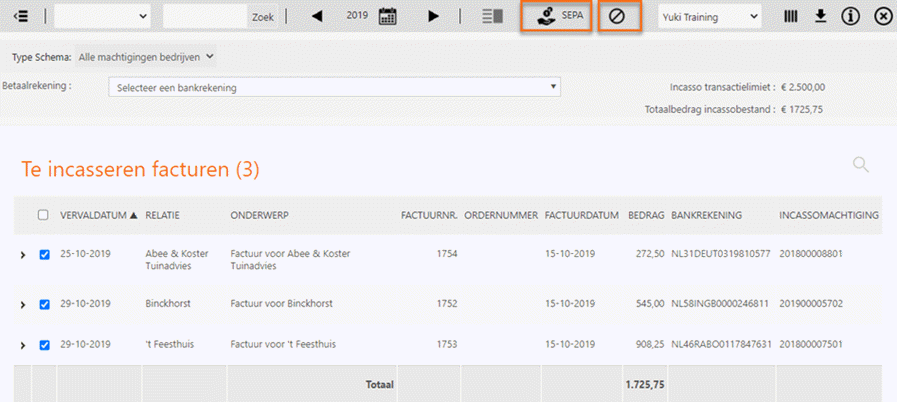
At the top right of the screen, you will see the direct debit transaction limit (set for the bank account) and the total amount of the selected invoices to be collected in the direct debit file.
ATTENTION!
The total amount of the direct debit file turns red as soon as it exceeds the direct debit transaction limit.Select the bank account on behalf of which the invoices have to be collected.
TIP!
The collector ID must have been entered in this bank account.Click on the SEPA button
A draft SEPA direct debit file will be created. The selected invoices disappear from the 'To collect' overview and end up in the 'Payments in transit' overview.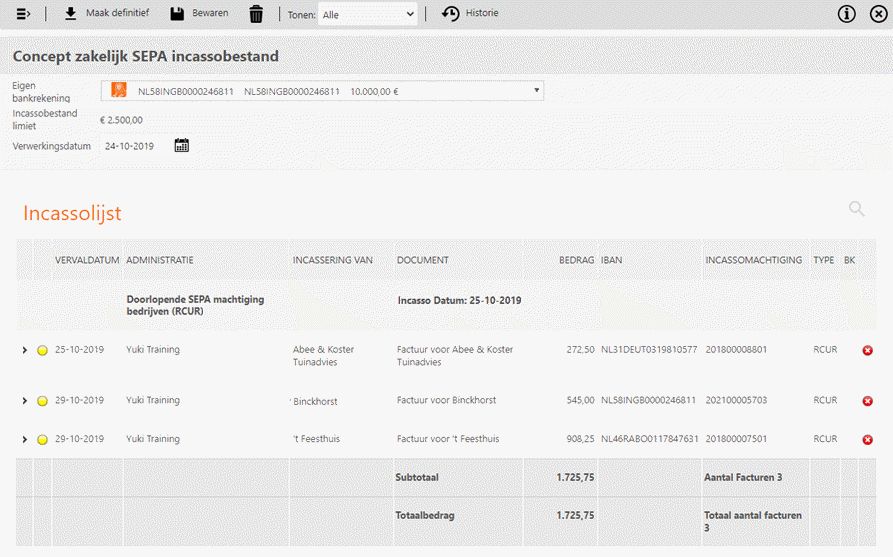
ATTENTION!
The direct debit transaction limit (for the selected bank account) is highlighted in red if it has been exceeded by the total amount of the invoices to be collected in the SEPA direct debit file.
You can see the total amount of the direct debits in the SEPA file at the bottom center of the screen. If you use different processing dates (see explanation below for the ‘Processing date’ field), you will see per date (batch) how much will be collected that day.
TIP!
Use the dropdown menu to filter for sales invoices with missing data (yellow dot) or sales invoices that have been approved for collection (green dot).
Enter the date on which the SEPA direct debit file should be processed.
Click on > in front of a direct debit in order to change it (add missing data or change incorrect data):
- Bank account, IBAN and BIC code
- Schedule for: this allows you to schedule direct debits for future payments.
- Payment reference: the invoice number.
- Payment description: the description of the direct debit mandate
- .Direct debit mandate: the reference number of the direct debit mandate.
Columns in SEPA direct debit file
The following columns are shown in a SEPA direct debit file:
- Green or yellow dot: green if the invoice collection is ready to be sent; yellow if the data is not yet complete.
TIP!
At the top of the screen the overview can also be filtered by Entry incomplete or Approved.
- Due date: date on which the item to be collected must have been paid.
- Administration: administration wherein the direct debit of the invoice is processed.
- Collection of: name of the payer.
- Document: description of invoice wherefore the direct debit is intended. Click on the link to open the invoice.
- Amount: this is the amount that still has to be paid for the invoice.
- IBAN: the bank account number of the payer. Check this number very well before the direct debit file is processed.
- BIC Code: this code will be auotmatically filled in by Nmbrs Accounting (required for payments from abroad).
- Direct debit mandate: reference number of the direct debit mandate.
- Type: the status of the direct debit mandate 'OOFF' (one-off) or 'RCUR' (recurrent).
- PD: payment discount applies to the invoice, the processing date is prior to the due date.
- Delete icon: the invoice to be collected is deleted from the collection file and returned to the 'To collect' overview.
The next time you use the Collect feature, you can open a previously created draft SEPA direct debit file directly by clicking on the message below on your screen:

Finalize SEPA direct debit file
Once all bank accounts have been validated and all direct debit entries are completed, the draft SEPA direct debit file is ready for processing.
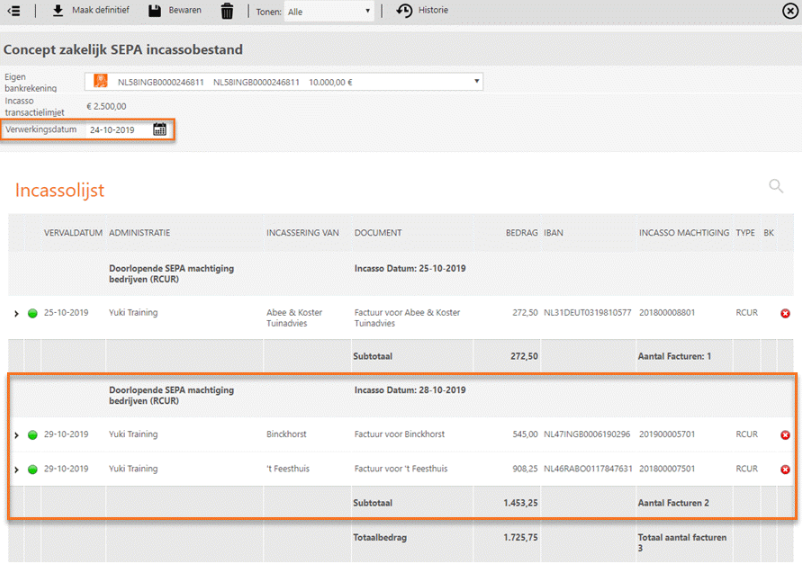
You now have three possibilities:
- Finalize the direct debit file: Click on the Finalize button in order to finalize the draft SEPA direct debit file. This ensures that the direct debit mandates are actually linked to the sales invoices to be collected.
The following notification will appear on your screen: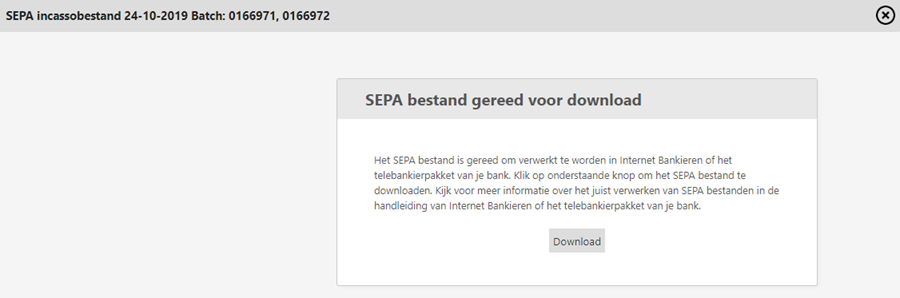
- Click on the Download button to save the direct debit file to your computer (usually in the 'Downloads' folder).
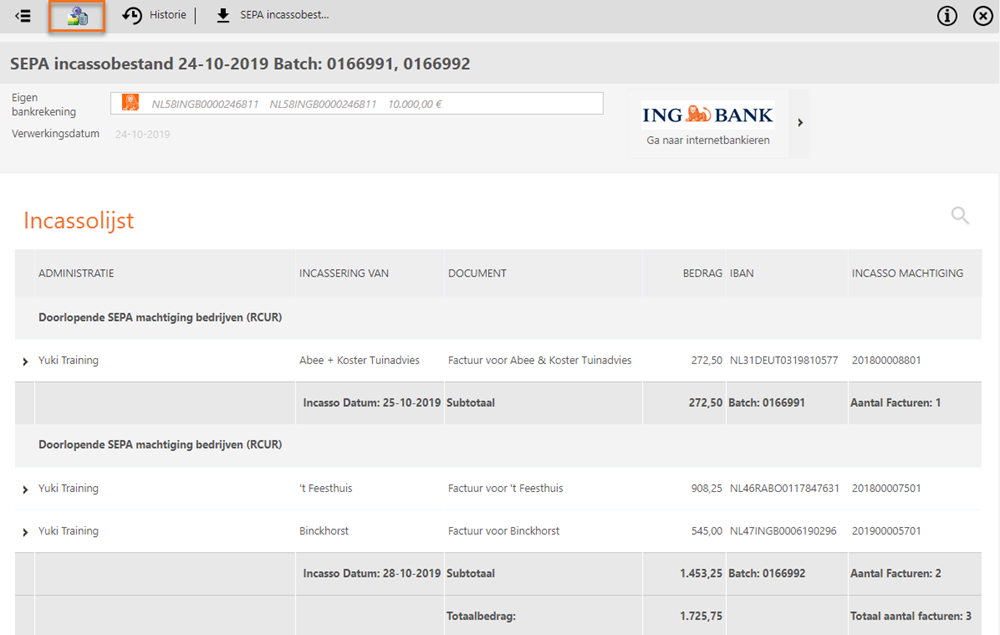
The final SEPA direct debit file will then open automatically: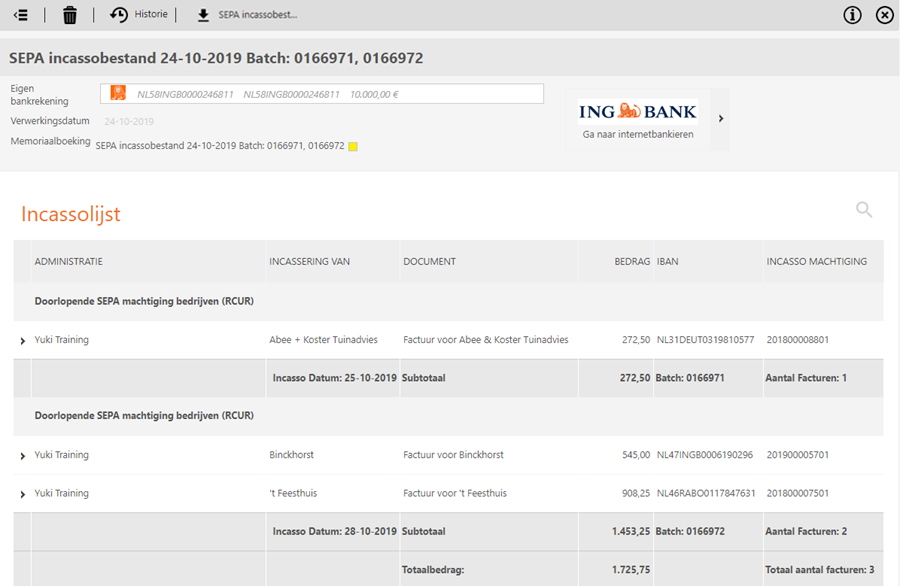
You can also download a final SEPA direct debit file at any time by clicking on the Download SEPA direct debit file button in an opened direct debit file.
To view an overview of all draft and final direct debit files you've created, click on the History button in an opened direct debit file. Of course, you can also open the 'collection history” overview. - Save a draft: To save the data in the draft SEPA dirfect debit file as a draft, click on the Save button. You can then still edit or delete the entries in the direct debit file.
- Delete: To permanently delete the draft SEPA direct debit file, click on the Delete button. All items to be collected will be moved back to the 'To collect' overview..
TIP!
Most banks only accept direct debit files with processing dates that are no older than five days and no newer than thirty days. Please keep this in mind when finalizing the SEPA direct debit file.
Finalized SEPA direct debit file entry
If the Aggregated direct debit file option is enabled for your bank account in Nmbrs Accounting, a journal entry is automatically created from the final SEPA direct debit file.
If this option is not enabled (i.e., a not aggregated direct debit file), a journal entry is only created if there are one or more invoices with a payment discount.
By clicking on the journal entry in the final direct debit file, you can view the journal entry.
Aggregated direct debit file
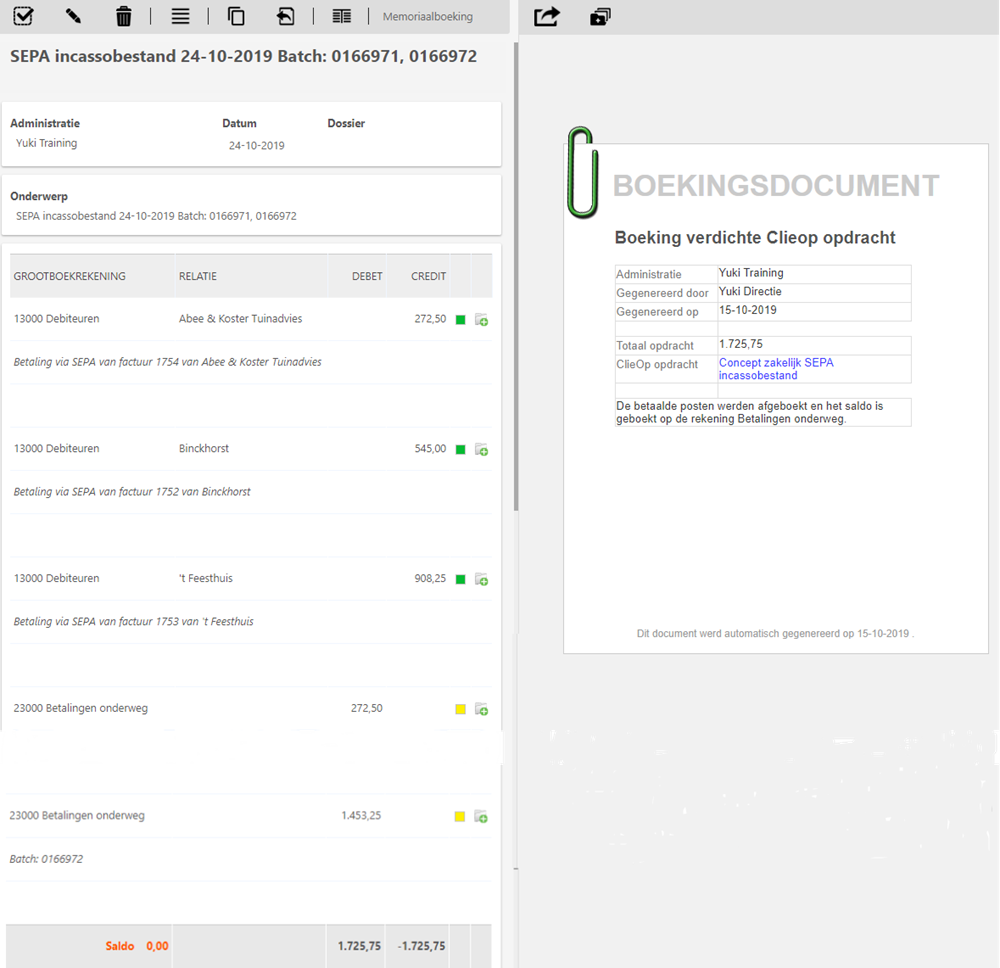
If a aggregated direct debit file is used (a single line item for the direct debit of all invoices), Nmbrs Accounting will create a journal entry to post this line item to GL account ‘23000 Internal transfers of funds’. All outstanding amounts (invoices) are marked as ‘Collected’ and therefore no longer appear in the ‘Payments in transit' overview.
After the bank has processed the direct debit file, the uploaded bank file (with a single line) must be matched in Nmbrs Accounting with the line in GL account ‘23000 Payments in Transit’.
TIP!
A separate line is created for each execution date (batch) in the final SEPA direct debit file.
Not aggregated direct debit file
If you use a not aggregated direct debit file (one line per direct debit), Nmbrs Accounting will not create a journal entry. All amounts to be collected (invoices) will remain open. The invoices will still appear in the 'Payments in trandit' overview.
After the bank has processed the direct debit file, the uploaded bank file (containing direct debits) must be matched in Nmbrs Accounting with the outstanding invoices.
TIP!
When the bank account in Nmbrs Accounting is set to ‘Aggregated,’ the button Create a general journal entry to match the invoices with appears in all not aggregated final direct debit files.
Submit SEPA direct debit file to bank
After you have finalized the SEPA direct debit file (and saved it temporarily on your computer), you still need to “send” it to your bank and authorize it there.
TIP!
In Nmbrs Accounting, there are two business days between the submission date (processing date) and the execution date (direct debit date) for general or business mandates, regardless of whether the mandate has been used before.
If required, the execution date can be manually changed in the SEPA direct debit file.
Most banks have a 'Upload' function on their online banking website. After you upload the SEPA direct debit file, the bank checks whether it can be processed. If everything goes well, you will be asked to approve the final processing by the bank using a code or password.
If, for some reason, the bank is unable to process the SEPA direct debit file, you can open the overview of the created draft and final SEPA direct debit files ('History'). Delete the SEPA direct debit file here so that the invoices are moved back to the 'To collect' overview.
Was this article helpful?
That’s Great!
Thank you for your feedback
Sorry! We couldn't be helpful
Thank you for your feedback
Feedback sent
We appreciate your effort and will try to fix the article