Disclaimer
All screenshots in the article were taken in the Dutch version of Nmbrs Accounting.
After entering contract details, invoice details, and invoice lines, a contract can be completed. On the specified invoice date of the next invoice in the timeline, Nmbrs Accounting will automatically prepare a recurring invoice, which can be sent manually or automatically, as required.
If no sales invoice has yet been prepared by Nmbrs Accounting, the first invoice in a series of recurring invoices can also be generated immediately.
ATTENTION!
It is possible to generate this first invoice immediately on the contract start date.
Generate first invoice
That first invoice can be generated immediately from various places in Nmbrs Accounting.
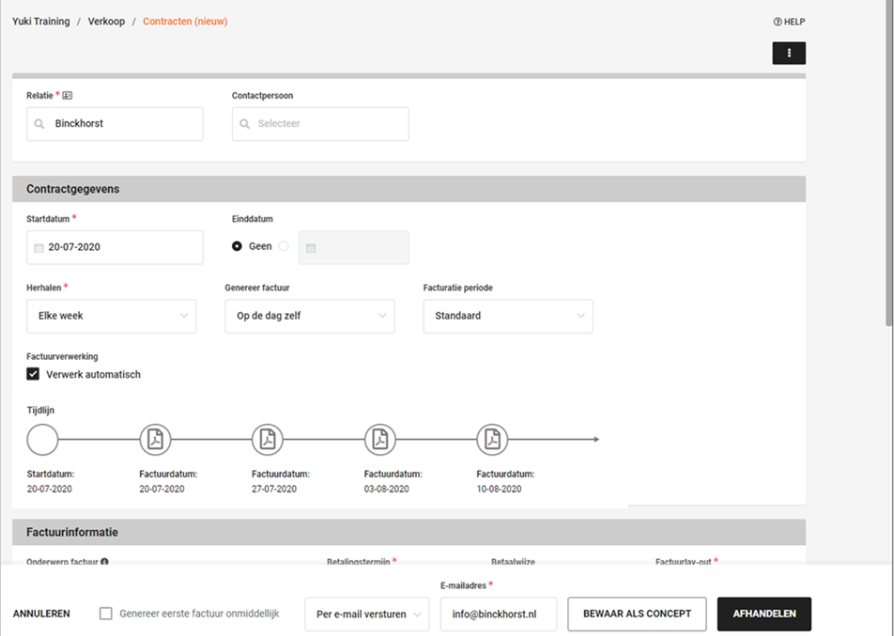
When creating a new contract
Follow the following steps:
- create a new contract
- enter the contract details
- select the Create first Invoice immediately option at the bottom of the screen
- then click on the COMPLETE button.
For a future or current contract
Follow the following steps:
- open a future or a current contract
- at the bottom of the now-opened screen click on the GENERATE INVOICE button
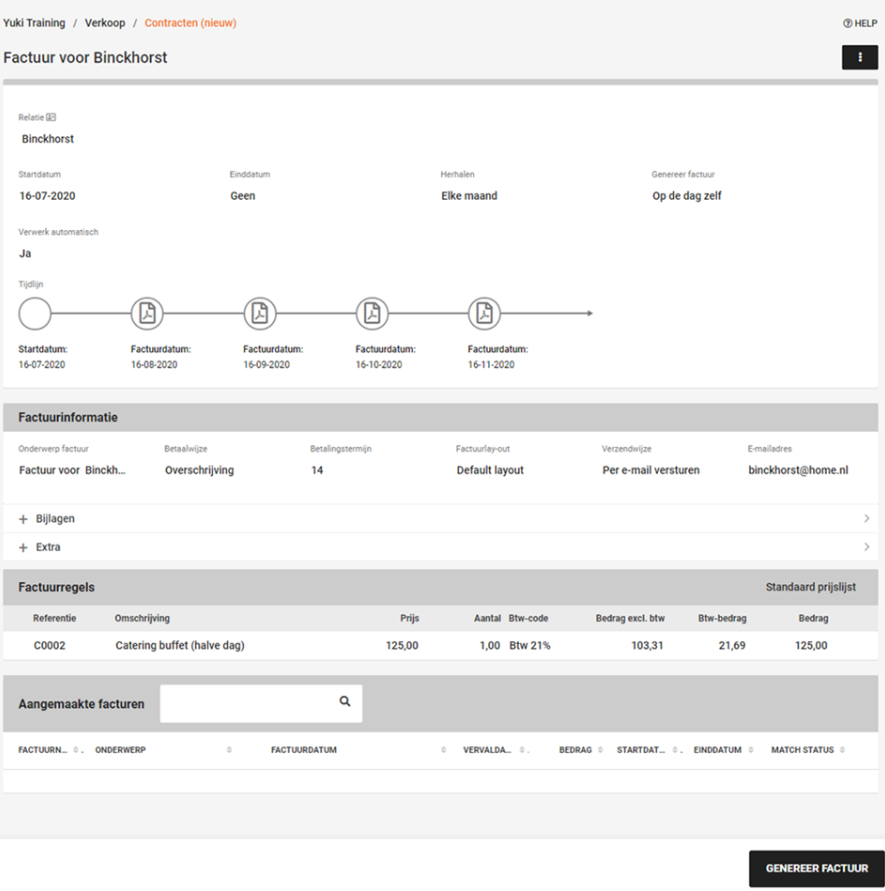
In the now-opened screen you have the option to save the invoice as a draft invoice, as a ready to to sent invoice, or process (and send) the invoice immediately.
Save invoice as an invoice ready to be sent or draft invoice
After saving the generated invoice as an invoice ready to be sent or a draft invoice, it is shown at the bottom of the future or current contract in an overview of created invoices:

The ‘Match status’ column shows that the invoice has not yet been sent.
The invoice ready to be sent can be found in the directly opened ‘Invoices ready to be sent’ work list.
The draft invoice can be found in the directly opened ‘Draft invoices’ work list.
For a detailed description, see Save invoice as draft invoice or Prepare invoice for sending.
ATTENTION!
When the invoice is deleted from the 'Draft Invoices' or 'Invoices ready to be sent' work list, the generated invoice will also be removed from the contract.
Process (and send) invoice immediately
After processing (and sending) the generated invoice, it is shown at the bottom of the future or current contract in an overview of created invoices:

The ‘Match status’ column shows that the invoice is still unpaid.
The sent invoice is opened immediately. You can find the sent invoice in the ‘Outstanding invoices’ work list.
For a detailed description of preparing and sending a sales invoice see articles:
Was this article helpful?
That’s Great!
Thank you for your feedback
Sorry! We couldn't be helpful
Thank you for your feedback
Feedback sent
We appreciate your effort and will try to fix the article