Disclaimer
All screenshots in the article were taken in the Dutch version of Nmbrs Accounting.
As a logged-in user, you can always change your password yourself in Nmbrs Accounting. The steps you need to follow depend on the type of user you are (portal user or domain user).
ATTENTION!
When you change your Nmbrs Accounting password, it will also be changed immediately for your account with the same email address that you use to log in to any of the other Nmbrs modules.
Changing password as portal user
To change your password:
- click on the user button in the top-right corner of the bar.
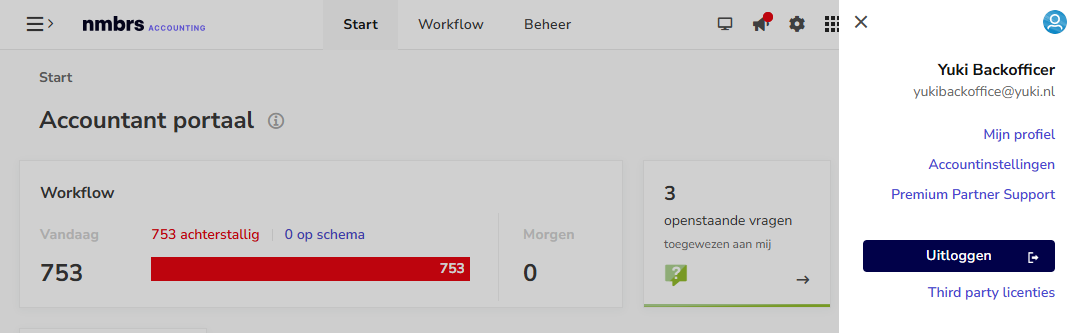
- select Account settings.
Change password as domain user
As a domain user, you can change your password in three ways:
Through your profile
- click on the user button in the top-right corner of the screen.
- Select My profile.
OR
- click on the Settings icon in the navigation bar
- In the Personal section, click on My profile.
Via Contacts
- click on the Contacts icon in the navigation bar
- find and open your own contact card
- click on the Password button.
Change password
The user profile screen is opened:
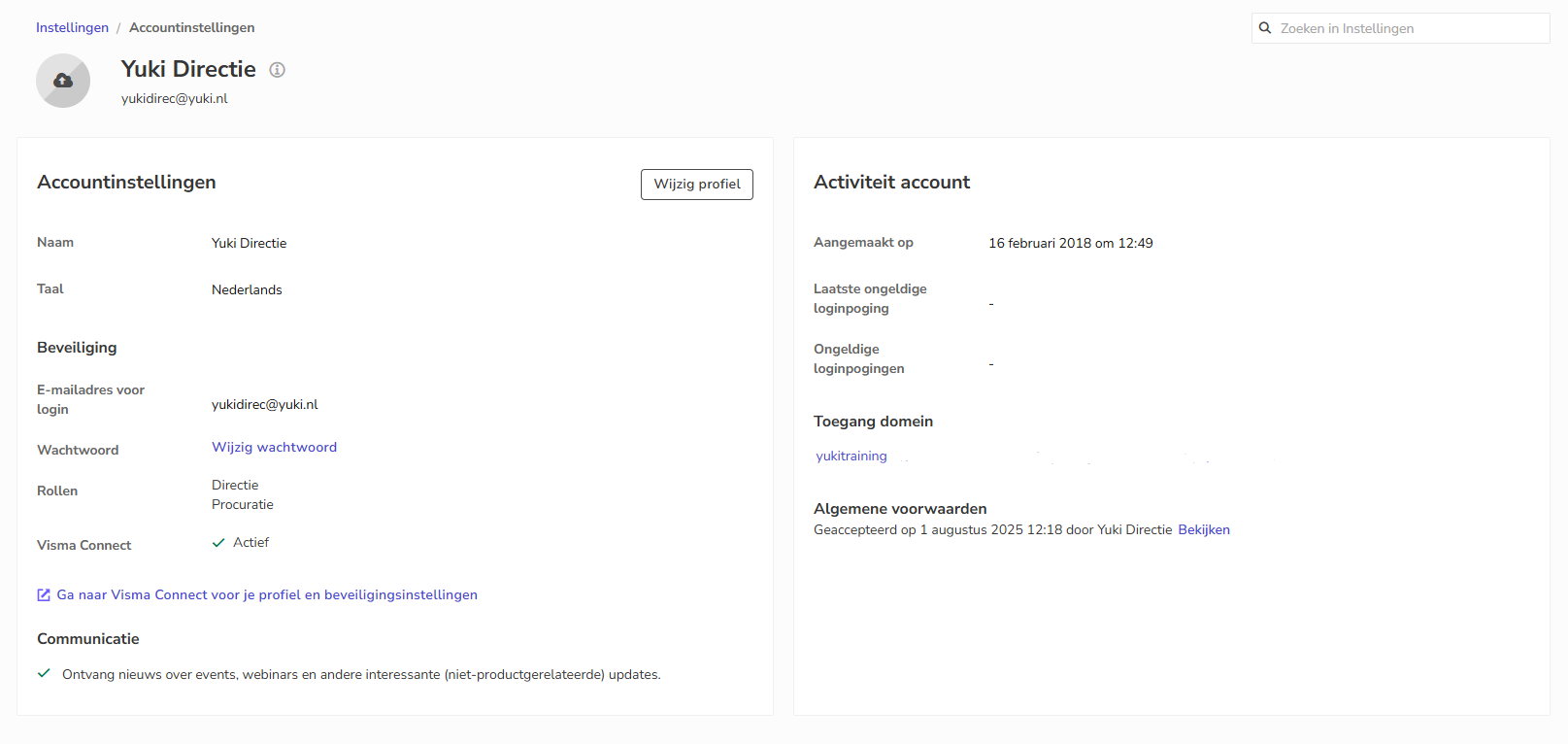
The now-opened screen provides a clear overview of your user profile and account activity.
To change your password:
- click on Change Password next to Password
- If necessary, click on the Sign-in & security section
The following screen is opened: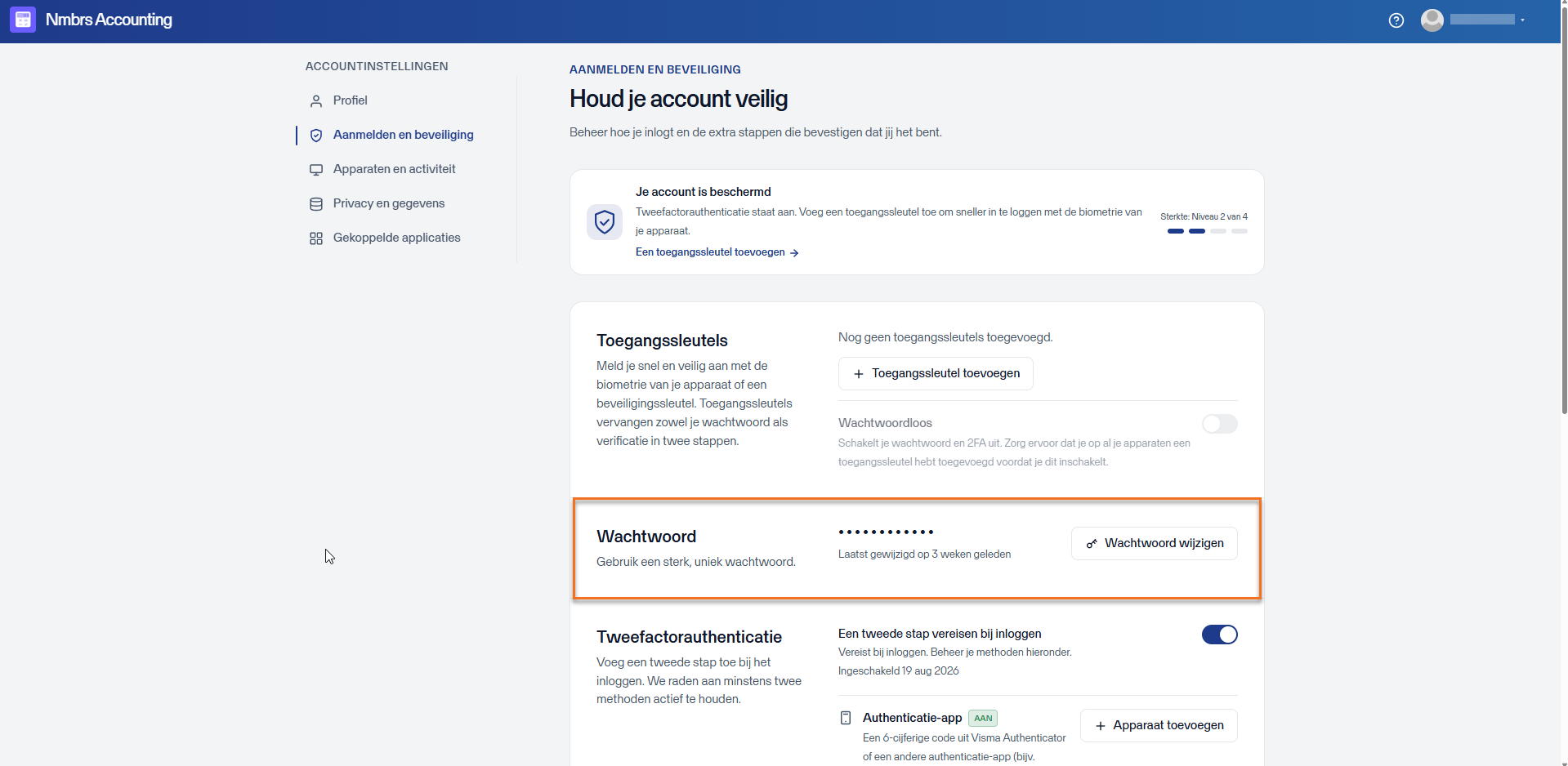
- click on the Change password button
The following screen is opened: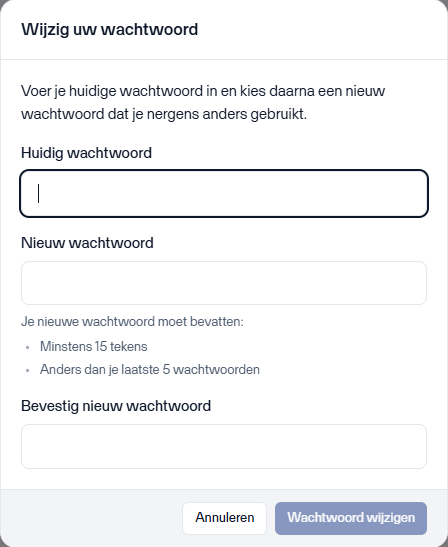
- enter your current password
- enter your new password
- confirm the new password by entering it again
- then click on the Change password button to save the new password.
Specific password requirements
Nmbrs Accounting has specific requirements for passwords to ensure security. These guidelines ensure that your password is strong enough to prevent unauthorized access.
For a detailed description of these guidelines, see article Password policy.
Was this article helpful?
That’s Great!
Thank you for your feedback
Sorry! We couldn't be helpful
Thank you for your feedback
Feedback sent
We appreciate your effort and will try to fix the article