Disclaimer
All screenshots in the article were taken in the Dutch version of Nmbrs Accounting.
The import feature in Nmbrs Accounting can be used to import sales items in bulk into an administration.
IMPORTANT!
When importing sales items into Nmbrs Accounting, it is crucial that the import file strictly complies with the technical specifications. Therefore, you must use the import template file, which you can download, for the import.
After adding the sales items to be imported, save the import template file as a CSV file with columns separated by semicolons.
Important notes on using the import template
- Language setting: the language of the downloaded template (Dutch, English, or French) is determined by the language set in your user profile.
- Column headers: do not change the names of the columns. For a successful import, Nmbrs Accounting requires the exact text of the headers.
- Do not delete columns: never delete columns, even if you do not use them. Simply leave the relevant columns blank.
- Top two lines: The first two lines of the import file contain the column headers and explanations. Nmbrs Accounting automatically skips these during the import.
- Linking sales items to the GL account: imported sales items are always linked to GL account ‘80000 Sales Item Group 1’ and must therefore be changed afterward if necessary.
If GL account ‘80000 Sales Item Group 1’ is not active, the ‘GL account’ field in the sales item details remains empty. When adding the sales item to a sales invoice (editor), a GL account must then be assigned.
Description of columns in the import template file
The import template file contains the following columns:
- Reference
Product reference, max. 28 characters - Description (Dutch) (required)
Description of product or service in Dutch, max. 100 characters - Price (required)
Price of the sales item in Euros:- separate decimals with a comma, max. 2 decimals
- the ‘.’ for thousands is optional (1,000.00 or 1000.00 are both possible)
- no negative prices, so you cannot use a - symbol
- numbers only, no letters
- Including VAT (required)
Indicate here whether the price in the ‘Price’ column is the total price including VAT (Yes) or the total price excluding VAT (No) - VAT (required)
Select the VAT rate applicable to the sales item here. - Additional description
A more detailed description of the sales item, max. 500 characters. This will appear directly below the invoice line on the invoice.
Text formatting not allowed
All text must be on a single line (so no <Enter> for new lines or blank lines, no bullet points, etc.) - Internal note
An internal note for the sales item, max. 1000 characters. It will not appear on the invoice. - Description (English)
Description of product or service in English, max. 100 characters - Description (French)
Description of product in French, max. 100 characters
Access to Sales items
To access:
- click on the Sales icon in the navigation bar
- then click on Sales items.
Import sales items
To import sales items:
- click on the Import sales items button
The following screen is opened: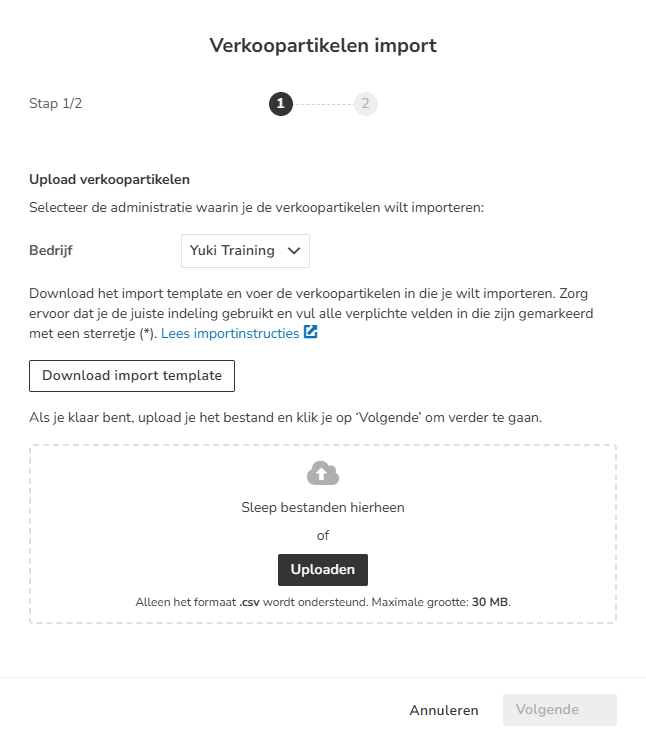
- select the administration for which you want to import the sales items (if there is more than one administration in the domain)
- dDownload the import template file by clicking on the Download import template button
- add all the sales items you want to import into the selected administration to the import file
- save the import file (Excel sheet) as a CSV file
Make sure the columns are separated by a semicolon (;).
The maximum size of the import file is 30 MB.
click on the Upload button
The following screen is opened: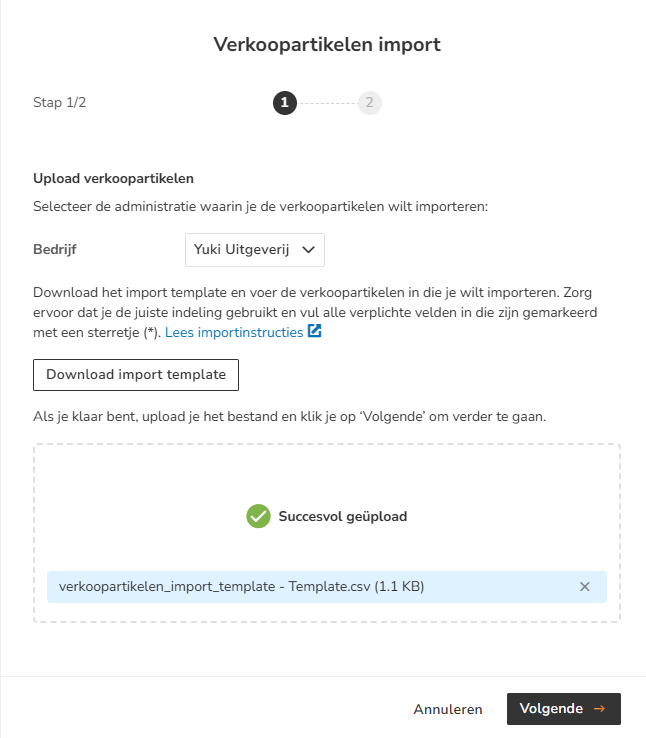
Error message
A message appears on the screen if the import file contains an error, such as an incorrect number of columns.
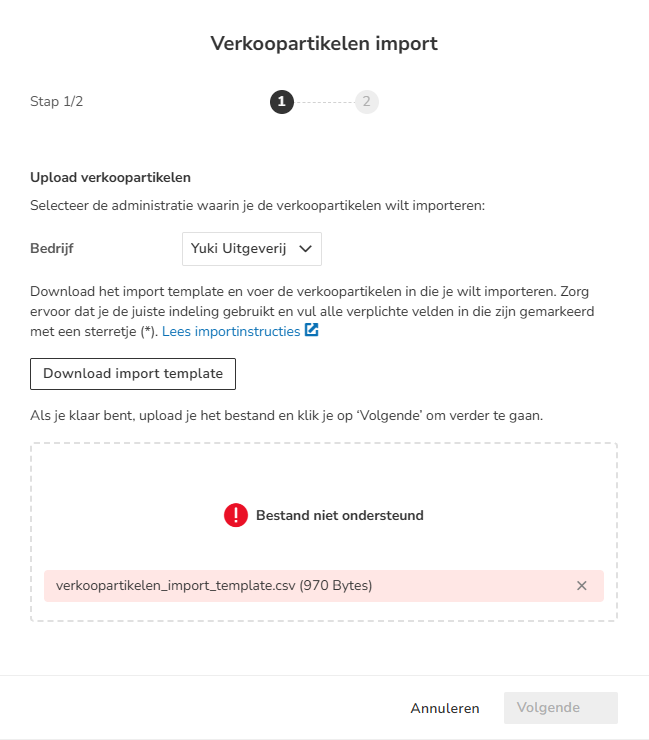
click on the Next button
The following screen is opened: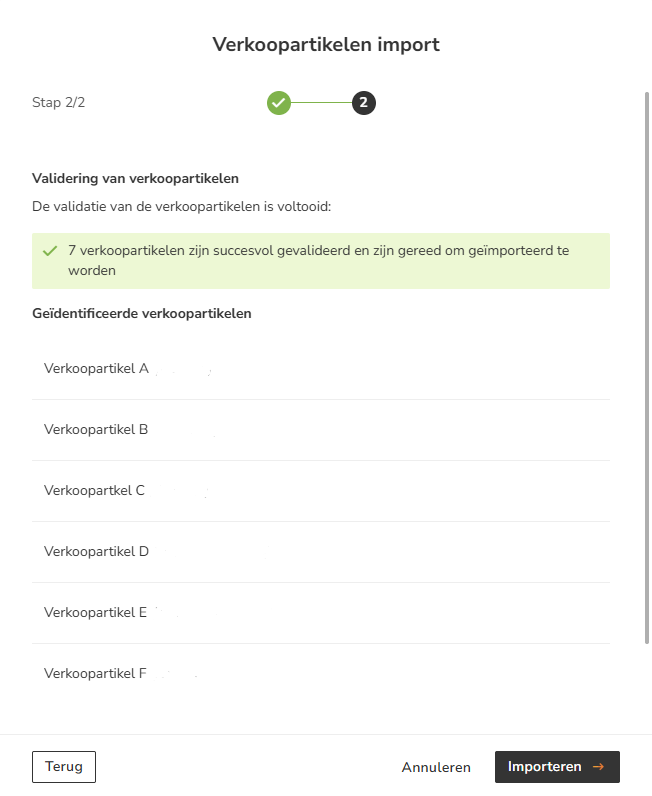
then click on the Import button.
Possible error messages
When validating the data for sales items, the system checks the import template file for the following potential errors:
- The maximum number of characters has been exceeded
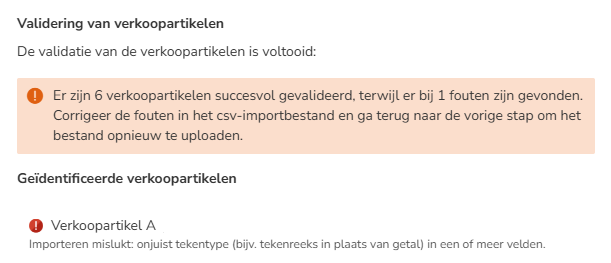
- Certain characters are not allowed (negative prices, or the use of letters in the price field.
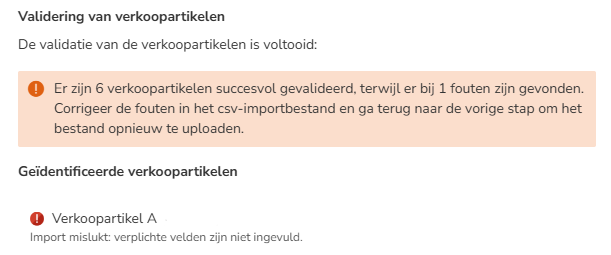
- Required fields are empty
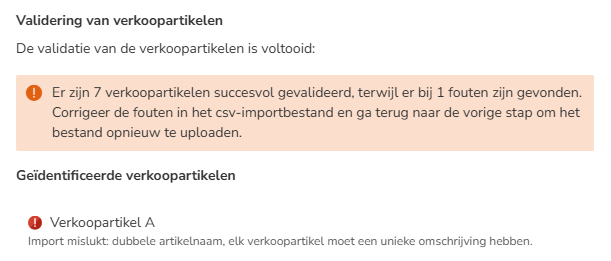
- The sales item already exists in Nmbrs Accounting (the description for each sales item must be unique)
Was this article helpful?
That’s Great!
Thank you for your feedback
Sorry! We couldn't be helpful
Thank you for your feedback
Feedback sent
We appreciate your effort and will try to fix the article