Disclaimer
All screenshots in the article were taken in the Dutch version of Nmbrs Accounting.
Before you start creating and sending sales invoices, you must first enter, check, and/or update the sales invoice settings.
ATTENTION!
Different sales settings can be defined for each administration within a domain.
You can set the following settings for sales invoices:
- Invoice details
Company details, contact information, and invoice number - Payment details
Electronic transfer details, Payment text and Integrations - Sending method
Standard method, Email Settings, and Integrations - Invoice layout
General, Layout, Content and Notes.
Each setting is described in detail in a separate article.
Access to Invoice details settings
To access:
- click on the Sales icon in the navigation bar
- then click on Sales settings
- in the now-opened screen, select the Invoice details tab.
Invoice details settings
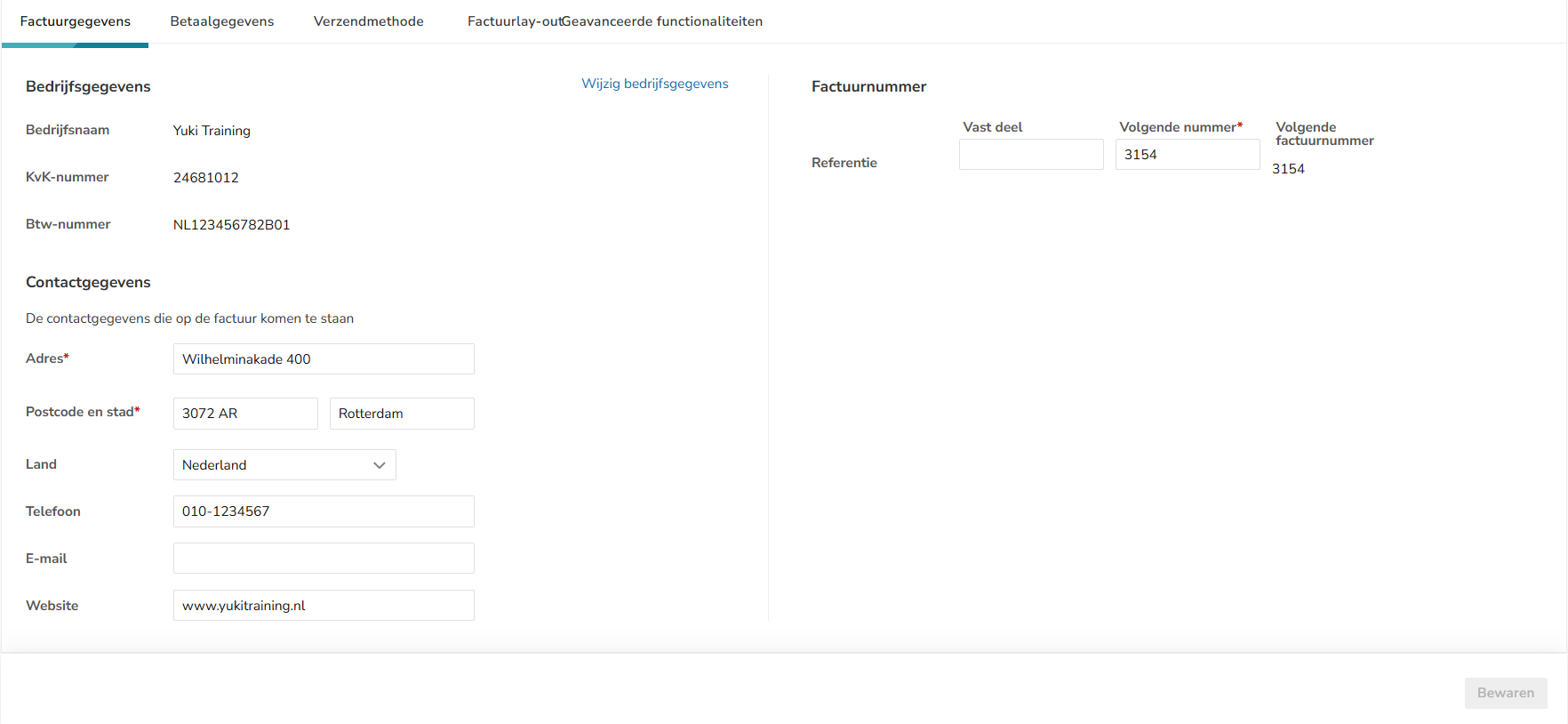
The following invoice details settings can be entered.
Company Information
This data is shown on the sales invoice.
The company name, Chamber of Commerce number, and VAT number are automatically taken from the information in the administration profile.
ATTENTION!
If this information is incorrect, please contact your accountant to have the relevant details changed.
Contact Information
This information is on the sales invoice.
The address, postal code, and city are mandatory and are therefore always included on the sales invoice. The correct country must be selected manually.
If data has been entered in the Phone, Email, and/or Website fields, this information will also be displayed on the sales invoice.
Invoice number
Prefix
Make your invoice number recognizable, for example, start it with 25.xxx, where the 25 represents 2025. Start each year with a new series.
Don't make the number any longer than necessary. That only costs your customer more input work to book and pay the invoices.
You can use a period as a separator to make longer numbers more readable (for example: 215.018).
Next number (required)
The number you enter here will be used for the next sales invoice you process.
Prevent duplicate invoice numbers. So, if you sent invoices before using Nmbrs Accounting, make this number follow the last one you used.
TIP!
Choose a number with at least five digits. To ensure proper recognition of invoice payments, the invoice number should be a sufficiently unique value.
Four digits can be confused with postal codes. Two or three digits are also not distinctive enough.
Next invoice
This number is automatically filled with the number you entered in the Next number field.
Was this article helpful?
That’s Great!
Thank you for your feedback
Sorry! We couldn't be helpful
Thank you for your feedback
Feedback sent
We appreciate your effort and will try to fix the article