Disclaimer
All screenshots in the article were taken in the Dutch version of Nmbrs Accounting.
Before you start creating and sending sales invoices, you must first enter, check, and/or update the sales invoice settings.
ATTENTION!
Different sales settings can be defined for each administration within a domain.
You can set the following settings for sales invoices:
- Invoice details
Company details, contact information, and invoice number - Payment details
Electronic transfer details, Payment text and Integrations - Sending method
Standard method, Email Settings, and Integrations - Invoice layout
General, Layout, Content and Notes,
Each setting is described in detail in a separate article.
Access to Payment details settings
To access:
- click on the Sales icon in the navigation bar
- then click on Sales settings
- in the now-opened screen, select the Payment details tab.
Payment details settings
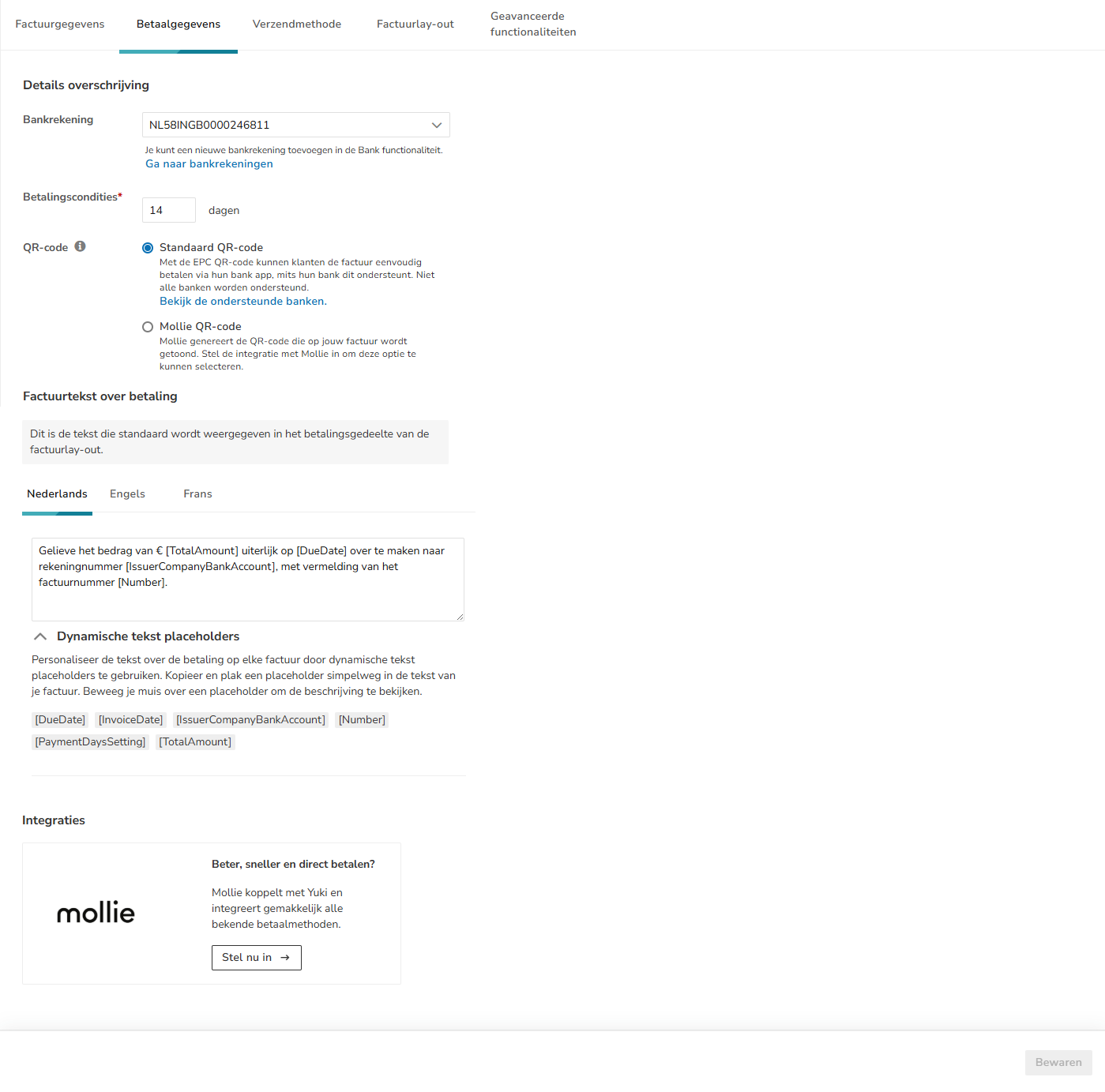
The following payment details settings can be entered.
Electronic transfer details
Bank account
If more than one bank account is listed in the administration, you can specify which bank account should appear on the sales invoice here.
ATTENTION!
To be able to add a bank account to a sales invoice, at least one bank account (Bank) must have been created in the administration and/or domain.
Payment terms (days) (required)
Specify here within how many days you want customers to pay you. A payment term of 14 days is common.
The due date is calculated based on the invoice date and the payment term.
You can have that printed on your invoice. Especially if you also want to make use of Nmbrs Accounting's reminders and notifications, this deadline is important.
QR code
There are two types of QR codes that you can specify to be shown on the sales invoice:
- Standard QR code (or EPC QR code)
This QR code is a universal European QR code that can be used for SEPA transfers.
The recipient of the sales invoice can pay it by scanning the QR code with their own banking application on their smartphone. In doing so, data such as the company name, total amount, description and bank account number are entered automatically, reducing the chance of incorrect entry.
There is no charge for using this QR code.
ATTENTION!
At the moment, this QR code is only supported by the following banks in the Netherlands:- ING
- Knab
- ASN Bank
- SNS Bank
- Argenta (Bunq and Regiobank).
- Mollie QR code
If a bank account in Nmbrs Accounting is linked to the payment provider Mollie, a Mollie QR code can be shown on the sales invoice.
The recipient of the sales invoice can pay it by scanning the Mollie QR code with the camera or scanning application on the smartphone. The customer is redirected to the Mollie payment screen, where the payment methods defined within the Mollie account are available.
Mollie payment link
In addition, the Mollie payment link is automatically included in the email containing the sales invoice.
ATTENTION!- Was there already a Mollie account linked with Nmbrs Accounting before the activation of Sales Standard?
To set the correct permissions for using the QR code, you need to disconnect your Mollie account from Nmbrs Accounting and then reconnect it to Nmbrs Accounting.
You can disconnect your account with Mollie from your administration at any time by clicking on the Disconnect account button.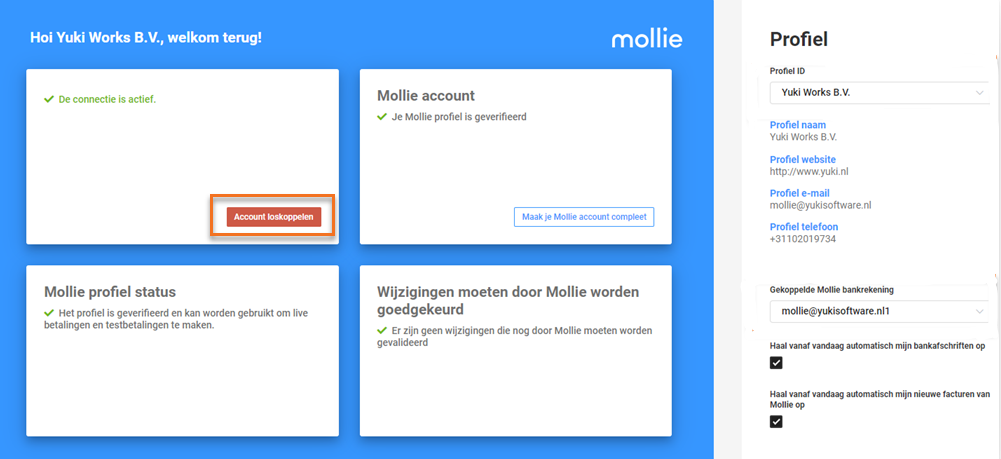
After reconnecting with Nmbrs Accounting, don't forget to reconnect your Mollie bank account and, if required, re-enable automatic bank statement and/or invoice retrieval. Make sure the payment methods that can be used by your customer are correctly defined in your Mollie account.
- Was there already a Mollie account linked with Nmbrs Accounting before the activation of Sales Standard?
Payment text
Enter here the invoice payment text that will be shown by default on every Dutch, English or French invoice.
Dynamic placeholders
You can personalize the text about the payment by using dynamic text placeholders. Simply copy and paste a placeholder into the invoice text about the payment.
Hover your mouse over a placeholder to view its description.

Integrations
You can link the payment provider Mollie with Nmbrs Accounting and thus offer your customers a number of well-known payment methods directly.
Click on the button Now set it up to link your administration with an existing Mollie account,
For a detailed description, see article Mollie.
When the administration is linked to Mollie, the status "Active" is shown
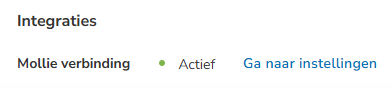
You can view and, if necessary, change the settings of the Mollie connection by clicking on the Go to settings button.
Was this article helpful?
That’s Great!
Thank you for your feedback
Sorry! We couldn't be helpful
Thank you for your feedback
Feedback sent
We appreciate your effort and will try to fix the article