Disclaimer
All screenshots in the article were taken in the Dutch version of Nmbrs Accounting.
Before you start creating and sending sales invoices, you must first enter, check, and/or update the sales invoice settings.
ATTENTION!
Different sales settings can be defined for each administration within a domain.
You can set the following settings for sales invoices:
- Invoice details
Company details, contact information, and invoice number - Payment details
Electronic transfer details, Payment text and Integrations - Sending method
Standard method, Email Settings, and Integrations - Invoicel layout
General, Layout, Content and Notes.
Each setting is described in detail in a separate article.
Access to Invoice layout settings
To access:
- click on the Sales icon in the navigation bar
- then click on Sales settings
- in the now-opened screen, select the Invoice layout tab.
Invoice layout settings
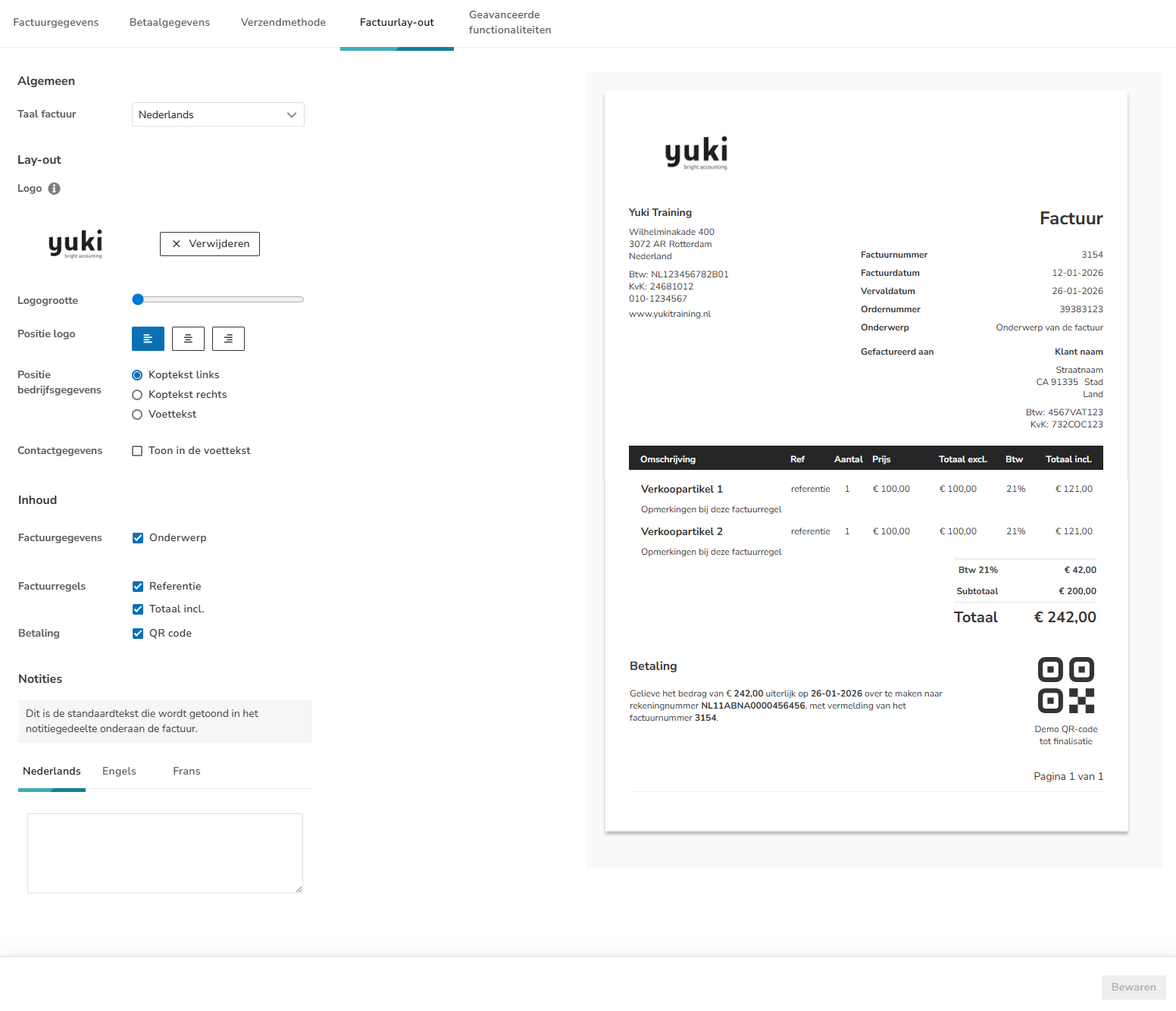
The following invoice layout settings can be entered.
General
You can also create English or French sales invoices in Nmbrs Accounting.
For a detailed description, see the article Sales Standard - Create sales invoice in foreign language.
Layout
Logo
You can use an image file as a logo on your sales invoice with a maximum file size of 1MB.
For optimal placement on the sales invoice, the image should be 200px high and 120px wide.
The size of the image must be no more than 3000px high and 3000px wide.
To upload the image file, click on the Upload button.
An uploaded logo can always be removed by clicking on the Delete button.
Logo size
Use your mouse to slide the blue bar to the right or left to enlarge or shrink the logo.
Logo position
The logo can be placed in the top left, center, or top right of the sales invoice.
Company details position
The company details (company name, Chamber of Commerce number, and VAT number) can be placed in the top left or top right corner under the logo.
This information can also be shown at the bottom of the sales invoice (in the footer).
Contact information
Contact details may or may not be shown at the bottom of the sales invoice (in the footer).
Content
Invoice details
The subject of the invoice may or may not be displayed on the invoice.
Invoice lines
The reference and/or the total amount including the sales item may or may not be shown on the invoice.
Payment
A QR code may or may not be included on the sales invoice. Customers can scan the QR code, which allows them to pay the sales invoice directly.
Notes
This is the standard text that is shown in the notes section at the bottom of the invoice.
You can enter the standard text for Dutch, English, or French invoices.
Was this article helpful?
That’s Great!
Thank you for your feedback
Sorry! We couldn't be helpful
Thank you for your feedback
Feedback sent
We appreciate your effort and will try to fix the article