Pay (free of charge) and the additional feature Pay with Pay are both payment options within the Nmbrs Accounting app.
You can always view all transactions (payments) you have made and the corresponding invoices or receipts.
For all transactions where the invoice or receipt is missing, you must upload the missing document.
TIP!
When you upload invoices and receipts via Pay, Nmbrs Accounting automatically matches them to the corresponding transactions.
ATTENTION!
The way documents and transactions are posted in your Nmbrs Accounting administration does not change as a result of the automatic matching of transactions.
View transactions (payments)
To view a transaction:
- click on the Transactions button in the Pay home screen
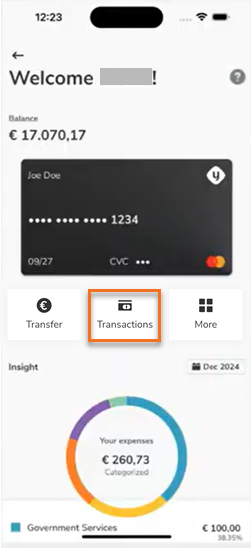
In the now-opened screen, you will see all transactions and their status:
For all transactions under which there is no label, you have already submitted the corresponding documents. - to view the corresponding document for a transaction, click on the corresponding transaction.

Upload missing invoice or receipt
Under all transactions for which an invoice or receipt has not yet been uploaded, the orange label Missing expense detail is shown.
To provide the corresponding document of a transaction:
- click on the corresponding transaction
- then, in the now opened screen, clcik on the Upload button.
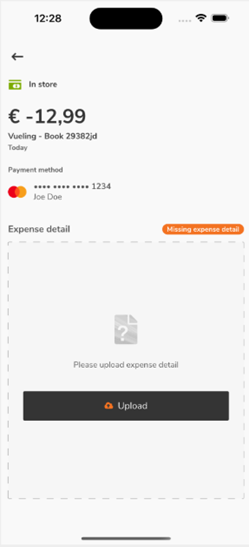
- Go through the steps to upload the missing invoice or receipt.
Was this article helpful?
That’s Great!
Thank you for your feedback
Sorry! We couldn't be helpful
Thank you for your feedback
Feedback sent
We appreciate your effort and will try to fix the article