Disclaimer
All screenshots in the article were taken in the Dutch version of Nmbrs Accounting.
With the export feature, you can easily download all transactions from cash registers, bank statements, credit cards, and electronic statements into a single, easy-to-read CSV file. This file is ideal for archiving, reporting, or importing into other software programs.
Permissions and roles
Only a user with the ‘Back office’ role in the domain or the ‘Management’, ‘Financial Administration’ or ‘External Accountant’ role can export statements.
Export statements
To export a statement:
- click on the Bank icon in the navigation bar
- click on Export statements
The following screen is opened: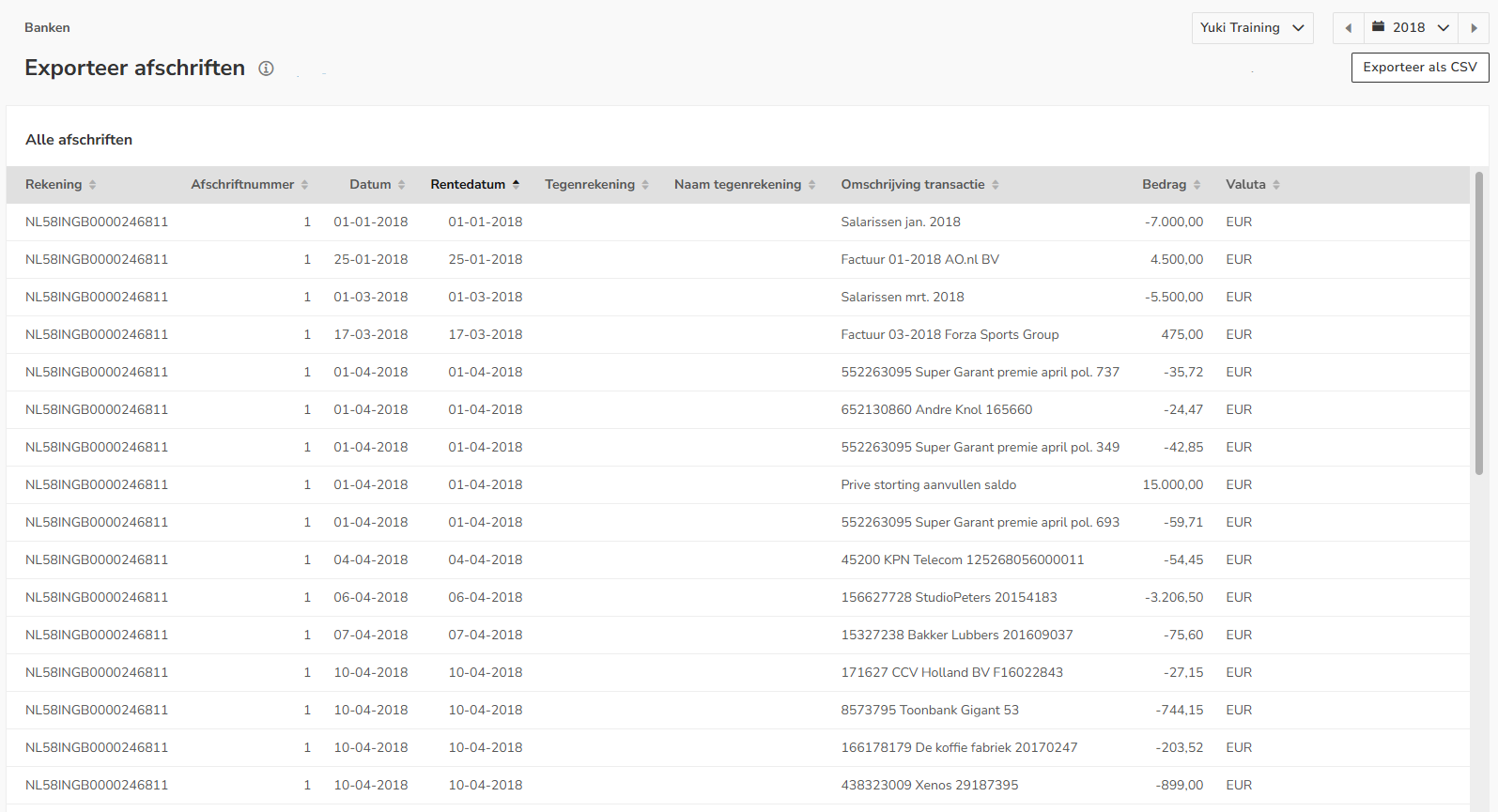
- choose whether you want to export the transactions from all administrations within the domain, or filter by a specific administration
- select the required period
Specify the required time range: all financial years, a specific year, half-year, quarter, or a single month.
then click on the Export as CSV button.
The following message appears on the screen:
The CSV file will be automatically downloaded to your computer (by default, to the Downloads folder).
CSV file structure
- 9 columns: the structure and order of the nine columns in the CSV file exactly match the columns as they appear on the screen in Nmbrs Accounting.
- Universal data: the exported file can be opened directly in Excel or imported into external analysis and reporting software.
Was this article helpful?
That’s Great!
Thank you for your feedback
Sorry! We couldn't be helpful
Thank you for your feedback
Feedback sent
We appreciate your effort and will try to fix the article