Disclaimer
All screenshots in the article were taken in the Dutch version of Nmbrs Accounting.
'Own bank accounts' include all business financial accounts that you use for the company, including:
- Checking, savings, securities, investment, and escrow accounts
- G-accounts
- Credit cards and online payment providers
- Foreign currency accounts.
ATTENTION!
Bank accounts belonging to customers and suppliers are excluded from this; you manage these directly on the relevant contact card.
Create accounts: Automatic vs. Manual
- Automatic creation:
When uploading electronic bank files (containing transaction lines), Nmbrs Accounting automatically creates the corresponding accounts. This also applies to credit card files from Rabobank and ABN AMRO. - Manual creation (recommended):
To prevent errors with the invoice type or its assignment to the correct administration, it is advisable to manually create known invoices in advance. - Mandatory manual creation:
- Most credit cards and online payment providers.
- Accounts with an automatic accounting link (such as ABN AMRO, ING, Rabobank, or Knab). Without manual creation beforehand, Nmbrs Accounting cannot link incoming transactions to the correct accounting record.
Unaggregated vs. aggregated SEPA file
When processing payments or direct debits via SEPA, the bank’s processing method determines which option you choose:
- Unaggregated SEPA file: The bank lists each individual payment or direct debit as a separate line item on the statement.
- Aggregated SEPA file: The bank combines all transactions into a single summary line on the statement (processed through a suspense account).
Which setting you enable depends on how your bank presents the submitted batch file on the statement.
ATTENTION!
- The Aggregated SEPA payment file option is only available if a user with the 'Management”\' role has selected the Small, Medium, Large, or Unlimited bundle through the Store in the domain.
- The Aggregated SEPA direct debit file option is only available if a user with the 'Management'role has selected the Large or Unlimited bundle through the Store.
Permissions and roles
Back office (in domain), Management, Financial administration or External accountant
A user with this role can manually create a bank account, credit card, or online payment provider.
Back office (in domain)
A user with this role can also specify whether an unaggregated or aggregated SEPA payment file and/or direct debit file is being used.
Access to Bank accounts
To access:
- click on the Bank icon in the navigation bar
- click on Bank accounts
- then in the now-opened screen, select the Bank account, Credit card or Online payment provider menu option from the dropdown menu of the Add... button
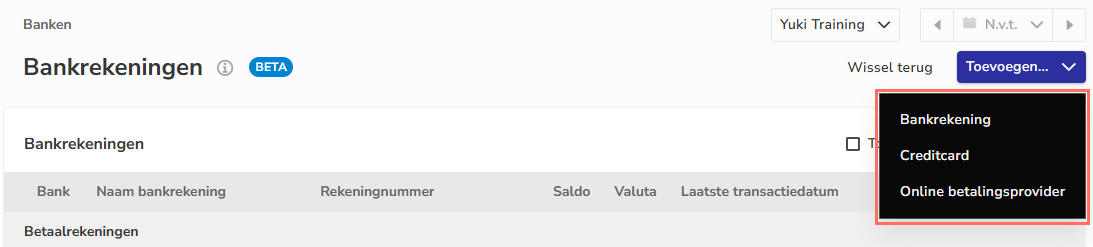
Add bank account manually
To add a bank account manually:
- click on the Bank account menu option
The following screen is opened:
- please fill out the fields above as completely as possible.
- General information
- Administration: (Visible only when multiple administrations exist) Select the administration to which the bank account belongs.
- Administration: (Visible only when multiple administrations exist) Select the administration to which the bank account belongs.
- Account details
- Description: Enter a recognizable reference to supplement the account number (for example, Pay ING *123). Do you manage multiple administrations within the domain? If so, include the administration name in the description (for example, Pay ING Administratie B.V. *123).
- Issuer bank country: Select the country where the bank is located.
- Bank: Select the bank from the list. If the bank is not listed, select “Other [country] banks.”
- Bank identificatier: Choose between “IBAN” or “Account Number” and enter the details. Use “Account Number” for accounts without an IBAN format.
- BIC: Generated automatically after entering a valid IBAN.
- Type: Select Checking account, Savings account, or Deposit account.
- Nmbrs Accounting automatically links the corresponding GL account based on this type (may be relevant for reporting).
- This field cannot be changed once the first transactions have been posted to the account.
- Account owner (Account holder): Enter the official name of the account holder as it appears on file with the bank.
- Currency: Select the currency of the account.
Condition: This field is only visible if the Foreign currency feature has been enabled via the contract by the accountant. If a currency is missing from the list, enable it first via the domain settings (see the article Set currencies). - Opening balance (in F.C.): Enter the closing balance from the previous fiscal year here if the account was already active before you started using Nmbrs Accounting (for a foreign currency account: in foreign currency).
- Nmbrs automatically generates a fixed journal entry to account 11099 - Bank opening balance suspense account.
- Changes to this field automatically update the existing journal entry; no duplicate transaction is created.
- Active: Uncheck this box if the account is no longer in use. The account will be hidden in the default overview (similar to a zero balance).
In the account overview, check the Show inactive bank accounts option to make these accounts visible again.
- SEPA settings and direct debit
- Aggregated SEPA file: (Can only be configured with the 'Back office' role)
Adjust these settings to match how your bank breaks down or consolidates batch files on your bank statements.- Payment: When activated, a collective payment is posted as a single line item via Internal Transfers / Internal transfer of funds. After finalizing the SEPA payment file, Nmbrs Accounting automatically generates a journal entry that immediately marks outstanding invoices as “paid.”
- Collection: When activated, the final SEPA direct debit file automatically generates a journal entry, after which the corresponding entries are immediately removed from the 'Payments in transit' overview.
- Aggregated SEPA file: (Can only be configured with the 'Back office' role)
ATTENTION!
The direct debit fields below are visible only when Payment account is selected under Type:
- Collector ID: Enter the unique Collector ID from your SEPA direct debit contract with the bank. This field is required to generate SEPA direct debit files.
- Direct debit file limit: Enter the contractually agreed-upon maximum amount per direct debit transaction (if applicable).
- click on the Save button to add the bank account to the selected administration.
Add credit card manually
In Nmbrs Accounting, you can manually add business credit cards from the following credit card companies:
- American Express
- Eurocard/MasterCard
- Visa.
To add a credit card manually:
- click on the Credit card menu option
The following screen is opened:
- please fill out the fields above as completely as possible.
- General information
- Administration: (Visible only when multiple administrations exist) Select the administration to which the credit card belongs.
- Administration: (Visible only when multiple administrations exist) Select the administration to which the credit card belongs.
- Account details
- Description: Enter a clear reference (for example, CC Visa ING *1234). Do you manage multiple accounts within the domain? If so, be sure to include the account name in the description (for example, CC Visa ING Company X *1234).
- Credit card provider: Select the company that issues the credit card (American Express, Eurocard/MasterCard, or Visa).
- Card number: Enter the full credit card number.
ATTENTION!
To ensure that Rabobank credit card transactions are imported automatically and correctly, you must enter at least the last four digits of the credit card number correctly. - Account owner (Account holder): Enter the official name of the account holder as it appears on file with the bank or card issuer.
- Currency: Select the currency for the credit card.
Condition: This field is only visible if the Foreign currency feature has been enabled via the contract by the accountant. If a currency is missing from the list, enable it first via the domain settings (see the article Set currencies). - Opening balance (in F.C.): Enter the closing balance from the previous fiscal year here if the credit card was already active before you started using Nmbrs Accounting (for a foreign currency: in foreign currency).
- Nmbrs automatically generates a fixed journal entry to account 11099 - Bank opening balance suspense account.
- Changes to this field automatically update the existing journal entry; no duplicate transaction is created.
- Active: Uncheck this box if the creditc card is no longer in use. The credit card will be hidden in the default overview (similar to a zero balance).
In the account overview, check the Show inactive bank accounts option to make these credit cards visible again.
- click on the Save button to add the credit card to the selected administration.
Add online payment provider manually
In Nmbrs Accounting, you can manually create accounts for various online payment providers:
- Mollie payment services: MT940 (created automatically when importing a Mollie file)
- MultiSafepay: MT940
- Pay.nl: MT940
- PayPal CSV (comma-separated transactions with balance carryover).
To add an online payment provider manually:
- click on the Online payment provider menu option
The following screen is opened:
- please fill out the fields above as completely as possible.
- General information
- Administration: (Visible only when multiple administrations exist) Select the administration to which the online payment provider belongs.
- Administration: (Visible only when multiple administrations exist) Select the administration to which the online payment provider belongs.
- Account details
- Description: Enter a descriptive name (for example, PayPal Sales *123). Do you manage multiple accounts within a single domain? If so, add the account name for clarity (for example, PayPal Company X *123).
- Online payment provider: Select the appropriate payment service from the list.
- Payment provider account: An online provider account usually does not have a standard account number or IBAN.
- For PayPal: Enter the email address you use to log in to that PayPal account here.
- Account owner (Account holder):Enter the official name as it appears on the account registered with the provider.
- Currency: Select the account's currency.
Condition: This field is only visible if the Foreign currency feature has been enabled via the contract by the accountant. If a currency is missing from the list, enable it first via the domain settings (see the article Set currencies). - Opening balance (in F.C.): Enter the closing balance from the previous fiscal year here if the provider was already active before you started using Nmbrs Accounting (for a foreign currency account: in foreign currency).
- Nmbrs automatically generates a fixed journal entry to account 11099 - Bank opening balance suspense account.
- Changes to this field automatically update the existing journal entry; no duplicate transaction is created.
- Active: Uncheck this box if the provider account is no longer in use. The account will be hidden in the default overview (similar to a zero balance).
In the account overview, check the Show inactive bank accounts option to make these online payment provders visible again.
- click on the Save button to add theonline payment provider to the selected administration.
Was this article helpful?
That’s Great!
Thank you for your feedback
Sorry! We couldn't be helpful
Thank you for your feedback
Feedback sent
We appreciate your effort and will try to fix the article