Disclaimer
All screenshots in the article were taken in the Dutch version of Nmbrs Accounting.
Within the domain, you can grant delegation rights to one or more users. This allows the authorized user to log in to your account without a password and perform all actions on your behalf.
ATTENTION!
A user with delegation rights gains full access to your account. This also includes confidential information such as:
- Private documents (including pay slips and all documents in the 'Human Resources' folder under the “HR Documents” tab)
- Private appointments in your calendar
- Your personal email within the environment
Access to Delegation rights
To access:
- click on the Contacts icon in the navigation bar
- click on Contacts
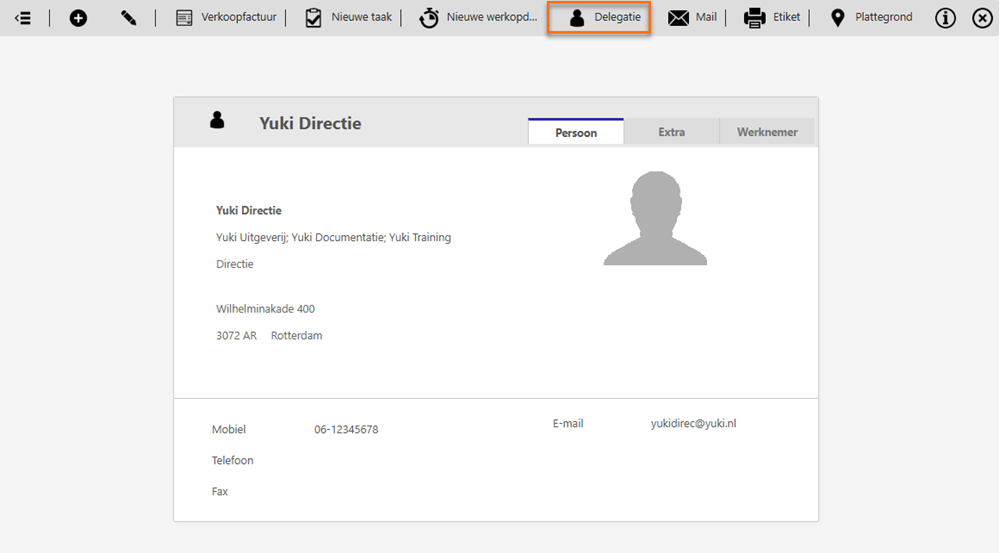
- then, in the now-opened screen, open your own contact card.
Grant delegation rights
To grant delegation rights to a user with access to this domain:
- click on the Delegation button
The following screen is opened: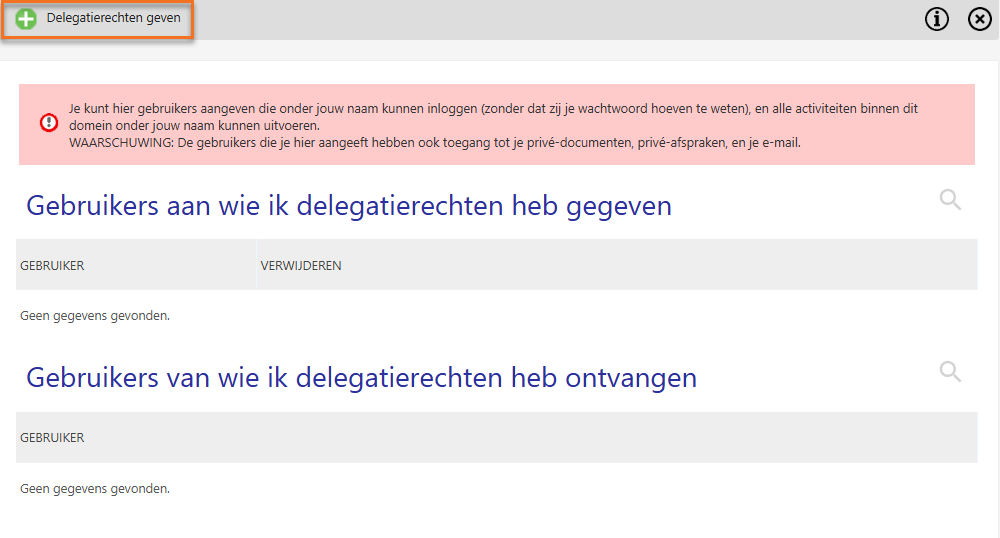
- click on the Delegate rights button
- then, in the now-opened screen, select the user(s) to whom you want to grant delegation rights.
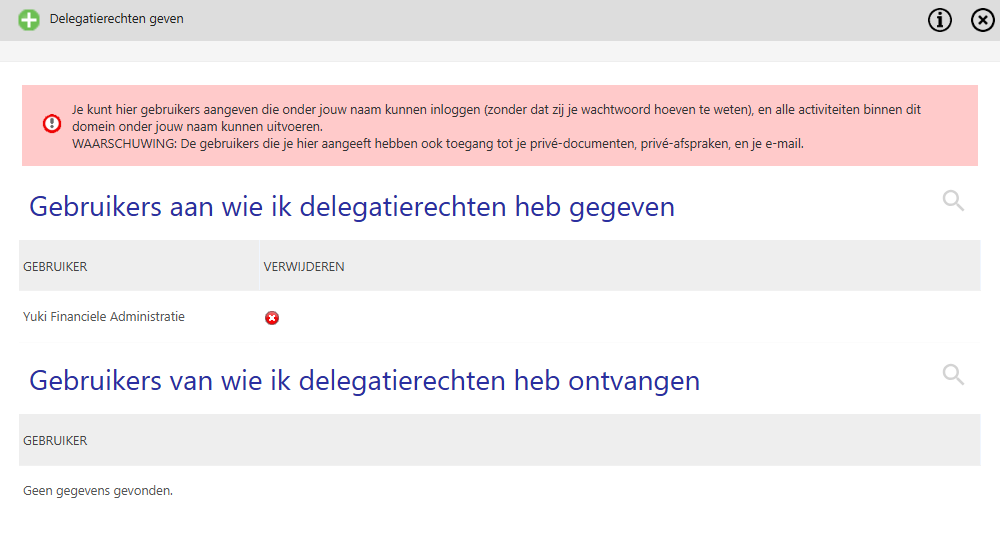
Revoke delegation rights
You can revoke the delegation rights granted to a user by clicking on the red cross next to that user’s name.
Use delegation rights
To use delegation rights:
- first log in with your own username and password into the domain
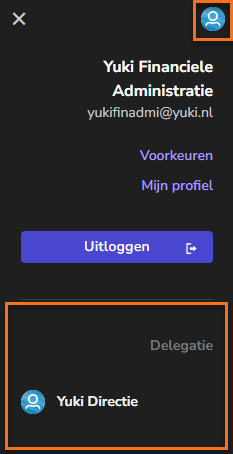
- in the now-opened screen, click on the user button
- then select your name under Delegation.
Was this article helpful?
That’s Great!
Thank you for your feedback
Sorry! We couldn't be helpful
Thank you for your feedback
Feedback sent
We appreciate your effort and will try to fix the article