Disclaimer
All screenshots in the article were taken in the Dutch version of Nmbrs Accounting.
In Nmbrs Accounting you can view a report of the history of all quotations that have been processed and sent to your customers.
Access to Quotation history
To access:
- hover your mouse over the Sales icon in the navigation bar
- click on Quotations
- then, in the now-opened screen, under Reports select Quotatiuon history.
Quotation history report
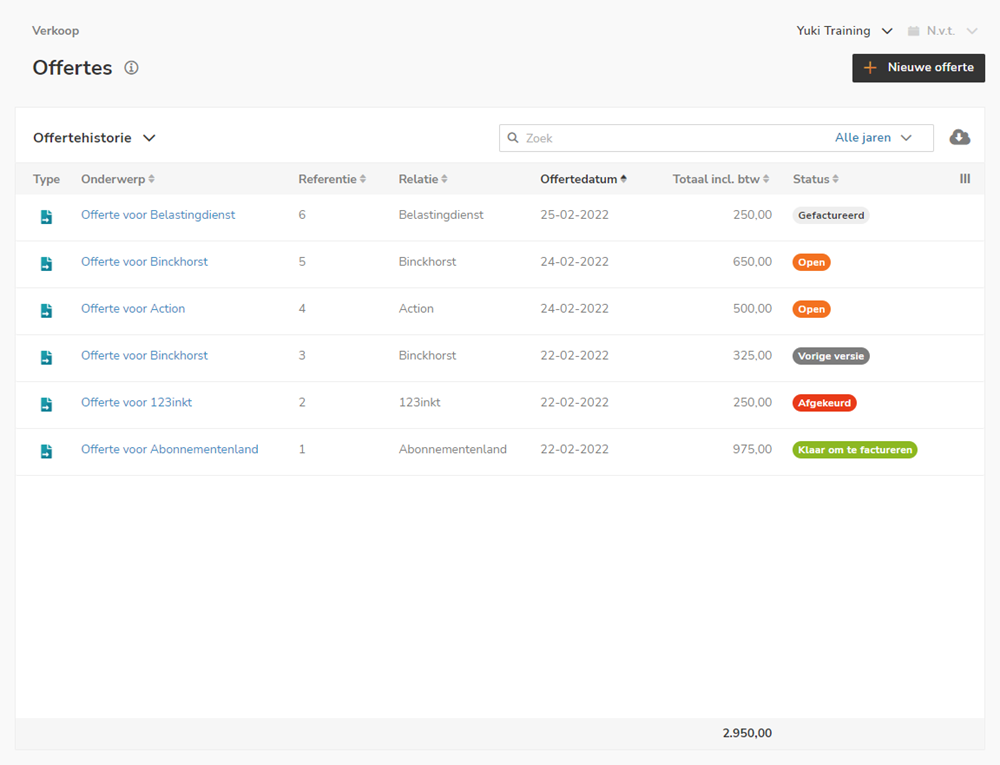
On this screen, you can view all the details of the quoteations that have been processed and sent to your customers
View total amount of quotations per customer
You can view the total amount of quotations per customer here by searching via the Search function for the name of a specific contact.
AVAILABLE USER ACTIONS
From this report, a user can:
- view a document
- view a contact.
View document
To view a document:
- click on the subject of the document
OR - hover your mouse over the line of the relevant quotation
- click on the button with the three dots
- then select the View document menu option from the dropdown menu
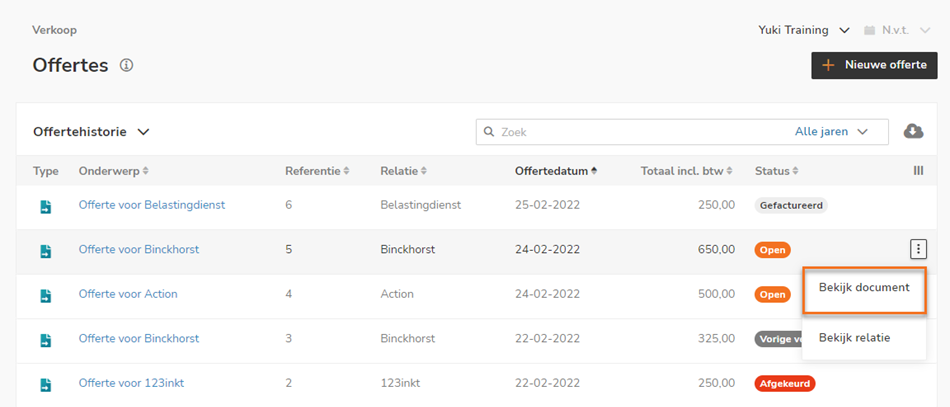
Depending on the status, the quotation can be completed further in the now-opened screen,
View contact
To view the contact of a quotation:
- hover your mouse over the line of the relevant quotation
- click on the button with the three dots
- then select the View contact menu option from the dropdown menu
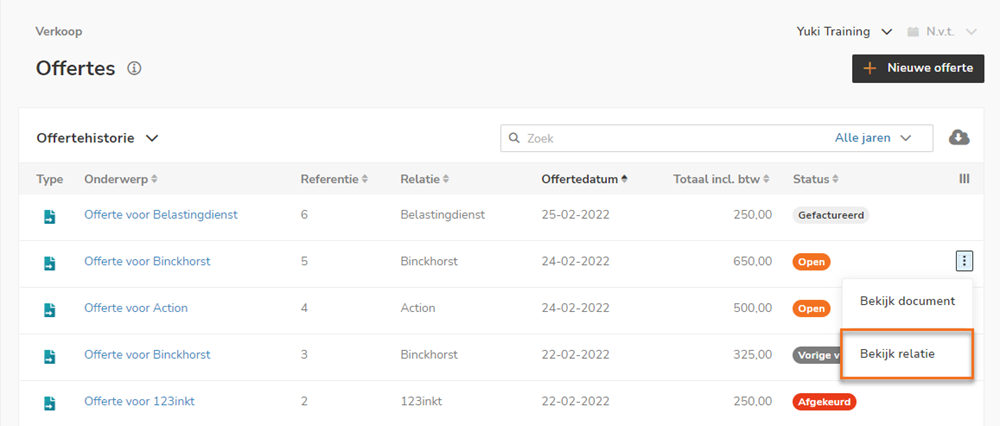
The contact card of the relevant contact is now opened.
Was this article helpful?
That’s Great!
Thank you for your feedback
Sorry! We couldn't be helpful
Thank you for your feedback
Feedback sent
We appreciate your effort and will try to fix the article