Disclaimer
All screenshots in the article were taken in the Dutch version of Nmbrs Accounting.
Access to reverted collections
To access:
- click on the Bank icon in the navigation bar
- under Report, click on Collect
- then, in the now-opened screen, under Process click on Reverted.
The following screen is opened:
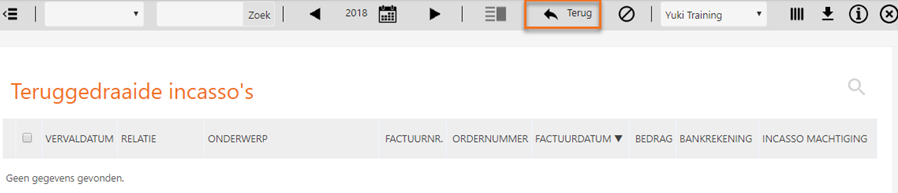
In the 'Reverted collections' overview all the invoices are shown of which the payment of the amount is reversed from the SEPA collection file.
If a direct debit is reversed by the bank or a customer an error message is shown in the bank transaction. The error message provides information about the cause of the error and the follow up action to be taken:
- AC01: Rekening incorrect
- AC04: Rekening opgeheven
- AC06: Rekeningnummer geblokkeerd
- AG01: Rekeningnummer niet toegestaan (is bijvoorbeeld een spaarrekening)
- AG02: Ongeldige bank transactie code
- AM04: Onvoldoende saldo.
- MD01: Geen machtiging verstrekt
- MD02: Machtigingsgegevens niet volledig of niet juist
- MD06: Terugboeking op verzoek klant
- MS02: Onbekende reden klant
- MS03: Onbekende reden bank.
TIP!
When creating a bank processing rule, you must use one of the codes listed above.
For a detailed description, see article Create babk processing rule.
For an overview of the follow up actions to be taken, see Vervolgacties.
Resubmit invoices for collection
To resubmit invoices whose collection was reversed, click on the Back button. The selected invoices will be moved to the 'To collect' overview.
Was this article helpful?
That’s Great!
Thank you for your feedback
Sorry! We couldn't be helpful
Thank you for your feedback
Feedback sent
We appreciate your effort and will try to fix the article