Disclaimer
All screenshots in the article were taken in the Dutch version of Nmbrs Accounting.
Under the Work-related Costs Scheme (WKR), you can spend a percentage of the total taxable wage (the 'free allowance') on tax-free reimbursements, benefits, and provisions for employees. You pay payroll tax on the amount exceeding this free allowance in the form of a final levy of 80%.
Certain items can continue to be reimbursed tax-free via so-called 'targeted exemptions'.
Nmbrs Accounting has developed a special WKR tool for this purpose, which is fully integrated into the HR functionality.
Availability and rights
The WKR tool has a number of specific conditions and rights:
- Activation: The tool is only available if a user with the role 'Portal administrator' has added this feature to the domain contract. (see article Manage accountant features).
- Use of tool: Only users with the 'Back office' role in the domain can actually operate and use the WKR tool.
- Viewing reports: Only users with the role 'Management' role can view the generated interim report (PDF) in the Archive.
How does WKR tool work?
During the processing of regular accounting, work-related costs (based on cost type and VAT percentage) are automatically included in the WKR tool.
Automatic and manual processing
- Automatic: Nmbrs Accounting recognizes and places most work-related costs directly into the WKR tool.
- Manual (Mixed costs): Only mixed work-related costs still need to be manually assigned via the card of the relevant WKR GL account.
Visual overview
Each work-related cost type has its own color in the tool, making it clear at a glance under which category the costs fall.
Nmbrs link
Are you using the Nmbrs link? Then the payroll sum (which forms the basis for the calculation of the tax-free allowance) can be automatically retrieved from Nmbrs.
Reporting
The tool generates a clear interim report. This summary provides immediate insight into, among other things:
- the current payroll sum
- the available tax-free allowance
- the allowance already utilized and any overruns.
This report can be exported directly as a PDF and shared via the digital Archive in Nmbrs Accounting.
Access to WKR tool
To access:
- click on the HR icon in the navigation bar
- then, in the now-opened screen, click on Work-related costs scheme.
WKR tool (Portal administratior / 'Back office' role)
The interactive home screen of the WKR tool opens, where you can manage the settings and manually allocate costs.
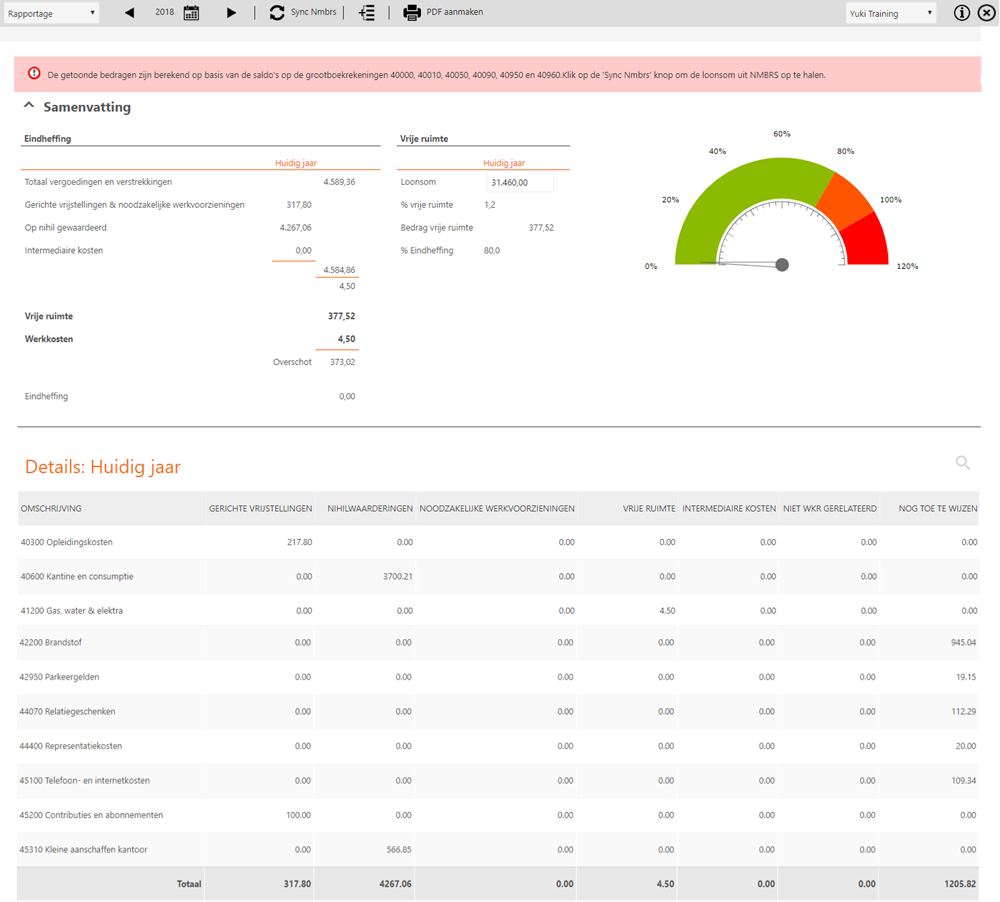
AVAILABLE USER ACTIONS
From this screen a user can:
- change documents and/or transactions linked to WKR category
- create PDF of interim reporting WKR
- view Years comparison & Forecast current year WKR reports.
PDF of WKR reporting (Domain owner / 'Management' role)
The most recent PDF of the WKR reporting is opened. It is located in the Archive, in the Tax/Payroll tax folder.

Was this article helpful?
That’s Great!
Thank you for your feedback
Sorry! We couldn't be helpful
Thank you for your feedback
Feedback sent
We appreciate your effort and will try to fix the article