Disclaimer
All screenshots in the article were taken in the Dutch version of Nmbrs Accounting.
In Nmbrs Accounting, you can view a list of all purchase invoices that have been marked as 'In process'. These are invoices that have not yet been paid or collected and that still require further review. Invoices with the status 'In process' cannot be paid; they must first be released for payment.
A user with the 'Back office' role in the domain, or the 'Purchase', 'Management', 'Financial administration' or 'External accountant' role, can view this overview.
Only a user with the 'Management' role can mark an invoice as pending and release it for payment.
ATTENTION!
Each invoice is marked with a colored square: yellow (Not yet paid), blue (Partially unpaid), or green (Paid in full).
A user with the 'Back office' role in the domain can immediately match an outstanding invoice with a payment by clicking on the yellow or blue square next to the relevant invoice.
Hover your mouse over the Purchase icon in the navigation bar and then click In process.
The following screen is opened:
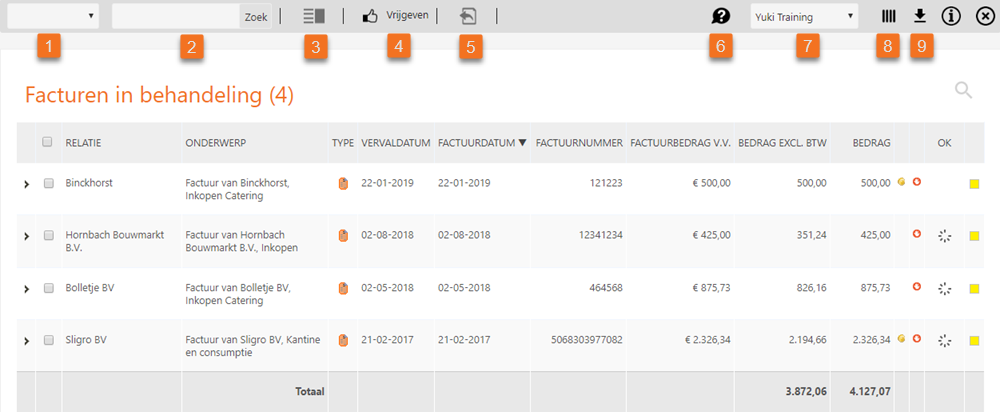
On this screen, you can use the following buttons and/or download menus:
- Select the criteria by which you want to filter the invoices: Subject, Amount, Supplier, Invoice number, Tag, or Project.
- Then enter the actual selection criteria. Clicking on the Search button applies the filter to the list.
If the accountant has added the Foreign currency feature to the domain’s contract, you can also filter by Currency. - Toggle whether or not to show a preview of the selected purchase invoice.
- Mark the selected invoices as approved; this will remove the invoices from this overview. In the Unpaid invoices overview, the white hand icon behind the invoices will disappear.
- Switch between the overview of all purchase invoices or all purchase credit invoices pending processing.
- Send this overview to the entrepreneur (available only in the back office).
- Select the overview of the invoices in process for the correct administration.
- Customize the columns shown in this overview.
- Download the shown overview as a CSV file (Excel).
Was this article helpful?
That’s Great!
Thank you for your feedback
Sorry! We couldn't be helpful
Thank you for your feedback
Feedback sent
We appreciate your effort and will try to fix the article