Disclaimer
All screenshots in the article were taken in the Dutch version of Nmbrs Accounting.
You can export the address book to subsequently import it into Excel, Outlook, Outlook Express, or another Nmbrs Accounting domain. It is also possible to import addresses into the administration. This works with the same formats. It is recommended to regularly exchange addresses between your domain and Outlook (Express), smartphone, mobile phone, PDA, or Organizer so that the addresses in both environments always match. With Nmbrs Accounting, this is only possible via the import and export function; there is no synchronization function available.
Only a user with the 'Management', 'Financial administration', or 'External accountant' role can export contacts.
All data known to Nmbrs Accounting will be exported:
- Name: first name, middle name, surname, nickname
- Company: company name, department, address, fax, telephone
- Person: name, address, alternate address, work telephone, home fax, home telephone, mobile telephone, special date, assistant's name, birthday, email address, email address 2, gender, BSN, position, manager's name, notes, partner, webpage.
The data will be saved in a file named 'ExportAddressen [date].csv'.
Click on the Contacts icon in the navigation bar and then click on Import & Export.
The following screen is opened:
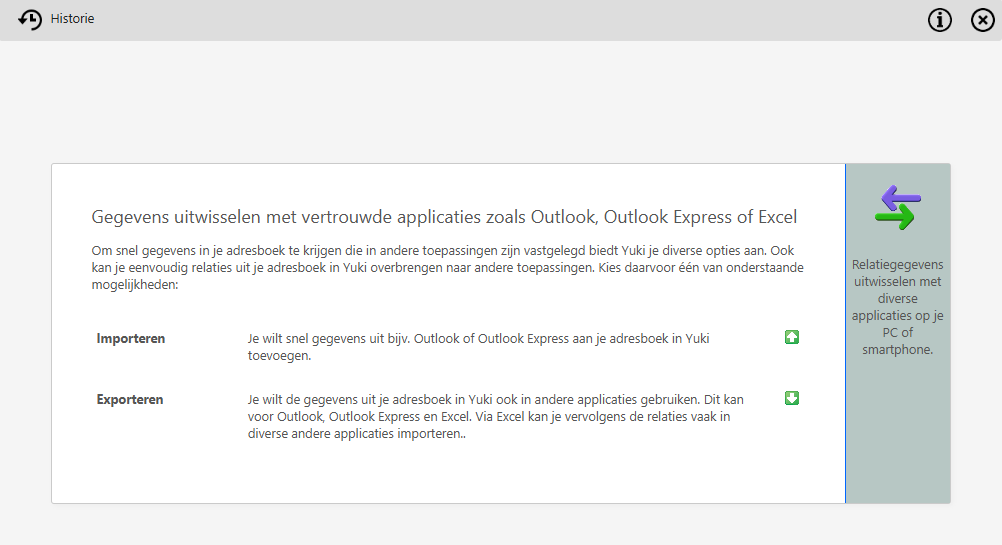
Then click on Export to start the process. The following screen is opened:
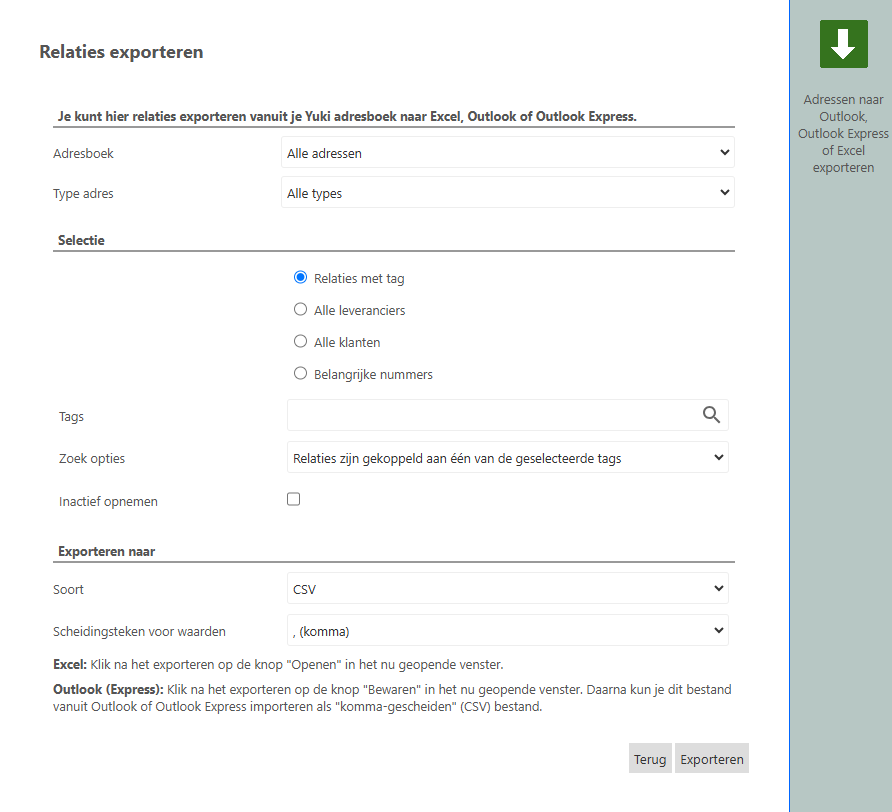
Address book
Indicate whether you want to export all addresses in the address book or only the addresses from 'My Address Book'.
Contact type
You can include all contaact types or only companies or contacts in the export.
Selection
The following contacts (addresses) can be exported:
- Contacts with tag
- All suppliers
- All customers
- Important numbers.
If you want to export the Contacts with tag, you must further specify the tags and the search options (contacts).
Include Inactive
It is also possible to include all 'inactive' addresses in the export file.
Export to
Type
The choice of type, i.e. the format (CSV, Excel, Outlook, Outlook Express and Nmbrs Accounting), depends on the purpose: where will the file be imported?
Value separator
The choice of separator depends on the purpose: where will the file be imported? In general, commas (,) or semicolons (;) will work correctly during import.
As soon as the Export button is clicked on, the file will be created.
Was this article helpful?
That’s Great!
Thank you for your feedback
Sorry! We couldn't be helpful
Thank you for your feedback
Feedback sent
We appreciate your effort and will try to fix the article