Disclaimer
All screenshots in the article were taken in the Dutch version of Nmbrs Accounting.
In Nmbrs Accounting, you can view a overview of how much and for what amounts a sales item was sold in a given period.
Access to Total sales per item
To access:
- click on the Sales icon in the navigation bar
- click on Sales items
- then, in the now-opened screen, select Total sales per item from the dropdown menu.
Total sales per item overview
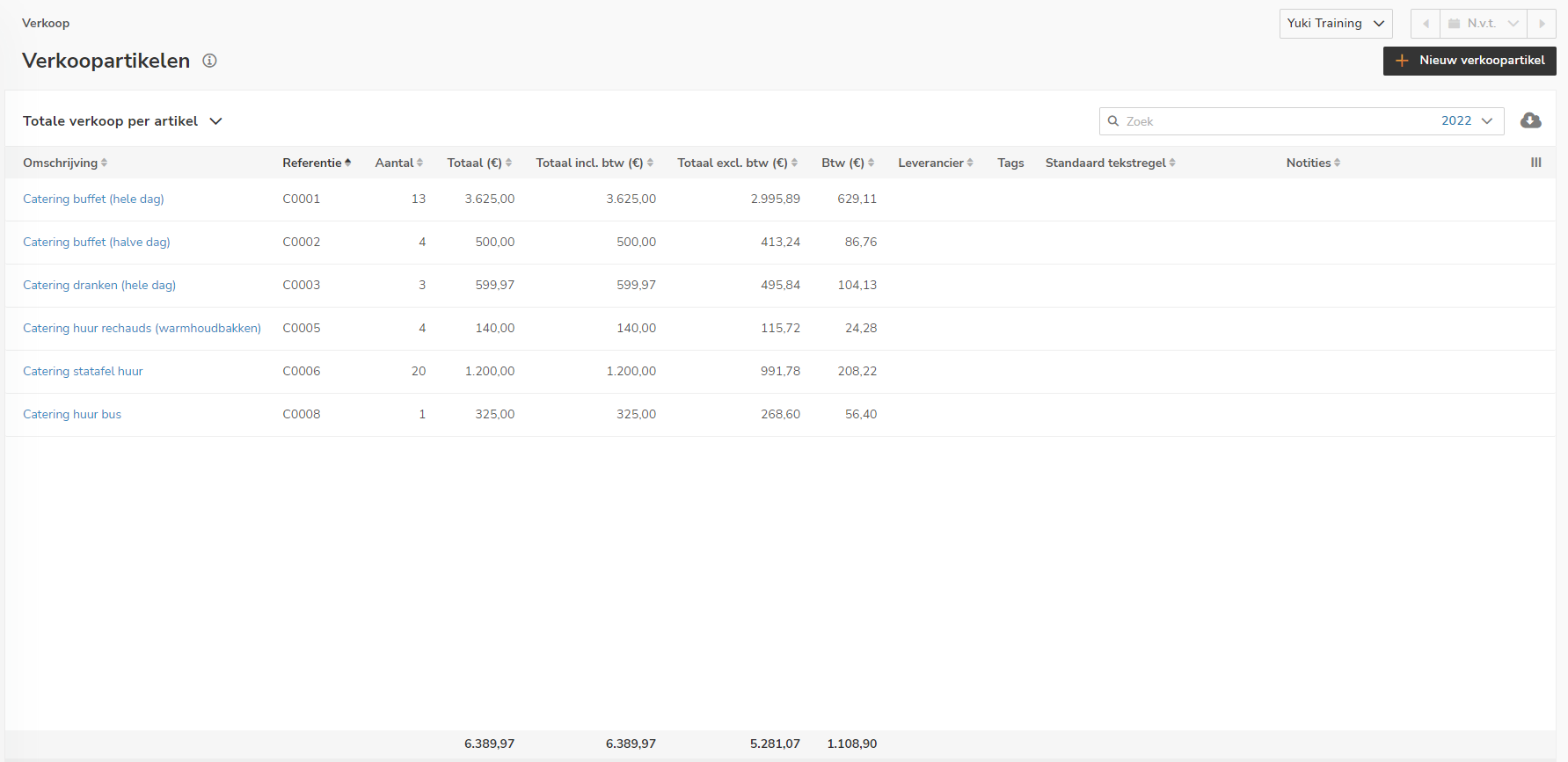
This screen shows all the data on total sales, including quantities and amounts, for a specific sales item over a given period.
AVAILABLE USER ACTIONS
From this overview, a user can:
- view the total overview of a sales item.
View total overview of sales item
To view the total overview of a sales item:
- hover your mouse over the line of the relevant sales item
- click on the button with the three dots
- then select the View sales item menu option from the dropdown menu
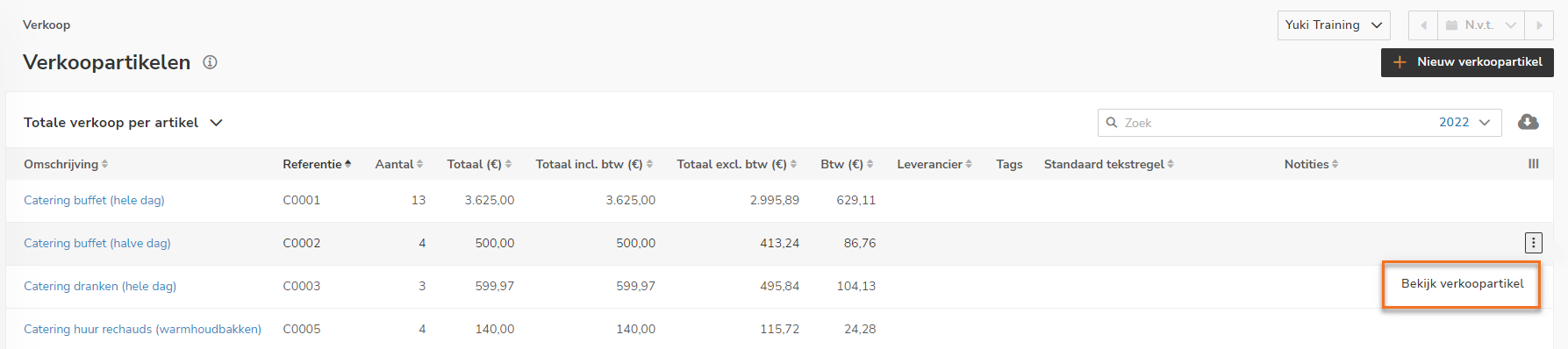
In the now-opened screen, a so-called total overview of the sales item can be viewed.
The following items, among others, are shown here: details of the sales item, price list(s) to which the sales item has been added, price agreement(s) with customers for the sales item, key figures for the sales item, revenue per month, revenue per year, last invoices and top sales.
For a detailed description, see article Total overview of sales item.
Was this article helpful?
That’s Great!
Thank you for your feedback
Sorry! We couldn't be helpful
Thank you for your feedback
Feedback sent
We appreciate your effort and will try to fix the article