Disclaimer
All screenshots in the article were taken in the Dutch version of Nmbrs Accounting.
In Nmbrs Accounting, you can create a contract to set up recurring invoices for a customer and send them automatically if required.
To create a new contract, complete the following steps:
- enter contract details (contact and contract details)
- enter invoice details (invoice information) of contract
- add one or more invoice lines (items) to contract
- if necessary, add additional information to contract
- if necessary, add payment details to contract (e.g. when paying an invoice via 'Direct debit' or 'Refund')
- if required, add an attachment to the contract (from your device or from the Archive in Nmbrs Accounting)
- if necessary, add notes to contract
- change, if necessary, sending method of recurirng invoice and/or customer email address
- save contract as a draft contract or a completed contract.
Access to new contract
You can create a contract from three places in Nmbrs Accounting:
- click on the Sales icon in the navigation bar
- click on Dashboard
- then, in the now-opened screen, click on the Create contract button.
OR - click on the Sales icon in the navigation bar
- click on Contracts
- then, in the now-opened screen, click on the Create contract button.
OR - click on the Contacts icon in the navigation bar
- click on Contacts
- open the relevant contact card
- in the now-opened screen, click on Sales invoices
- open a sales invoice created by Nmbrs Accounting
- Then click on the Generate contract button.
Add additional information
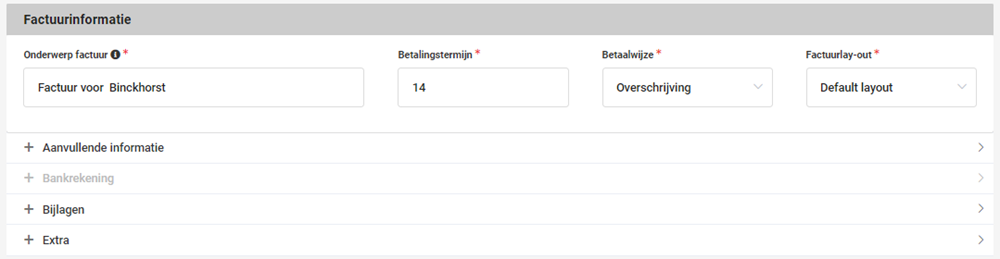
Click on Additional information to add this information, if necessary.
The following screen is opened:
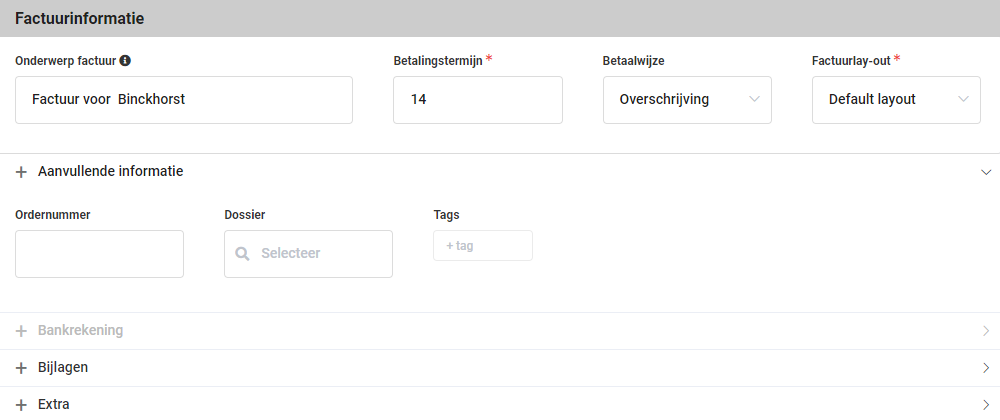
The following additional information can then be entered.
Order number
Enter the order number here.
Project
Select the project to which this recurirng sales invoice should be added.
Tags
If you specify a tag for the recurring sales invoices you create in Nmbrs Accounting, you can process these invoices by tag group.
Create a new tag by entering the tag name. After entering it, click outside the field so that a new empty field automatically opens for entering a second new tag, etc.
Was this article helpful?
That’s Great!
Thank you for your feedback
Sorry! We couldn't be helpful
Thank you for your feedback
Feedback sent
We appreciate your effort and will try to fix the article