Disclaimer
All screenshots in the article were taken in the Dutch version of Nmbrs Accounting.
Only a user with a 'Back office' role in the domain can record special customer-specific remarks on an administration, contact or GL account.
The overview of all recorded customer-specific remarks can also only be viewed by a user with a 'Back office' role.
The following explains how to successively record a customer-specific remark on an administration, a contact and a GL account.
Record a remark on administration
To record a customer-specific comment about an administration:
- click on the Switch domain icon above the navigation bar
- click on My domain
- then click on Administrations in the Domain section
OR - click on the Settings icon in the navigation bar
- then click on Administrations in the Domain section
- then select the administration for which you want to record a comment
- open the Legal tab
- click on the Edit button
- then record the comment(s) in the Customer specific remarks field.

Then click on the Save button.
Record remark on contact
To record a customer-specific remark about a contact:
- click on the Contacts icon in the navigation bar
- click on Contacts
- find and open the contact card where you want to record a remark
- open the Company tab
- click on the Edit button
- then record the remark(s) in the Customer-specific remarks field.
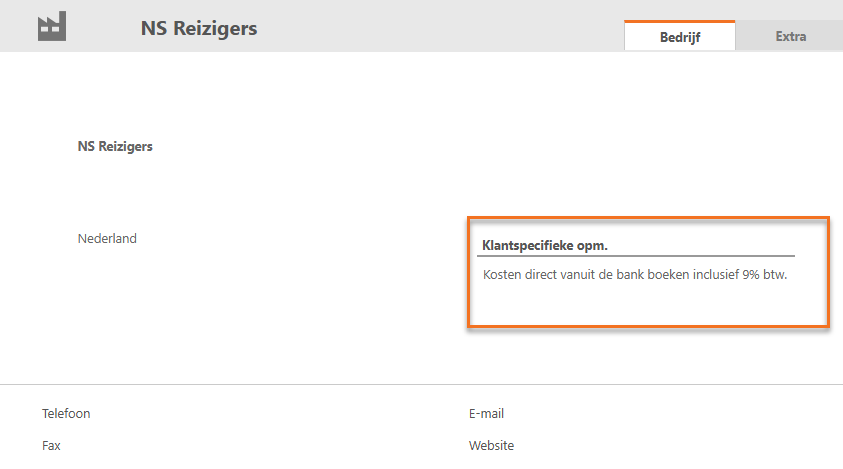
Then click on the Save button.
Record remark on GL account
To record a customer specific remark on a GL account:
- click on the Financials icon in the navigation bar
- then click on Chart of accounts
- find and open the GL account for which you want to record a remark
- click on the More actions button at the top right of the screen
- select GL account settings from the dropdown menu
- then record the remark(s) in the Customer-specific remarks field.
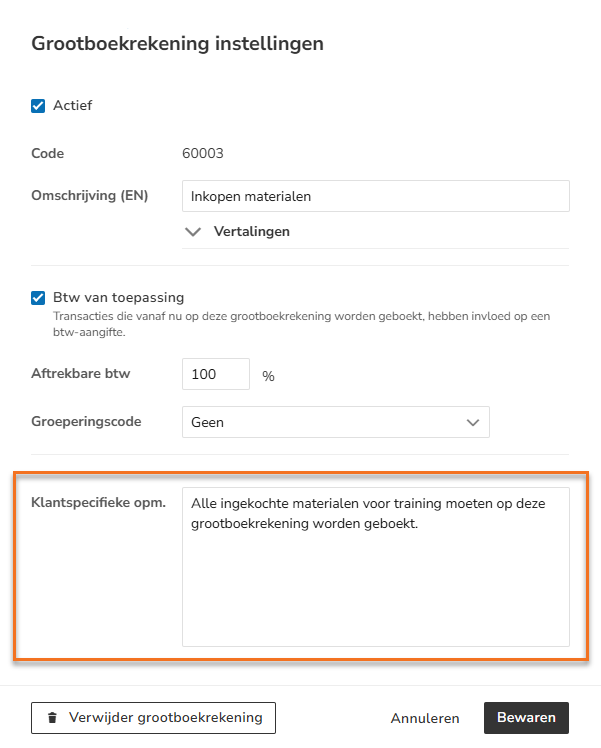
Then click on the Save button.
Was this article helpful?
That’s Great!
Thank you for your feedback
Sorry! We couldn't be helpful
Thank you for your feedback
Feedback sent
We appreciate your effort and will try to fix the article