Disclaimer
All screenshots in the article were taken in the Dutch version of Nmbrs Accounting.
The following invoice layout settings can be entered or modified for an invoice layout created in the old Sales functionality:
- General
- Invoice columns
- Page layout:
- Invoice footer
- Page footer
- Page settings
- Paper settings
- Address positioning
- Logo positioning
- Specification settings
- Email subject
- Email text.
General
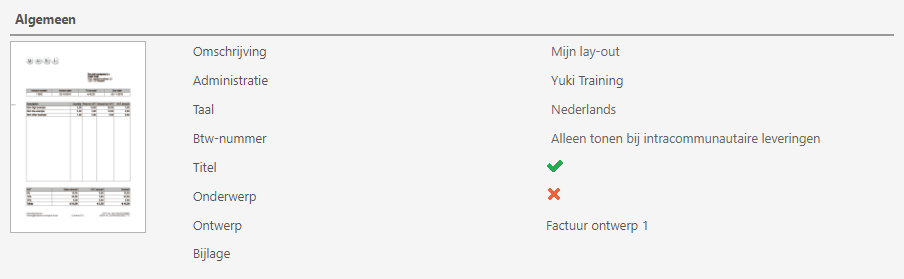
- Description: Give your layout a recognizable description.
- Administration: Indicate which administration the layout is intended for (if you have more than one administration).
- Language: In Dutch domains, you can choose to have an invoice in Dutch, English, French, or German.
- VAT number: Do you want to print your customers' VAT number on the invoice? This is particularly relevant for international customers.
- Caption: If you check this, the caption ("Invoice" or "Credit Invoice") will appear at the top of the invoice, making it immediately clear that the document is an invoice.
- Subject: Do you also want to print the invoice subject on the invoice?
- Template: Choose a layout from the ten available options.
- Attachment: Here you can link an attachment from the archive to the invoice layout (for example, general terms and conditions).
Invoice columns
In this section, you can specify which information should be printed on your invoice. The columns you choose sometimes depend on the layout you've chosen. Think primarily from the customer's perspective. What is important for the customer to see on the invoice line?
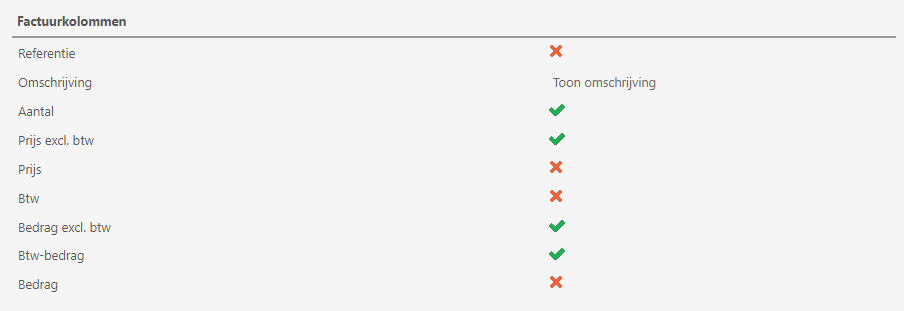
- Reference: Do you want the item code to be displayed?
- Description: Do you want to print the item description, the invoice line description, or both?
- Quantity: Do you want the quantities displayed?
- Price ex, VAT: Price of the item excluding VAT.
- Price: Price of the item.
- VAT: If the invoice is for private customers, stating the VAT per line is less important. If the VAT percentage is the same for each item, you don't need to state it on every line.
- Amount ex. VAT: Amount of the total quantity of the item excluding VAT.
- Amount: Amount of the total quantity of the item.
Select the columns you would like to print per invoice line. Keep the invoice as simple as possible (less is beautiful).
To test whether the invoice looks the way you want, save the layout by clicking on the 'Save' button and then click on the 'Screen preview' button.
Page layout
The invoice is divided into three sections:
The invoice block
This consists of three parts:
- the invoice header (customer details, invoice number, etc.)
- the invoice lines (with the columns)
- the invoice totals (with VAT totals and the amount to be paid).
Invoice footer
Here you can add text that will be printed directly below the invoice block, for example: "Please pay the total amount to account 12345678."

Page footer
This block is always printed at the very bottom of the page. By default, the company information (address, Chamber of Commerce registration, VAT, and bank account number) are shiown as it appears in the domain.
If you want to include other information, you can use this field to enter company details, etc., if they aren't already included on your stationary. Note: The default information will be omitted if you have included information in this block.

Page settings
Use the page settings to determine where the invoice information is printed on the invoice. This is especially important if you want to change it to match your existing stationery.
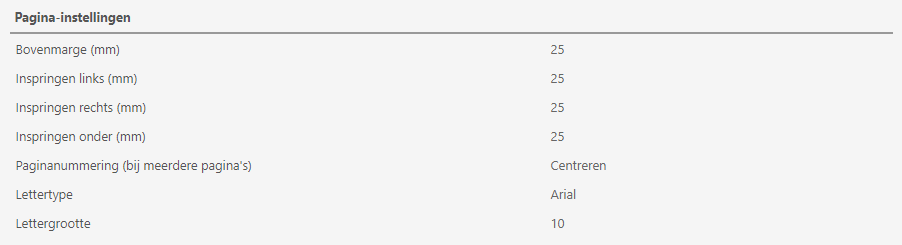
- Top margin (in mm): This determines where the general invoice information (number and date, etc.) begins relative to the top of the page. Note that you may also need to place an address block between the top of the page and the invoice information. This address block is 30 mm high.
- Left margin (in mm): This determines how much white space (left margin) you want to leave on the left.
- Right margin (in mm): This determines how much white space you want to leave on the right (right margin).
- Bottom margin (in mm): This determines how much white space you want to leave between the bottom line of the page footer and the bottom of the page.
- Page numbering (for multiple pages): Position of the page number at the bottom of each page.
- Font: Select the font for the text on the invoice here.
- Font size: Select the font size for the text on the invoice here.
Paper settings
Now determine on what you print the invoice.

You have three options:
- Blank paper
- Pre-printed letterhead
- PDF document.
On blank paper
Use Nmbrs Accounting to print your logo and company information directly. The logo you've linked to your administration profile will be used as the logo.
Preprinted stationary
Nmbrs Accounting only prints the invoice block and the invoice footer. In this case, Nmbrs Accounting won't print the logo or the page footer.Nmbrs
PDF document as invoice paper
When you want to send an invoice, adding your own digital stationery can give it a professional look. This is especially useful when emailing invoices. By linking a PDF of your stationery to your invoice layout, you get the look of a pre-designed document without using physical stationery.
Follow these steps:
- Design your stationery:
- Use a word processor such as Microsoft Word or Pages.
- Add your logo, address information, Chamber of Commerce number, VAT number, and bank account number. This makes the invoice recognizable and professional.
- Save as PDF
After designing your stationery, save the document as a PDF. Ensure the document has the desired quality for both print and digital use. - Link it to the invoice layout
This step ensures that every invoice automatically uses your digital stationery when sent or printed:- Go to the invoice layout settings.
- Choose the created PDF file as the digital stationery for your invoices.

Address positioning
This allows you to determine where the address is placed within the invoice block.

- Top margin (in mm): This is calculated from the top of the page.
- Left margin (in mm): This is calculated from the left edge of the page.
If you haven't left enough space between the top of the page and the start of the invoice block to place an address block, this will be corrected automatically.
Logo positioning
This is only relevant if you choose to print on blank paper.

Specification settings
Add a time specification when invoicing activities.

Email subject and text
If you decide to send sales invoices by email, you can also customize the email subject and text here.
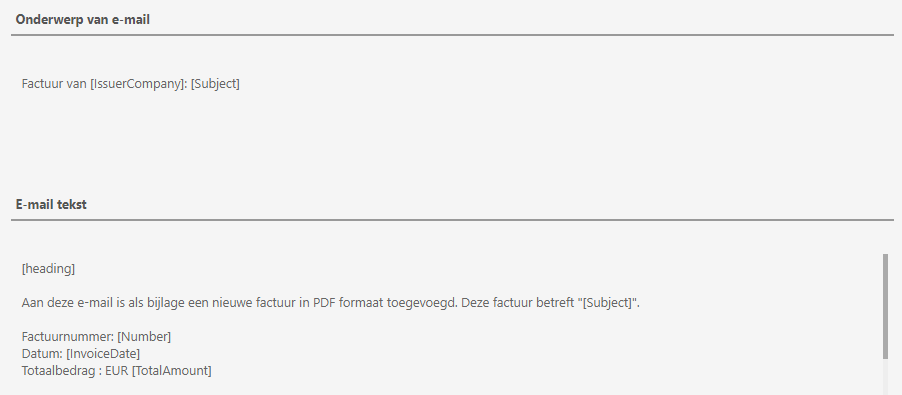
You can also include variable data (called placeholders) in the text and subject line. These placeholders are always enclosed in square brackets and have a specific name.
Was this article helpful?
That’s Great!
Thank you for your feedback
Sorry! We couldn't be helpful
Thank you for your feedback
Feedback sent
We appreciate your effort and will try to fix the article