Disclaimer
All screenshots in the article were taken in the Dutch version of Nmbrs Accounting.
In the overview, you can view all items temporarily posted to general ledger account '23020 Unclear transactions'. These unclear transactions are in Nmbrs Accounting:
- Purchase and/or sales invoices posted to 'unclear transactions'
- Bank transactions posted to 'unclear transactions'
- Financial entries posted to 'unclear transactions'.
However, as soon as an explanation has been given by the user or a question has been asked by the back office, the document or bank transaction disappears from the overview.
Access to Unclear transactions
To access:
- click on the Back office icon in the navigation bar
- then, in the now-opened screen, click on Unclear transactions under Checklist.
Unclear transactions overview
The overview opens with the view as you last viewed it:
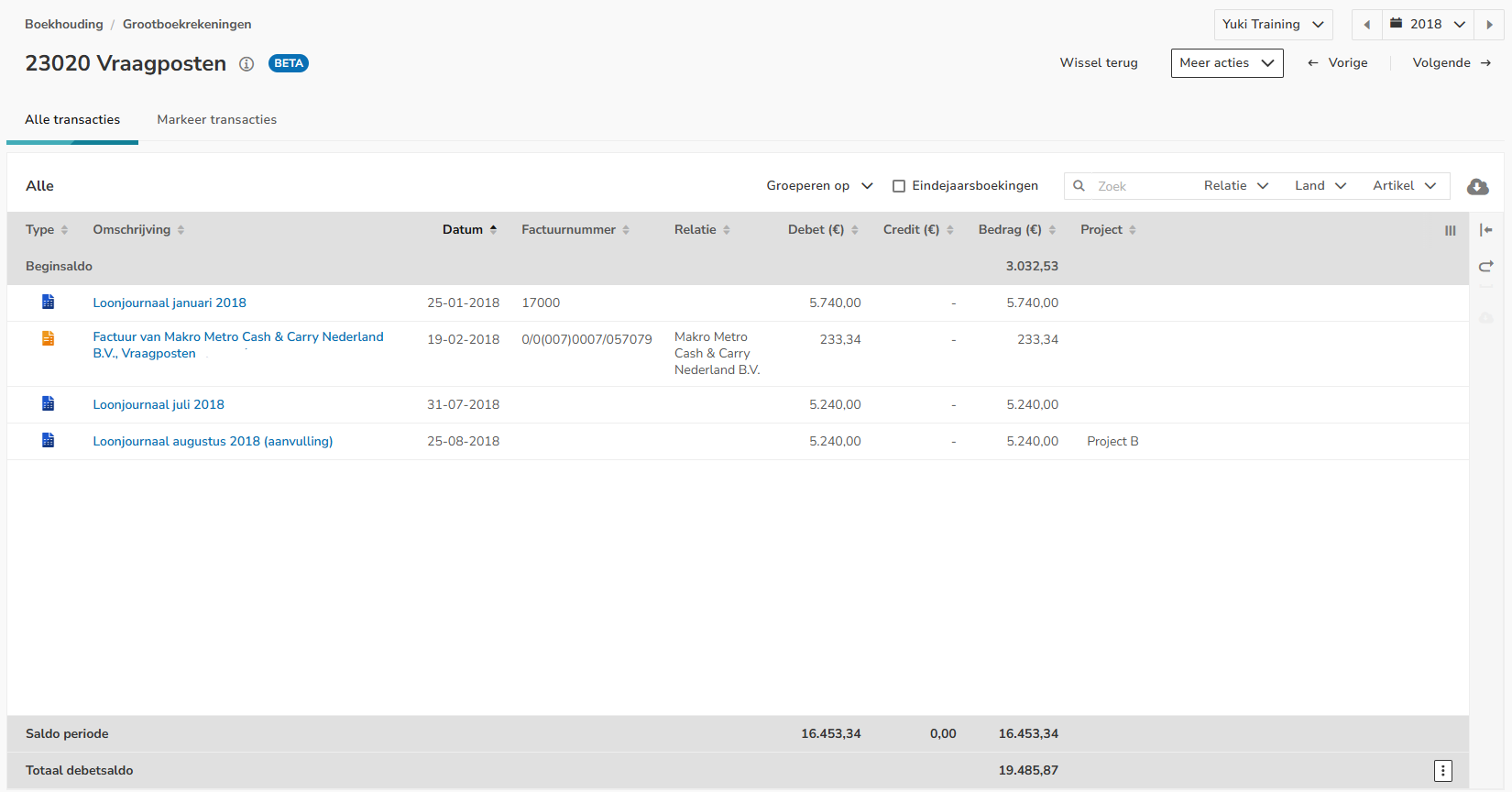
In this overview, you will see all unclear items that have been temporarily posted to GL account ‘23020 Unclear transactions’.
It provides user-friendly options for organizing and customizing the display of data:
- Group unclear items by month, year, item or contact,
- Convert On-screen version to a printable PDF version (Printable version or Print version (extended))
- End of year entries to be shown or not shown.
Resizeable document viewer
Click on the relevant unclear transaction line and then on the Show / Hide button (icon with a right / left arrow) to show or hide the document preview on the screen.
To enlarge the displayed document preview, move your mouse over the two arrows to the left of the document preview and resize it to the final size.
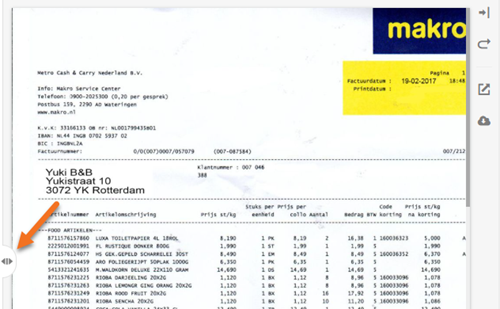
Additionally, in the document viewer you can:
- reset the document preview to the default size (curved arrow icon)
- open the document in the browser (square icon with a top-right arrow)
- download the document (cloud icon with a down arrow).
Change GL account
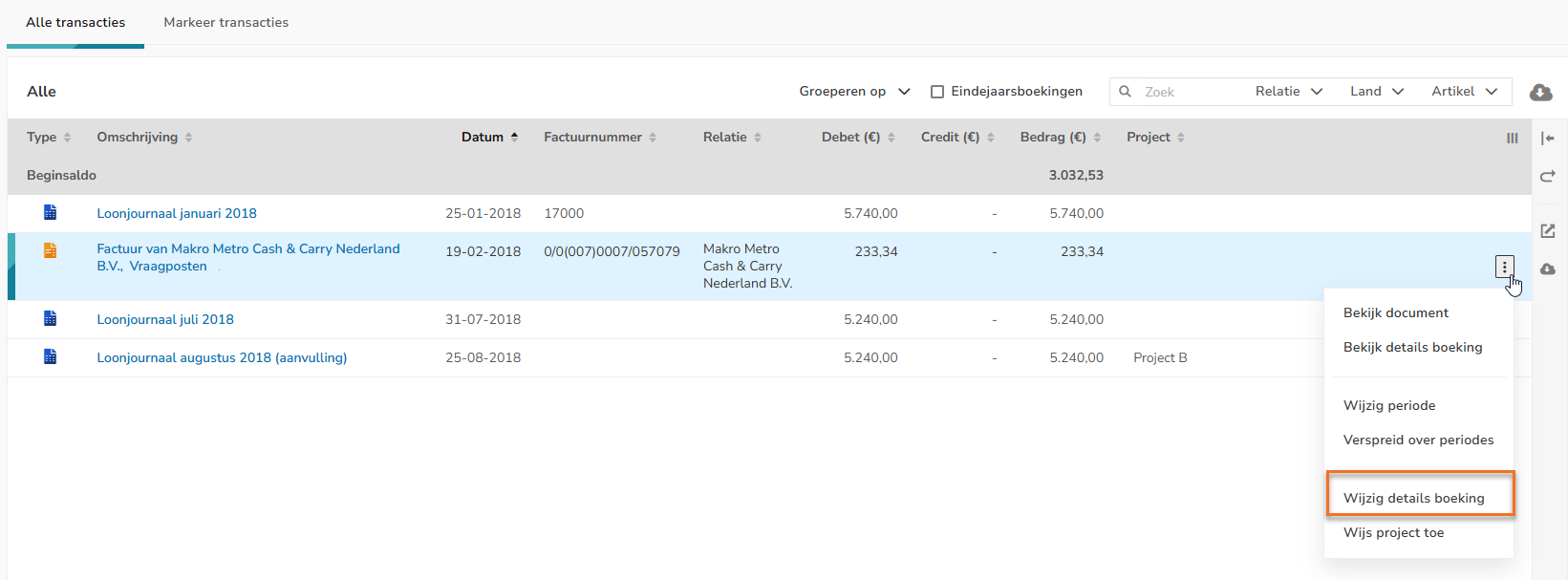
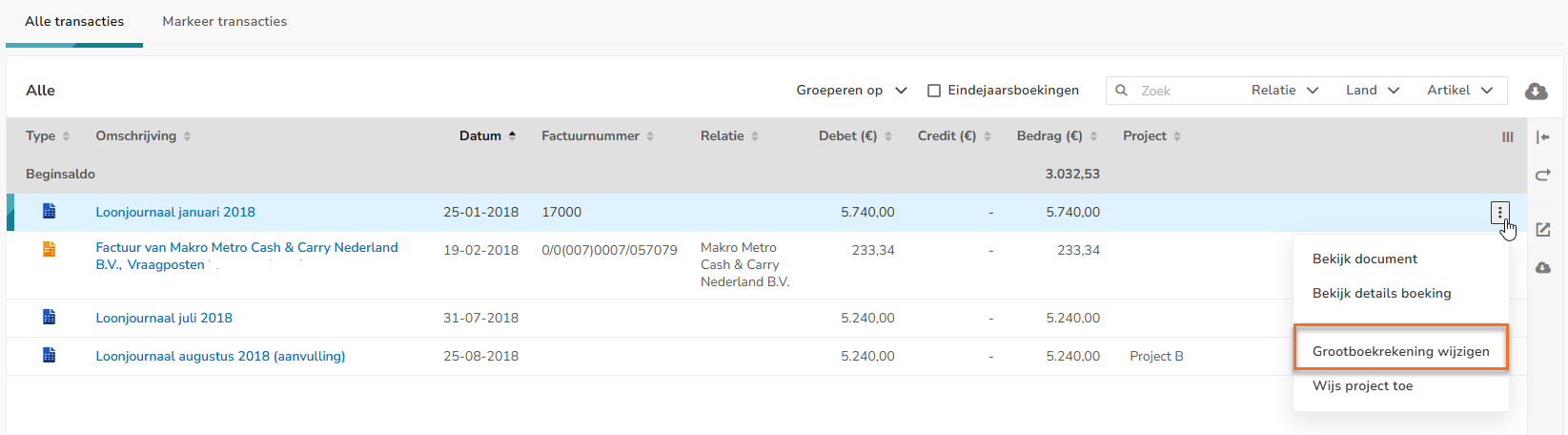
To post an invoice, bank transaction or general journal entry to the correct GL account:
- hover your mouse over the line of the relevant invoice, bank transaction or general journa entry
- click on the button with the three dots
- for an invoice, select the Edit transaction details menu option from the dropdown menu.
- for a bank transaction or general journal entry, select the Change GL account menu option from the dropdown menu.
Was this article helpful?
That’s Great!
Thank you for your feedback
Sorry! We couldn't be helpful
Thank you for your feedback
Feedback sent
We appreciate your effort and will try to fix the article