Disclaimer
All screenshots in the article were taken in the Dutch version of Nmbrs Accounting.
To ensure a complete and reliable administration, Nmbrs Accounting automatically checks whether all purchase and sales invoices and receipts are present. This check is based on outstanding payments: payments for which no corresponding document (such as an invoice or receipt) has been found are shown in an overview.
This check is performed daily, after which the results are shown in the overview.
Only a user with the 'Back offce' role in the domain or the ‘Management’, ‘Financial Administration’, or ‘External Accountant’ role can view the overview of missing purchase or sales invoices.
Views of Missing invoices
This overview has two different views depending on the user’s role:
Entrepreneur
The entrepreneur sees:
- all payments for which the invoice or receipt is still missing
- all payments that can be processed by the accountant because:
- an explanation has been provided for the payment
- the missing document (invoice or receipt) has been uploaded.
Accountant
The accountant sees:
- which payments can be processed
- which payments are still missing an explanation or an uploaded document.
Action!
Check this overview regularly, process the payments, and, if necessary, send reminders to the business owner regarding missing purchase or sales invoices.
Access to Missing invoices
To access:
- click on the Back office icon in the navigation bar
- then, in the now opened screen, under Needs attention click on the tile Purchase or Sales.
OR - click on the Back office icon in the navigation bar
- then, in the now opened menu, under Checklist click on Completeness of purchase or Completeness of sales.
OR - click on the PO Box icon in the navigation bar
- then, in the now-opened screen, click on Missing Invoices under Needs attention.
Missing invoices overview
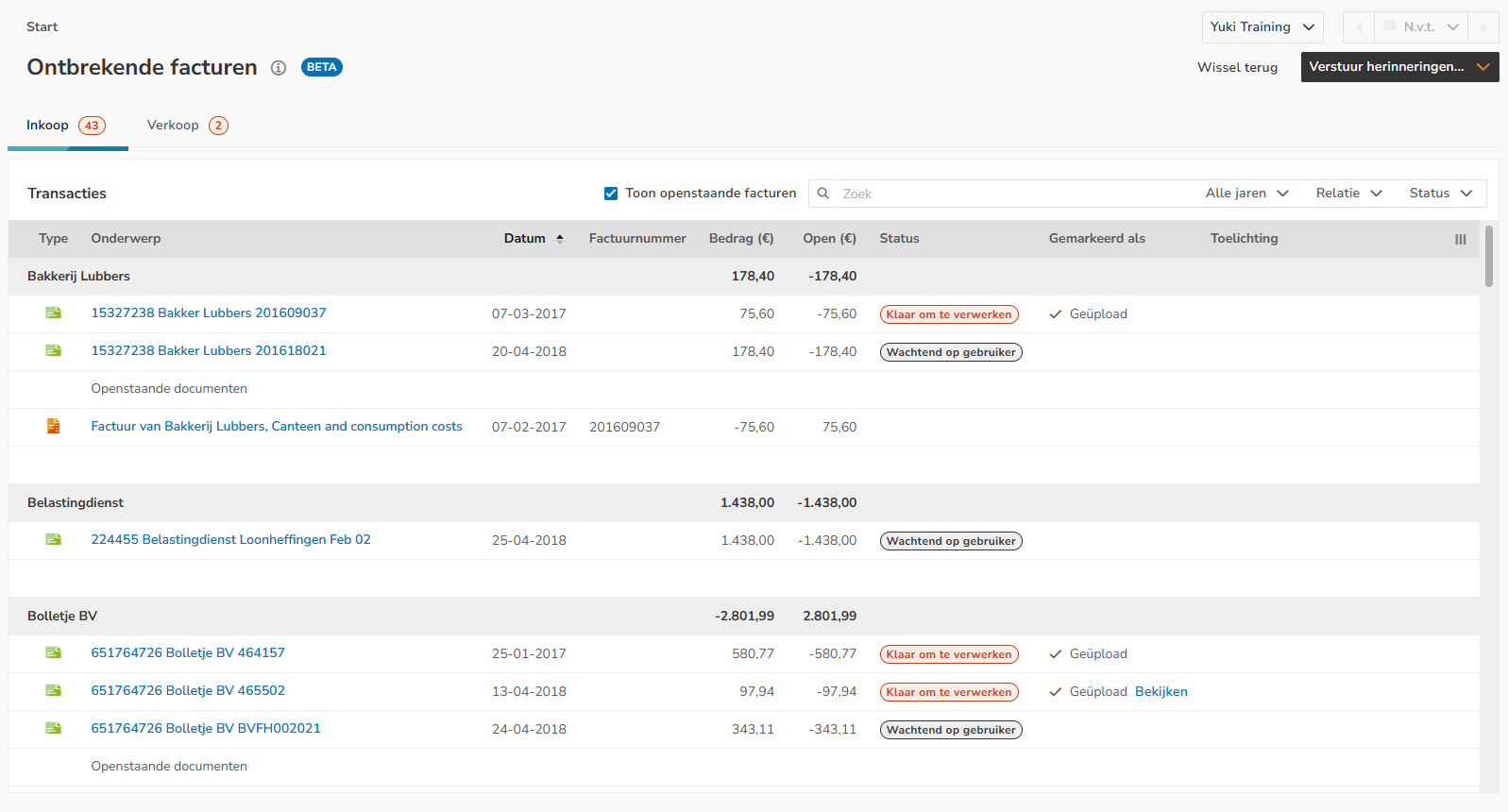
Filters
You can use the Status filter to filter transactions by:
- Ready to process
- Waiting for user.
AVAILABLE USER ACTIONS
From this screen, a user with the role 'Backoffice' in the domain can:
- view a transaction
- send reminders for purchase or sales invoices
- view the explanation of an entrepreneur (if marked as explained)
- view a document that has already been uploaded (if marked as 'Uploaded')
- match a transaction
- manually book a transaction
- write off the balance of a transaction.
View transaction
To view a specific transaction, click on the subject of the relevant bank transaction.
Send reminders for purchase or sales invoices
The overview of payments to which no invoice (document) could be found can be sent to the entrepreneur as a reminder.
This report of completeness of purchase or sales contains the following items:
- outstanding payments where no purchase or sales invoice was found
- outstanding payments grouped by contact
- the balance per contact, made up of outstanding payments and purchase or sales invoices
- actions to indicate per payment what to do with this payment.
To send the overview to the entrepreneur as a reminder:
- click on the arrow in the Send reminders... button
- select Purchase invoices or Sales invoices.

The following screen is opened: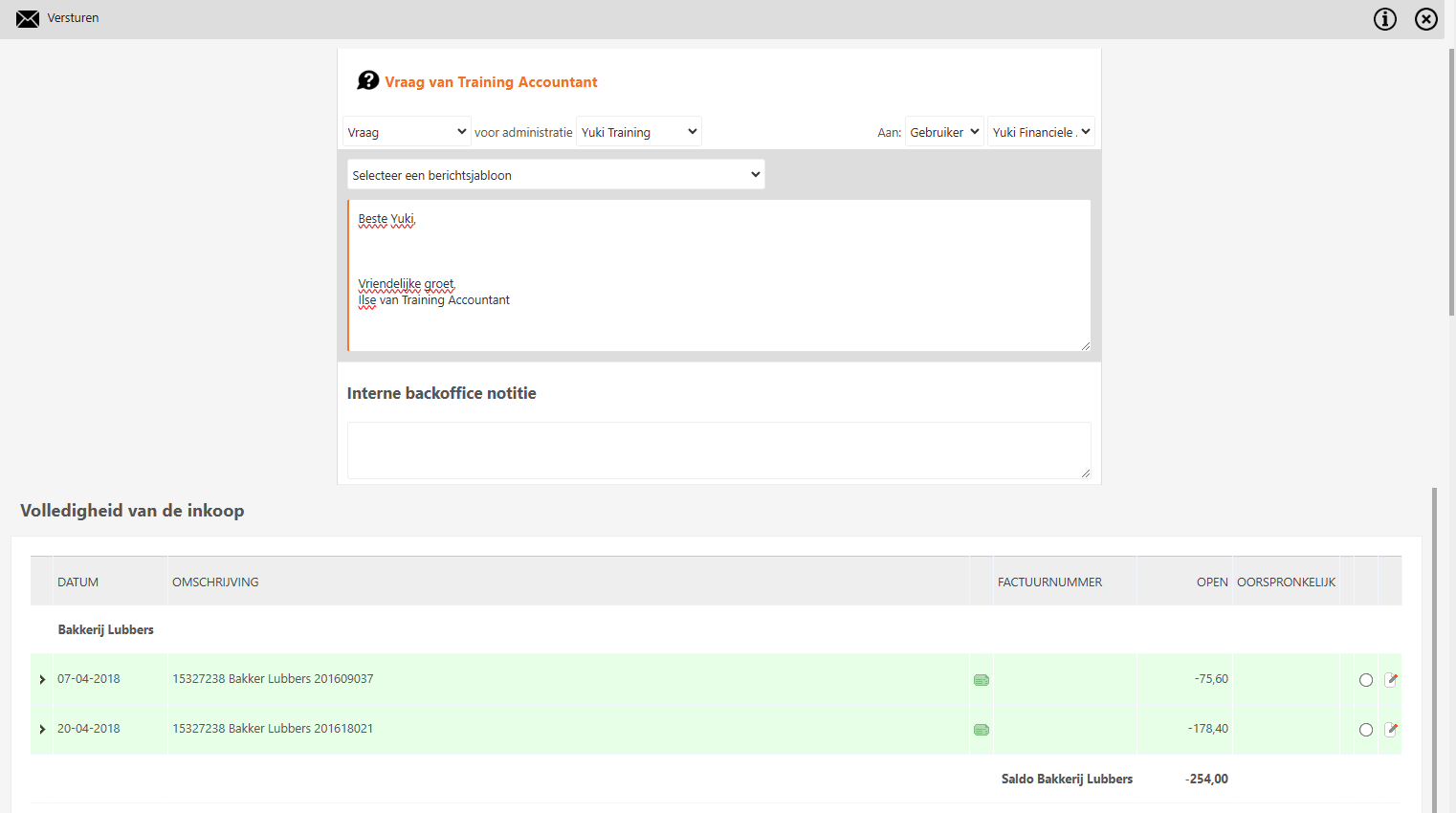
- select a user you want to send the reminder to
- select a message template if necessary
- then click on the Send button.
View explanation of entrepreneur
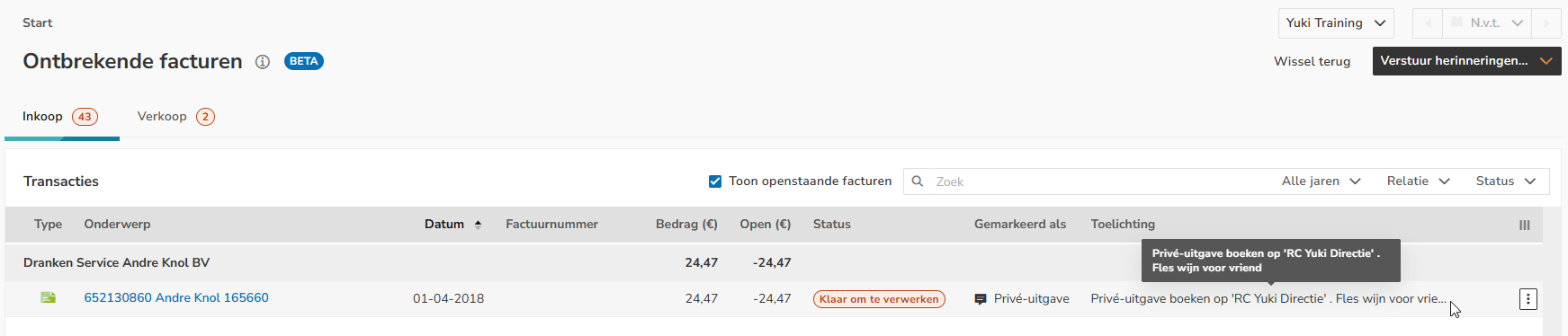
When a transaction has the status 'Ready to process' and the Marked as column shows “Explained' you can view the explanation provided by the entrepreneur.
To view an entrepreneur’s explanation hover your mouse over the Explanation field in the row of the relevant transaction:
The full text of the explanation is now shown in the pop-up.
View document that has already been uploaded
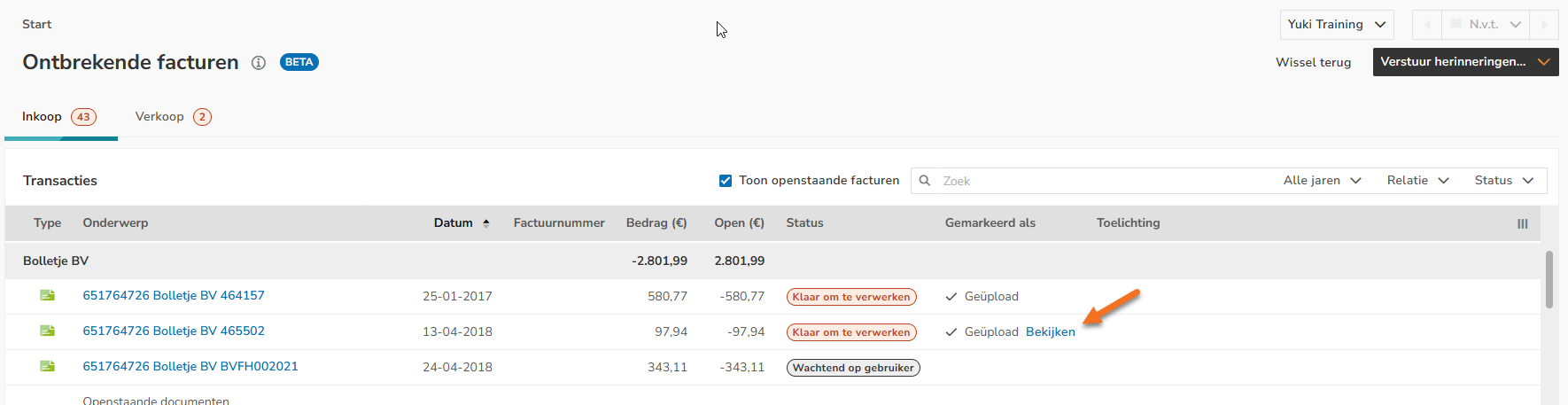
When a transaction has the status 'Ready to process' aand the Marked as column shows “Uploaded', you can view the document uploaded by the entrepreneur.
To view a document that has already been uploaded for the transaction, click on the View link next to the 'Uploaded' marking for that transaction.
Match transaction
To match a specific transaction:
- click on the subject of the bank transaction
OR - hover your mouse over the line of that transaction
- click on the button with the three dots
- then select the Match menu option from the dropdown menu
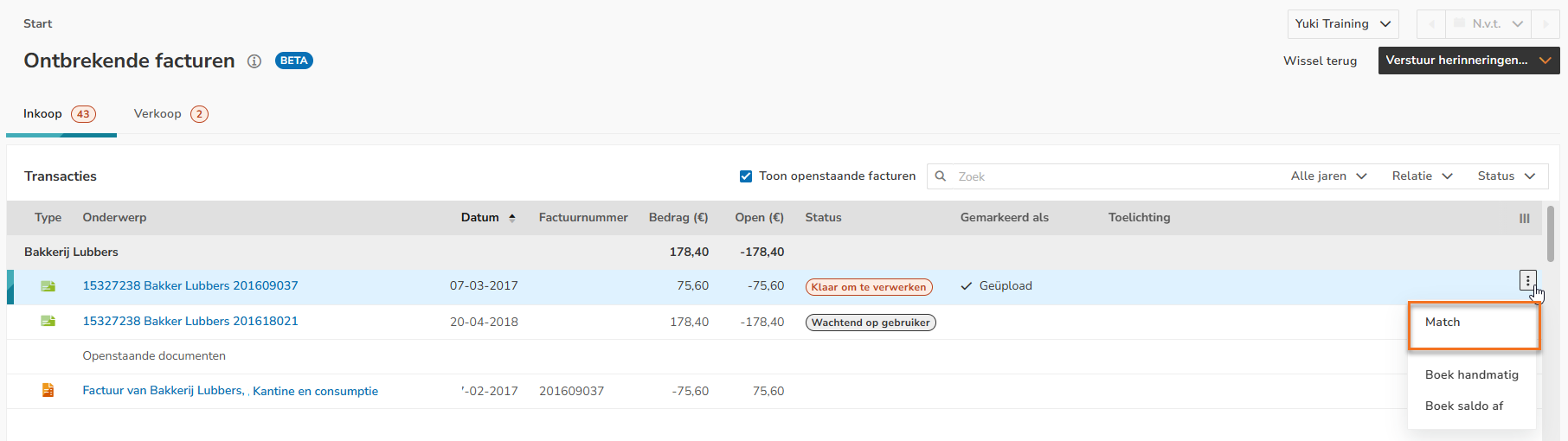
In the now-opened screen, the outstanding transaction can be matched, if possible, making it disappear from the 'Transactions' overview.
Book transaction manually
You want to book the payment manually because the invoice or receipt is no longer provided.
To book the payment manually:
- hover your mouse over the line of the transaction in question
- click on the button with the three dots
- select the Book manually menu option from the dropdown menu

The following screen is opened: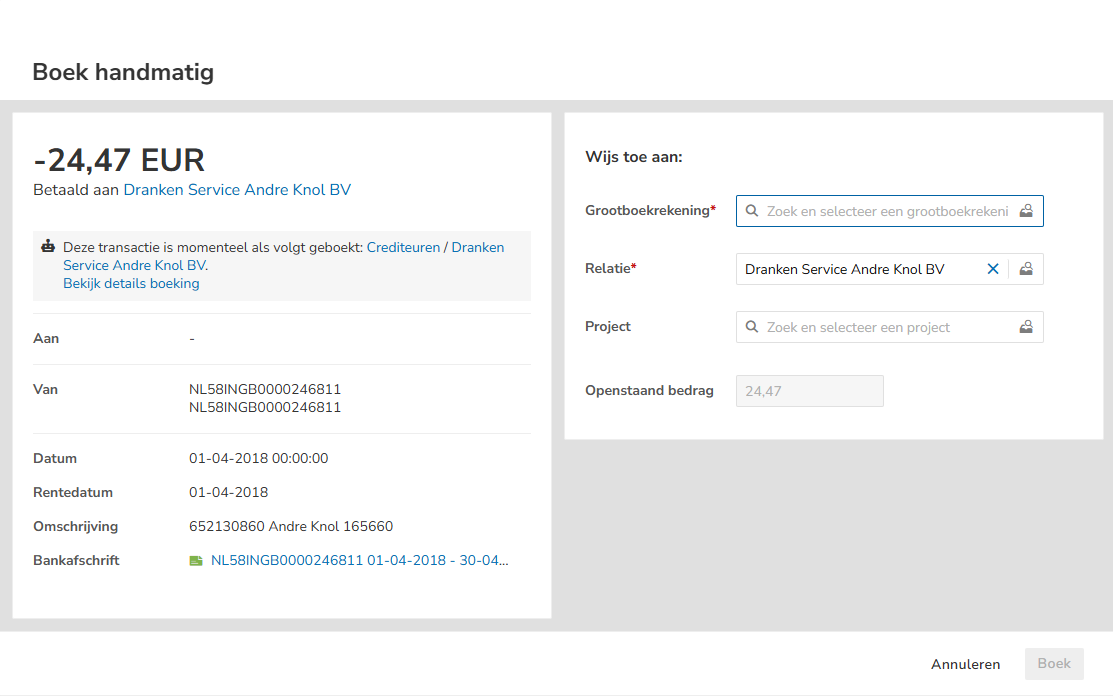
- select or change the GL account, contact and/or project
- then click on the Book button.
Write off balance of transaction
To directly write off the balance of the transaction:
- hover your mouse over the line of the corresponding transaction
- then click on the button with the three dots
- select the Write off balance menu option from the dropdown menu

The following screen is opened: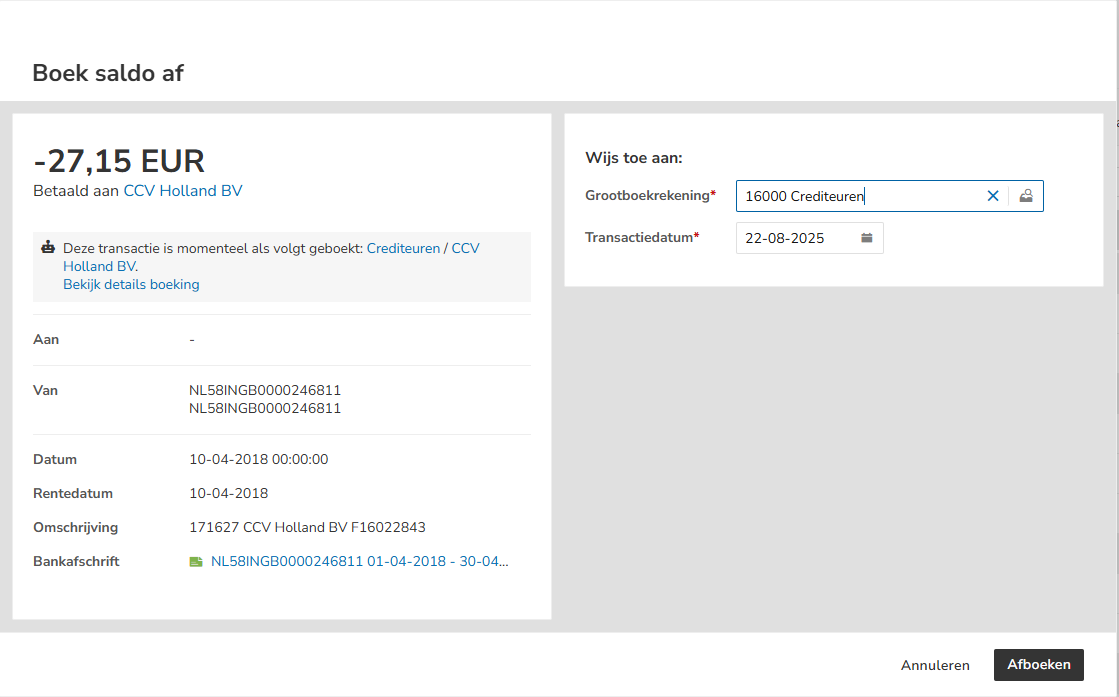
- select or change the GL account and/or transaction date
- then click on the Write off button.
Was this article helpful?
That’s Great!
Thank you for your feedback
Sorry! We couldn't be helpful
Thank you for your feedback
Feedback sent
We appreciate your effort and will try to fix the article