Disclaimer
All screenshots in the article were taken in the Dutch version of Nmbrs Accounting.
To make Nmbrs Accounting as user-friendly as possible, all important data (such as personal settings, administrations, and features) have been grouped together in fixed locations on the screen. No matter where you are in Nmbrs Accounting, the navigation structure always remains the same.
The interface consists of three main parts:
- The navigation bar (left): your highway to all administrative functionalities
- The search function (at the top): quick searching within your entire domain
(see article How does Search function work within domain?) - The toolbar (top right): for settings, support, handy calculation tool and the App switcher.
TIP!
From any screen in Nmbrs Accounting, you can always return directly to your Dashboard using the button at the top left of the screen (with a customizable navigation logo) (see article Administration profile: General section).
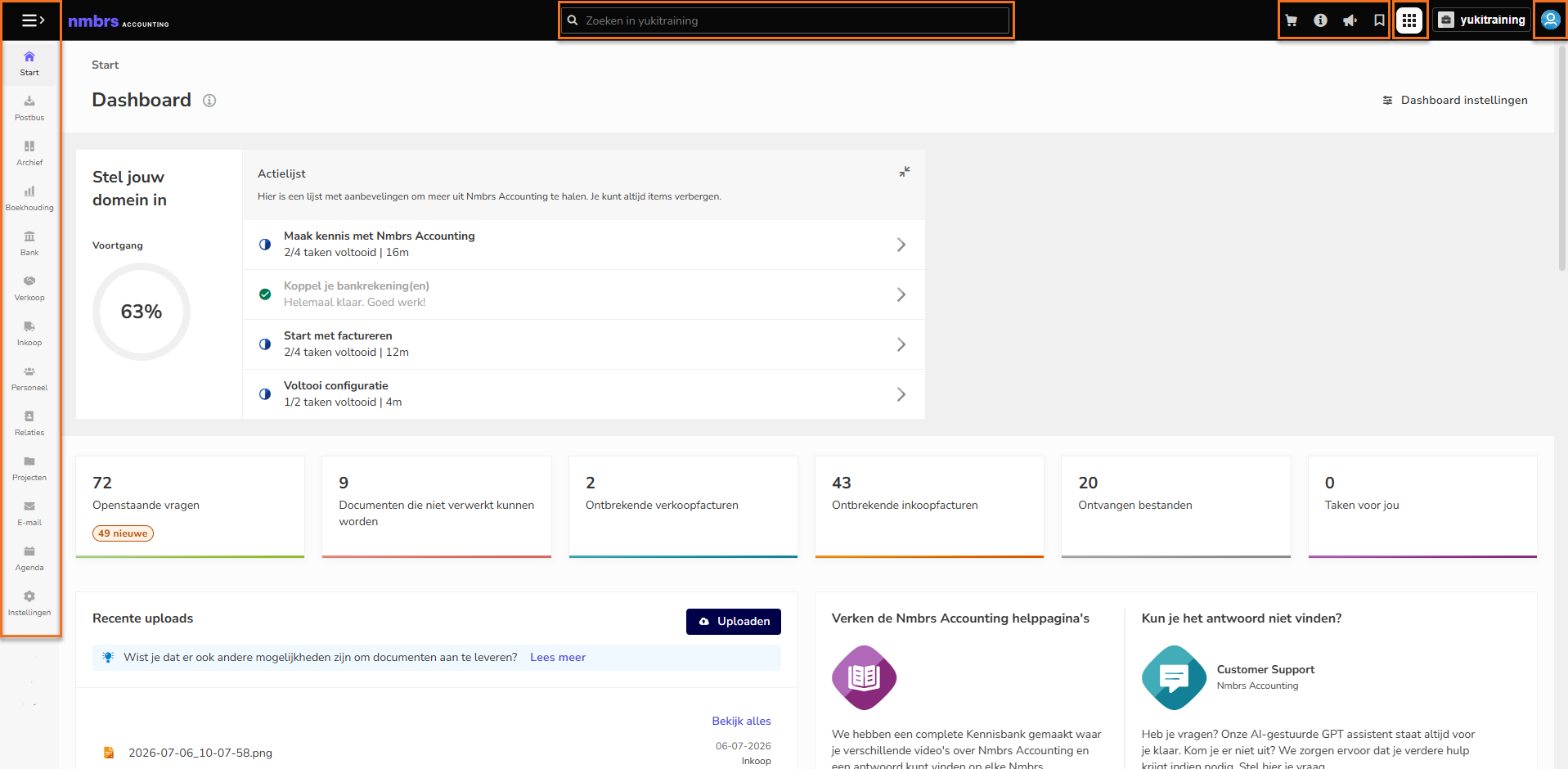
Navigation bar (left)
The navigation bar on the left gives you direct access to the various sections of your accounting.
Customize the display
If you prefer working with the smallest possible navigation bar, you can hide the names of the functionalities by setting the density to ‘Compact’ instead of ‘Comfortable’. Additionally, you can adjust the color of the menu bars by changing the ‘Hybrid’ theme to ‘Dark’ or ‘Light’.
For a detailed description, see the article Display settings.
Exactly which icons you see in the navigation bar depends on your user rights and the active bundle. Here is an overview of all possible functionalities:
Basic and Communication
 | Domains Here you can directly open the 'My Domain' screen or navigate to another domain to which you have access as a user. |
 | Home (Start) |
 | PO Box Here you can submit all your documents and transactions (bank files) and communicate with the back office. |
 | Archive Here you archive all your documents, including non-financial documents.. |
Finance and Management
 | Financials Here you will find, among other things, your company monitor, the 'Revenue and Costs' overview, 'Assets and Liabilities', the list of outstanding debtors and creditors, etc. Feature Analytical accounting |
 | Bank Overview of all your business bank accounts, credit cards, and online payment providers, as well as the transactions posted to them. Feature Automated payments (Payment list) Prepare payments via SEPA payment files. Feature Direct debit Automatically collect sales invoices via SEPA direct debit files. |
 | Sales Feature Quotations Create quotations, send them to your customers, and if the quotation is accepted, immediately create a sales invoice. Feature Sales invoicing View the posted sales invoices or create your own sales invoices. Feature Mollie Set up Mollie as the payment provider for sales invoices that you have sent to your customers. |
 | Purchase Central overview of all your purchases, suppliers, unpaid invoices, and invoices that are still being processed. |
Organization and Optimization
 | HR Overview of employees, pay slips, expense claims, and absence registration. Feature WKR The WKR feature automatically processes work-related expenses in your administration and provides up-to-date information on how much work-related expenses the tax-free allowance still permits. |
 | Contacts (CRM) All your customers, suppliers, employees, and other business relations in one place. View what business you have done with them, send a mailing, or print labels. |
 | Projects Conveniently bundle data, documents, hours, and transactions related to one specific subject or file. |
 | Email Retrieve your business email directly into Nmbrs Accounting via a POP3 connection and link it to contacts. |
 | Calendar Feature Time tracking (Hour regsitration) Register employee billable hours on projects and invoice immediately. Feature Workflow With this feature, you set up internal approval processes for, for example, purchase invoices. |
Foreign currency
Does your company regularly send sales invoices in foreign currency, or do you have one or more foreign currency accounts? The Foreign currency feature is fully integrated within the Banking, Sales, and Purchasing functionality.
For a detailed description, see article Foreign currency.
All settings in one place
At the very bottom of the navigation bar, you will find the Gear icon (Settings). All settings are clearly categorized:
- Personal settings: your own preferences (does not affect the software for others).
- Domain settings: settings that influence the operation of Nmbrs Accounting, such as GL accounts, VAT rates, sales templates, and integrations with external software (e.g., Mollie or Comandi).
Toolbar (top right)
In the top right of your screen, you will find a number of fixed buttons for quick actions:
- Store: open the Store to activate extra features or bundles.
- Information & Support (i-icon): direct access to basic applications (not available for the 'Backoffice' role):
- Help: search directly for an article in the Knowledge Base.
- VAT calculator / Currency calculator: quickly calculate VAT or convert exchange rates.
- News messages (Megaphone icon): view the latest updates and news from Nmbrs Accounting (not available for the 'Backoffice' role).
- Bookmarks: open your custom shortcuts to favorite pages in your domain
(see article Bookmarks) - App switcher: If you use multiple Nmbrs modules, you can easily switch to a different module here.
- User button: direct access to your Personal profile
(see article Your personal profile within a domain).
Was this article helpful?
That’s Great!
Thank you for your feedback
Sorry! We couldn't be helpful
Thank you for your feedback
Feedback sent
We appreciate your effort and will try to fix the article