Disclaimer
All screenshots in the article were taken in the Dutch version of Nmbrs Accounting.
By integrating Nmbrs Payroll with Nmbrs Accounting, payroll documents and financial data are automatically synchronized. This minimizes manual document processing and ensures that your records are up to date.
Features of Nmbrs Payroll link
Once the integration is active, both systems automatically exchange data.
Documents to be synchronized automatically
The following documents can be automatically retrieved from Nmbrs Payroll and placed directly into Nmbrs Accounting:
- pay slips
- payroll journal entries
- payroll tax assessments.
Manual and additional imports
- Annual statements: if desired, you can manually import annual statements via the integration.
- Work-related costs scheme (WKR): do you use the WKR functionality? If so, the balance of the total payroll can also be retrieved directly from Nmbrs Payroll for accurate WKR calculations.
To enable the automatic exchange of payroll documents and payroll data, the link must be configured once at the portal level.
Permissions and roles
Only a user with the 'Portal administrator' or 'Portal back office' role can configure the Nmbrs Payroll integration in the portal.
MPORTANT!
Enable the Payroll connection - Nmbrs Payroll feature for the portal
To use the link with Nmbrs Payroll, this feature must be activated for the portal.
Nmbrs Accounting partners can notify Nmbrs Accounting that they wish to use the Nmbrs Payroll link in the portal. Nmbrs Accounting will then incorporate this into the partner’s contract, after which the link with Nmbrs Payroll will be available immediately.
Only a user with the “Portal administrator” role can activate the Nmbrs Payroll link feature for the portal or for all administrations within a domain.
Access to Nmbrs Payroll link settings
To access:
- in the top-right corner of the accountant portal, click on the Settings icon
- then, in the now-opened screen, click on Nmbrs Payroll settings.
Portal Nmbrs Payroll settings
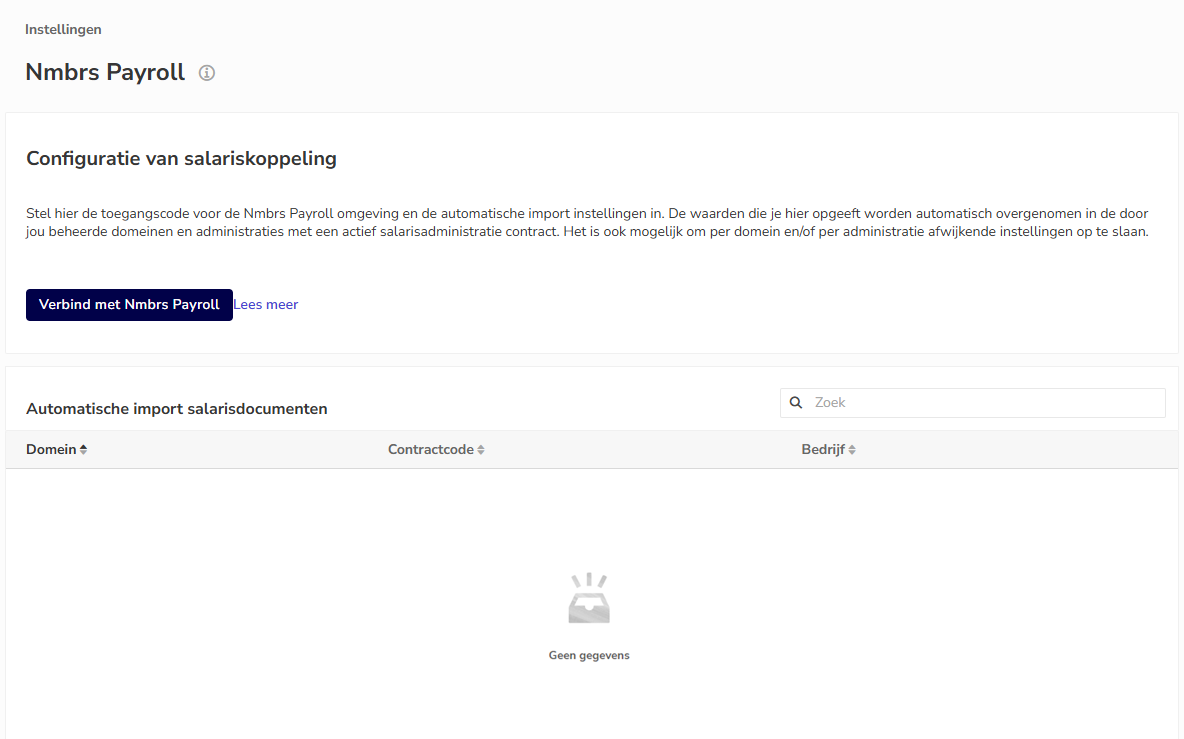
AVAILABLE USER ACTIONS
From this screen, a user can:
- configure the Nmbrs Payroll link
- retrieve user name and API token
- enter the Nmbrs Payroll link settings
- change the Nmbrs Payroll link
- disconnect the Nmbrs Payroll link.
Configure Nmbrs Payroll link
Once the Nmbrs Payroll link has been configured, the portal administrator will automatically be assigned a task (error notification) if there are issues with the automatic import of payroll documents.
Retrieve API token from Nmbrs Payroll
To retrieve the API token:
- go to the user profile in Nmbrs Payroll by clicking on the name used to log into Nmbrs Payroll in the upper right corner

- open the API Token tab.
The username (the email address used to log into the Nmbrs Payroll environment) and API token listed in the now-opened Nmbrs Payroll screen must be entered in Nmbrs Accounting.
Enter Nmbrs Payroll link settings
To configure the Nmbrs Payroll link, you must enter the Nmbrs Payroll access codes and the import settings for the payroll documents.
To configure the Nmbrs Payroll link settngs:
- click on the Connect to Nmbrs Payroll button
The following screen is opened: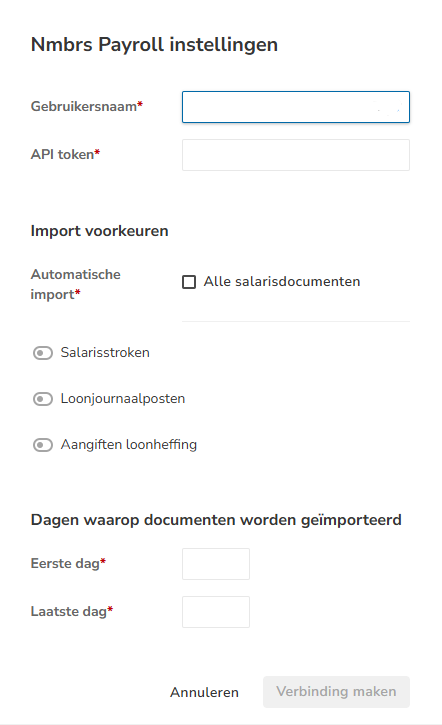
You can enter the following settings for the Nmbrs Payroll link.
Username (required)
Enter the Nmbrs Payroll username here.
API token (required)
Enter the API token of Nmbrs Payroll here.
Import preferences / Automatic import of payroll documents
The automatic import of payroll documents is activated 'by default'. All settings are automatically adopted in your managed domains and administrations with an active payroll contract:
- Automatically import all payroll documents
- Import pay slips automatically
- Import payroll journals automatically
- Import payroll tax assessments automatically.
Days on which documents are imported
First day (required)
First day of current month from when payroll documents are automatically imported.
Last day (required)
Last day of current month on which payroll documents are automatically imported.
- after entering the access codes and the import preferences of the payroll documents, click on the Connect button.
The Nmbrs Payroll link has now been configured in the portal.
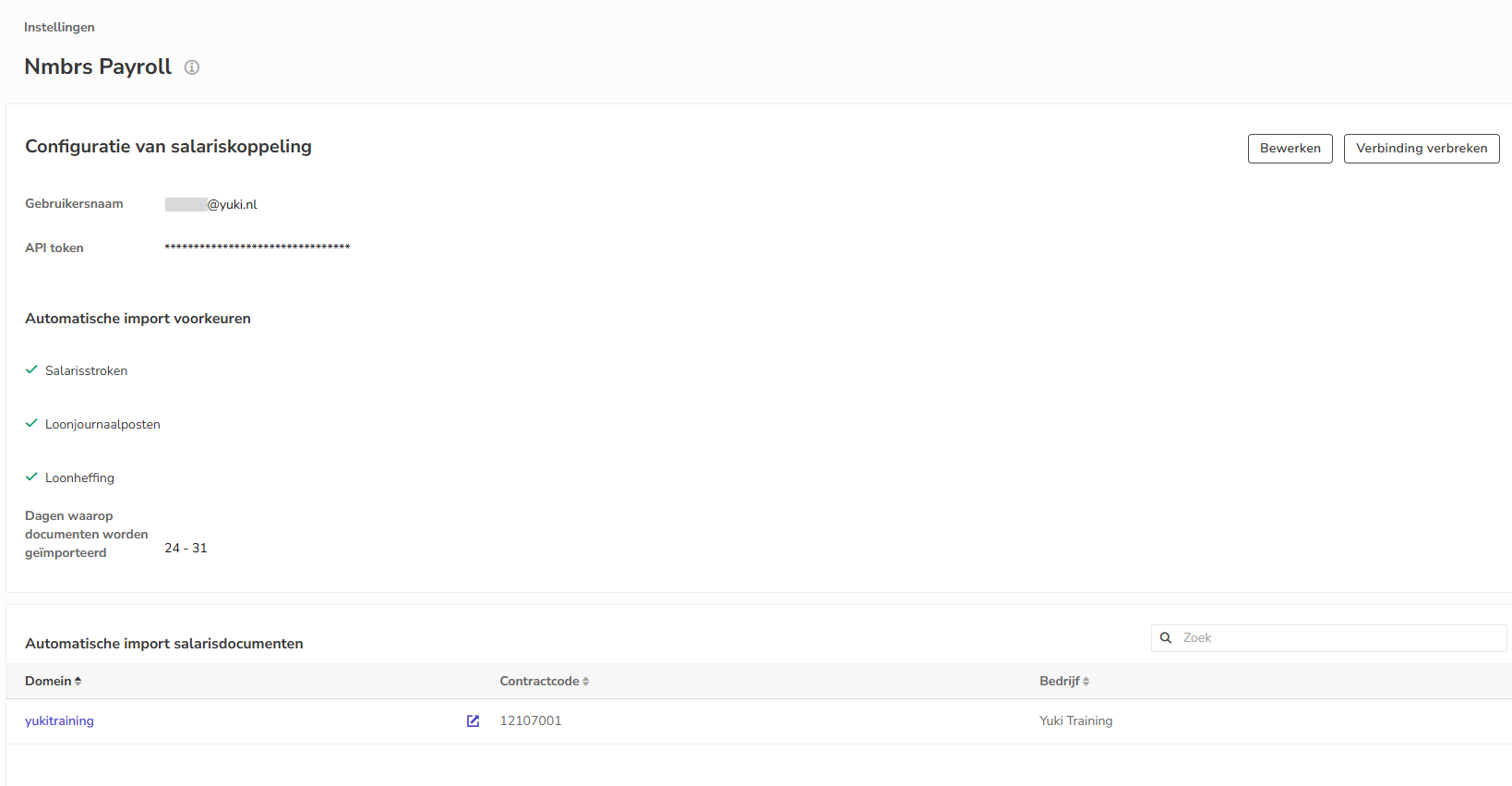
At the bottom of this screen, a list of all domains containing an administration with an active payroll contract is shown.
Different Nmbrs Payroll settings for domain and/or administration
To configure different Nmbrs Payroll settings (credentials and/or automatic import of payroll documents) for a domain and/or administration, click on the icon next to the domain name.
Change the Nmbrs Payroll link
To change the sNmbrs Payroll link settings:
- click on the Edit button
The following screen is opened: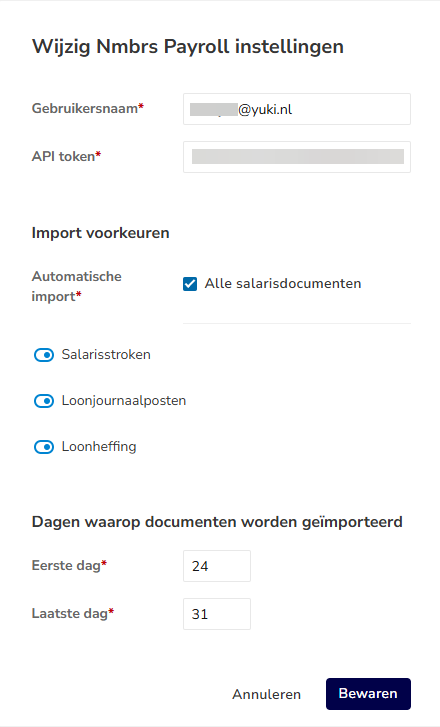
- if required, change the settings
- click on the Save button to save the changed settings.
Disconnect Nmbrs Payroll link
To disconnect the Nmbrs Payroll link:
- click on the Disconnect button
The following screen is opened: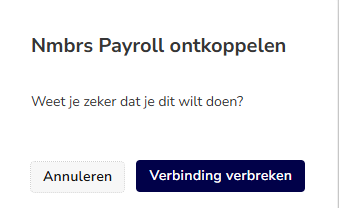
- click on the Disconnect button to actually deactivate the Nmbrs Payroll link.
Was this article helpful?
That’s Great!
Thank you for your feedback
Sorry! We couldn't be helpful
Thank you for your feedback
Feedback sent
We appreciate your effort and will try to fix the article