Disclaimer
All screenshots in the article were taken in the Dutch version of Nmbrs Accounting.
For customers who use the Nmbrs Payroll link in Nmbrs Accounting, it is possible, if necessary, to manually import payroll documents from an available payroll run into an administration from Nmbrs Payroll. A wage run will become available in the administration in Nmbrs Accounting as soon as it is run in Nmbrs Payroll.
The following payroll documents can be imported manually:
- payroll journal entries
- pay slips
- payrol tax assessments
- annual statements.
Only a user with the 'Back office' role in the domain can use the Nmbrs Payroll link.
Manually import payroll runs
Only payroll documents for the current month can be automatically retrieved via the Nmbrs Payroll link. In certain situations, you will therefore need to upload documents manually.
Payroll tax assessment
When automatically retrieving a payroll tax assessment, Nmbrs Accounting takes into account the fact that it is not actually processed in Nmbrs® until after the current month.
When should you import manually?
When the payroll run for a specific month is not processed until the following month (e.g., the January payroll run is not finalized until February), Nmbrs Accounting can no longer automatically retrieve these “delayed” documents.
In that case, the payroll documents from the available payroll run in Nmbrs Accounting must be imported manually.
Points to consider when importing pay slips manually
- No duplicate check
Nmbrs Accounting does not check for duplicates when importing pay slips, so before manually importing the pay slips, always check whether they have already been retrieved by the automatic import. - Notification that pay slips are ready in Nmbrs Accounting
After manually importing the pay slips, the user specified in the Nmbrs Accounting messages under Who receives the tasks related to the pay slips? will receive a notification that the pay slips are ready in the administration.
Manually import all employees
It is also possible to manually import all employees from Nmbrs Payroll. As a result, the imported employees can already be created in Nmbrs Accounting (with correct employee number, name, address details and bank account) before the pay slips for those employees are collected for the first time.
Employees already created in Nmbrs Accounting with a completed BSN corresponding to the BSN in Nmbrs will be updated if there has been a change in employee data in Nmbrs Payroll.
Access to Nmbrs Payroll link
To access:
- click on the HR icon in the navigation bar
- then click on Nmbrs Payroll service.
Available payroll runs overview
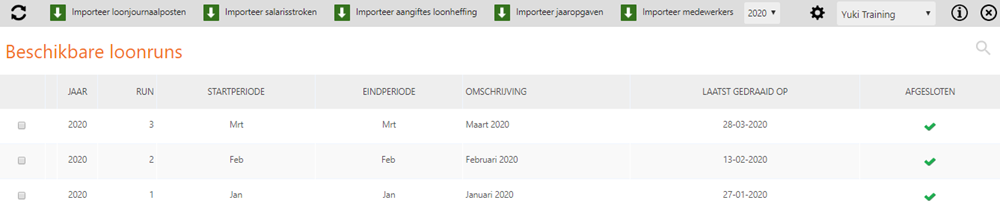
This screen shows all the details of the available payroll runs in Nmbrs Accounting. These payroll runs have been automatically prepared in the administration in Nmbrs Accounting via the Nmbrs Payroll link.
Import payroll documents manually
To import payroll dpcuments manually:
- select the payroll run from which you want to import payroll journal entries, pay slips, payroll tax assessments or annual statements
- then click on the Import payroll journal entries, Import pay slips, Import payroll tax assessments or Import Annual statements button.
The following message appears on your screen depending on the type of payroll document you want to import: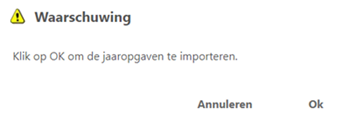
- then click on the Ok button so that the payroll documents are actually imported.
A message will then appear on your screen showing, for example, all employees whose annual statements have been imported:
Where can you find all payroll documents?
You can find all imported payroll documents in the following locations in the Archive of the administration:
- payroll journal entries: in the 'General journals' subfolder in the 'Other financial' folder
- pay slips: in the 'Pay slips' subfolder in the 'Human Resources' folder
- payroll tax assessments: in the 'Payroll tax' subfolder in the 'Tax' folder
- annual statements: in the 'Pay slips' subfolder in the 'Human Resources' folder.
Pay slips and annual statements for a specific employee
To find the pay slips and annual statements for a specific employee:
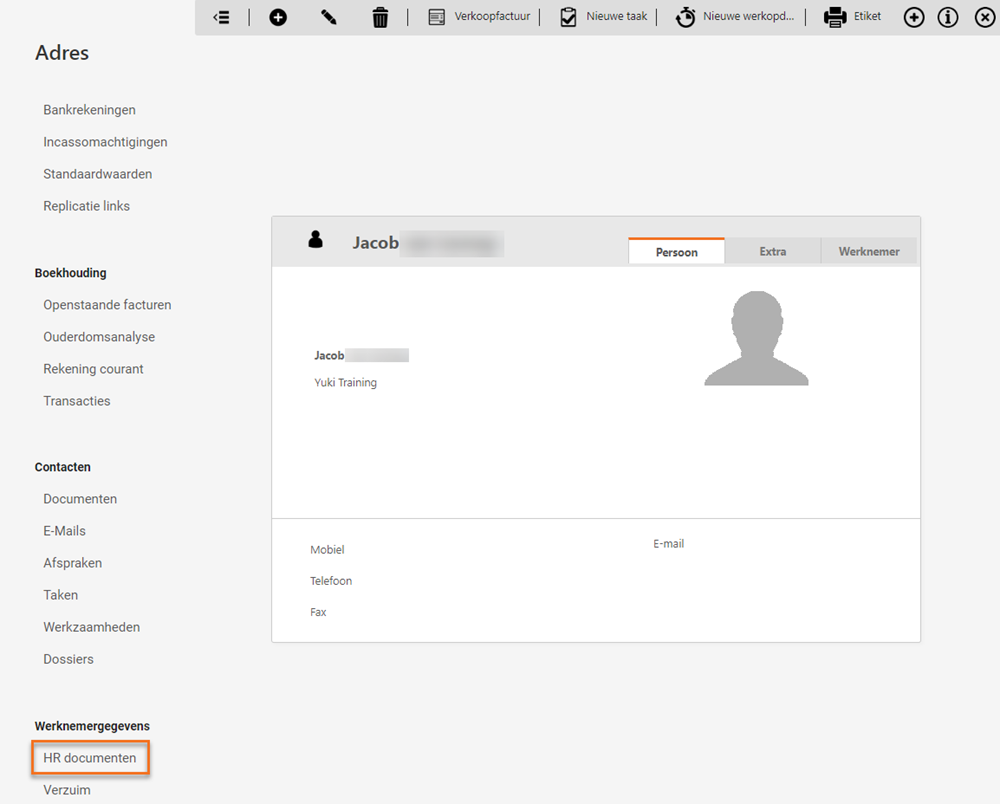
- open the contact card for the relevant employee
- under Employee data, click on HR documents.
Was this article helpful?
That’s Great!
Thank you for your feedback
Sorry! We couldn't be helpful
Thank you for your feedback
Feedback sent
We appreciate your effort and will try to fix the article