Disclaimer
All screenshots in the article were taken in the Dutch version of Nmbrs Accounting.
In Nmbrs Accounting, you can view an overview of all purchase invoices payable by wire transfer that have not yet been paid in whole or in part.
ATTENTION!
This is slightly different from the outstanding items. This is more accounting related and includes payments that do not have a purchase invoice associated with them.
Permissions and roles
Back office (in domain), Purchase, Management, Financial administration or External accountant
A user with this role can view this overview.
Domain owner (‘Management’ role) or Management
A user with this role can mark invoices as paid or put them on hold.
Access to Unpaid invoices
To access::
- hover your mouse over the Purchase icon in the navigation bar
- then, in the now-opened screen, click on Unpaid invoices
Unpaid invoices overview
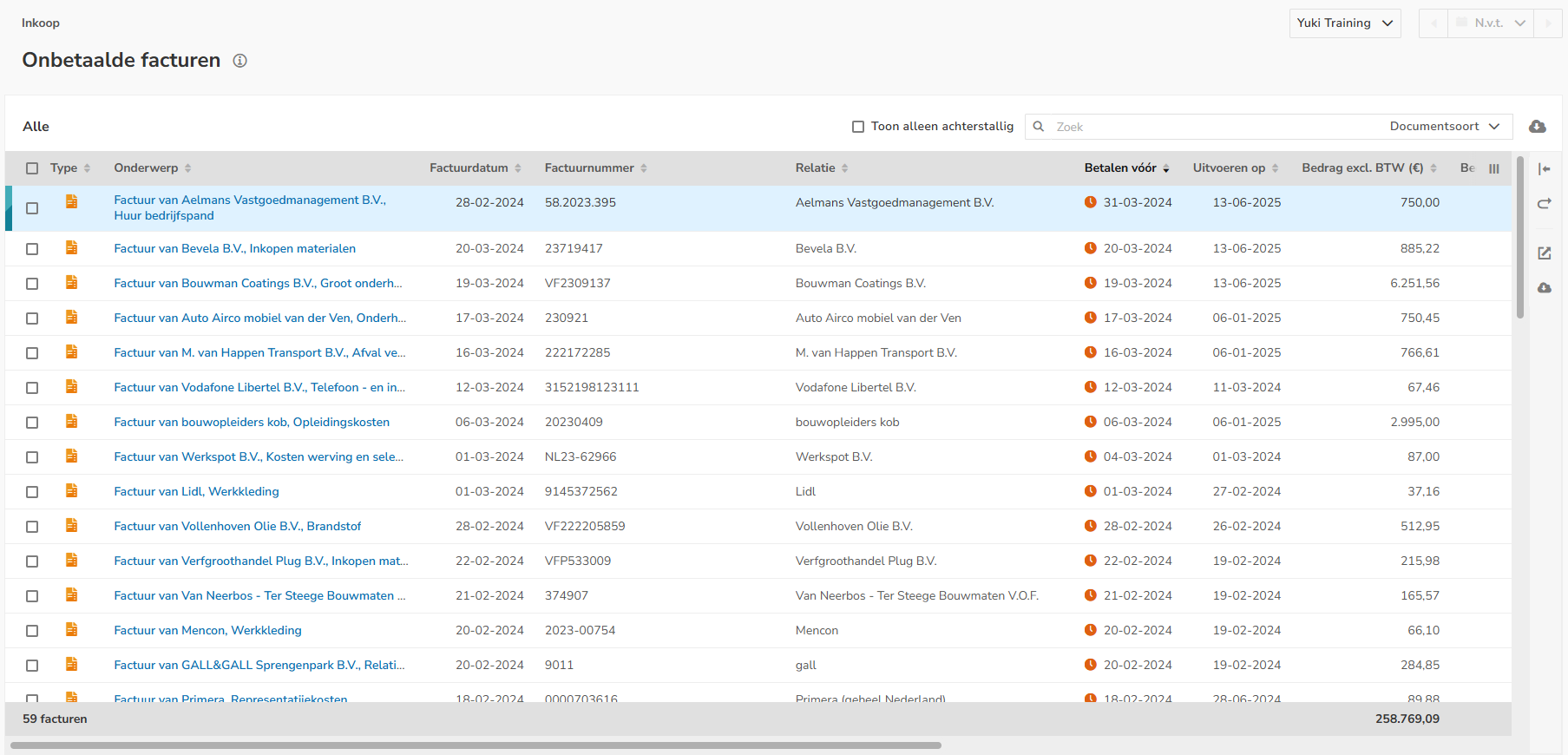
Filters
You can filter the data shown in this screen by:
- Show only overdue documents
- Document type: only purchase invoices or all purchase credit invoices.
Resizeable document viewer
Click on the relevant invoice line and then on the Show / Hide button (icon with a right / left arrow) to show or hide the document preview on the screen.
To enlarge the displayed document preview, move your mouse over the two arrows to the left of the document preview and resize it to the final size.
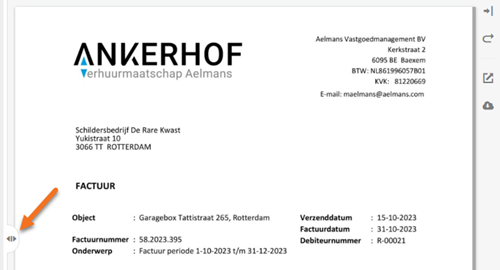
Additionally, in the document viewer you can:
- reset the document preview to the default size (curved arrow icon)
- open the document in the browser (square icon with a top-right arrow)
- download the document (cloud icon with a down arrow).
AVAILABLE USER ACTIONS
From this work list, a user can:
- view the document
- view the contact
- view the project
(only available when a user with the ‘Management’ role has selected the Medium, Large or Unlimited bundle via the Store in the domain and the purchase invoice is linked to a project) - mark one or more invoices as paid
- put one or more invoices on hold
- create a task for an invoice.
Download as CSV (Excel)
To download all the data shown in the screen (in the columns) and e.g. export it to Excel and then print it, if required, click on the Download as CSV button (Cloud icon with down arrow) at the top right of the screen.
The name of the downloaded CSV file is [administration name] - Unpaid invoices per [Today's date][time].csv
View document
To view a docunent:
- click on the subject of the document
OR - hover your mouse over the line of the invoice in question
- click on the button with the three dots
- then select the View document menu option from the dropdown menu
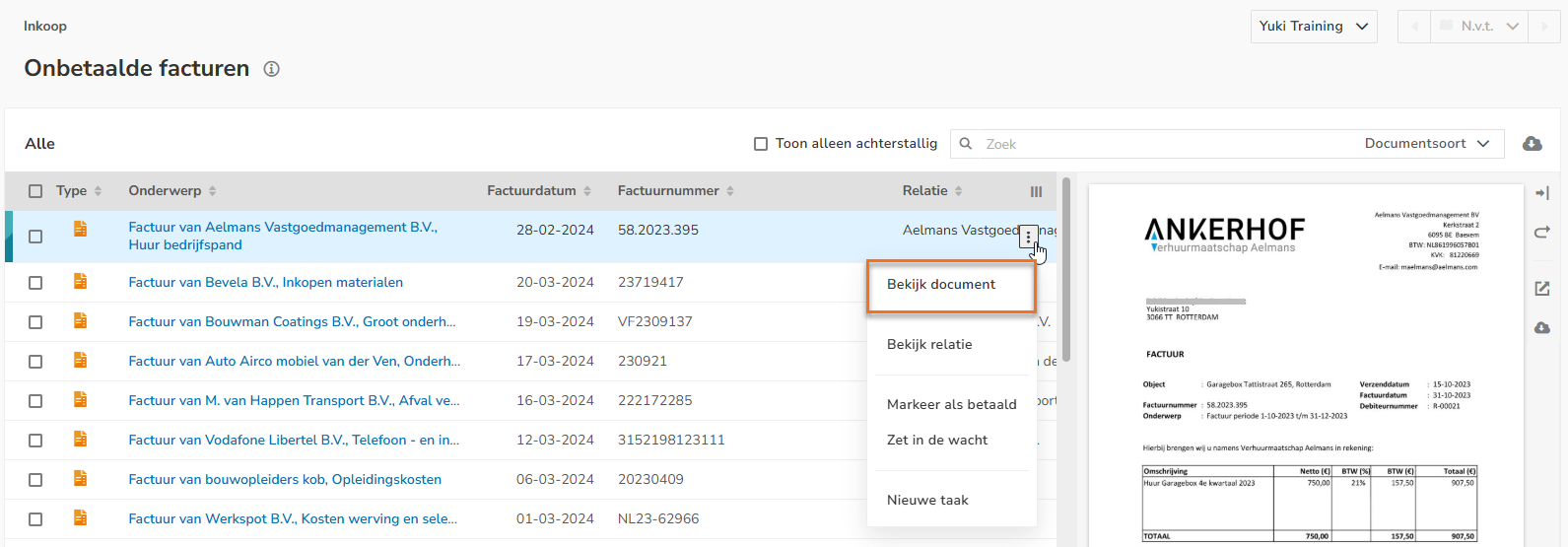
In the now-opened screen, the invoice can be changed, if necessary, or edits can be made to the invoice.
View contact
To view the contact of an invoice:
- hover your mouse over the line of the relevant invoice
- click on the button with the three dots
- then select the View contact menu option from the dropdown menu
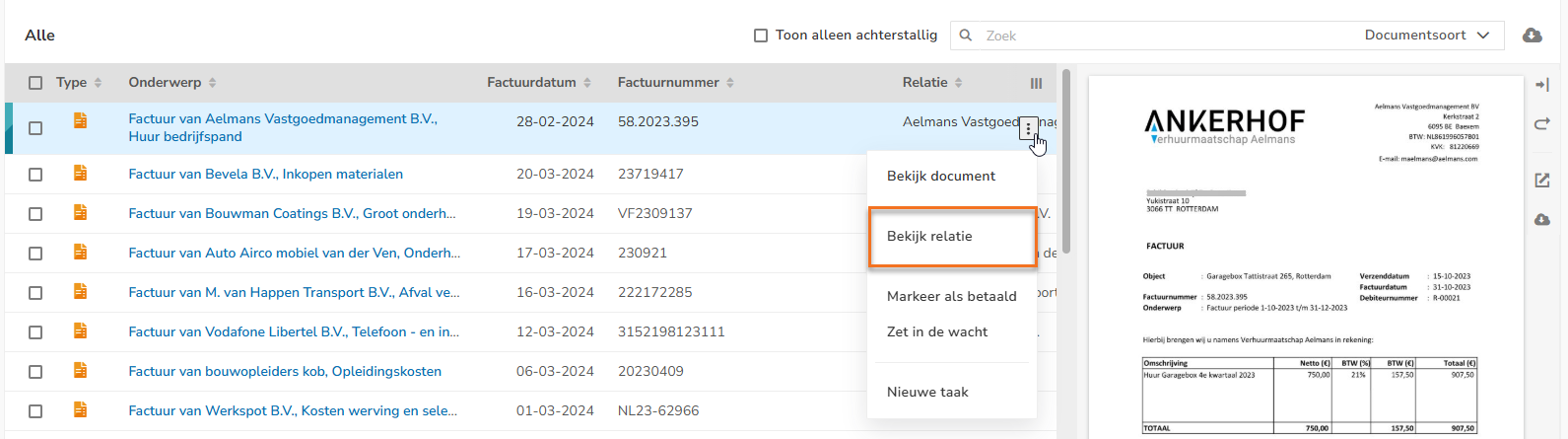
The contact card of the corresponding contact is now opened.
Mark invoices as paid
Each time you have manually created and executed a payment in your bank's Internet portal, you can mark the corresponding invoices as paid.
To mark invoices as paid:
- select the invoices that you want to mark as paid
- then click on Mark as paid at the top of the screen
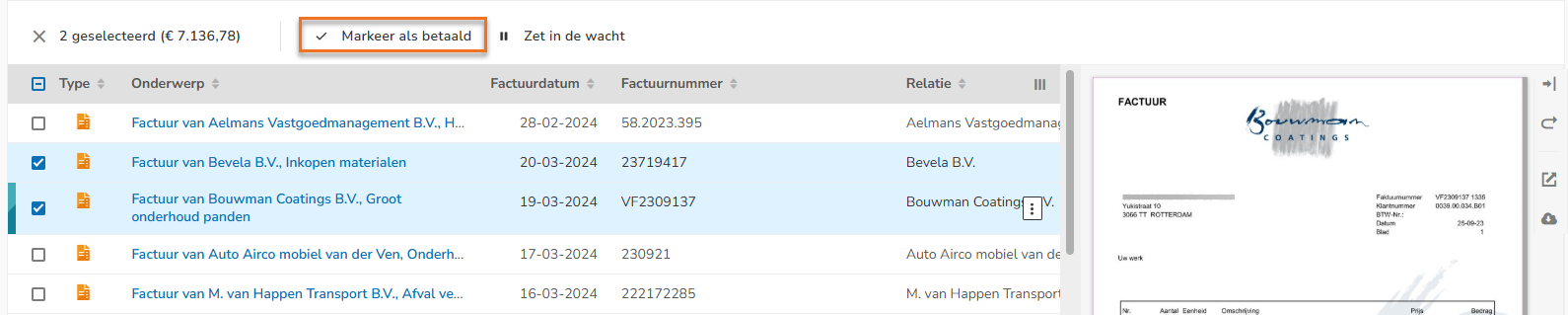
The following message appears on your screen:
Marked invoices disappear from the ‘Unpaid Invoices’ work list and enter the ‘Payments in transit’ work list.
Mark one invoice as paid
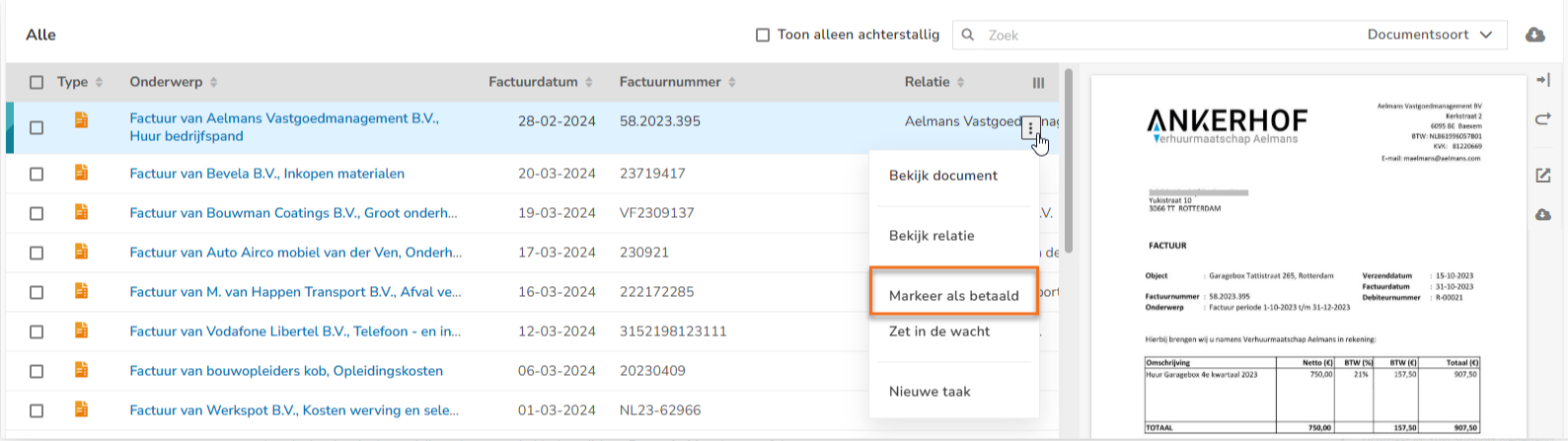
To mark one invoice as paid:
- hover your mouse over the line of that invoice
- click on the button with the three dots
- then select the Mark as paid menu option from the dropdown menu
Put invoices on hold
To put invoices on hold:
- select the invoices to be put on hold
- then click on Put on hold at the top of the screen
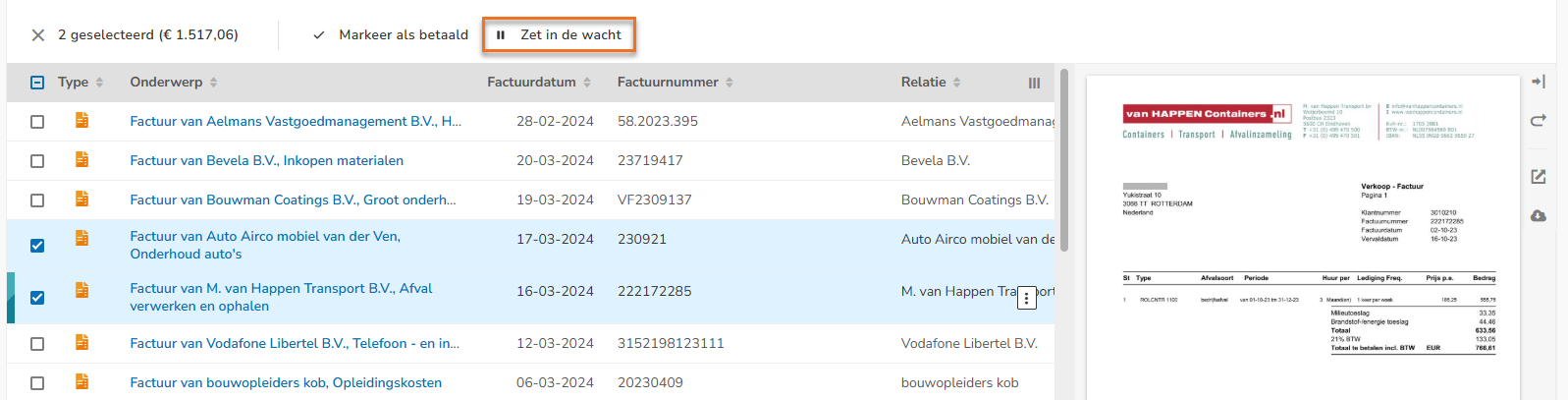
The following message appears on your screen:
The invoices disappear from the “Unpaid Invoices” work list and enter the “Pending approval” work list.
Put one invoice on hold
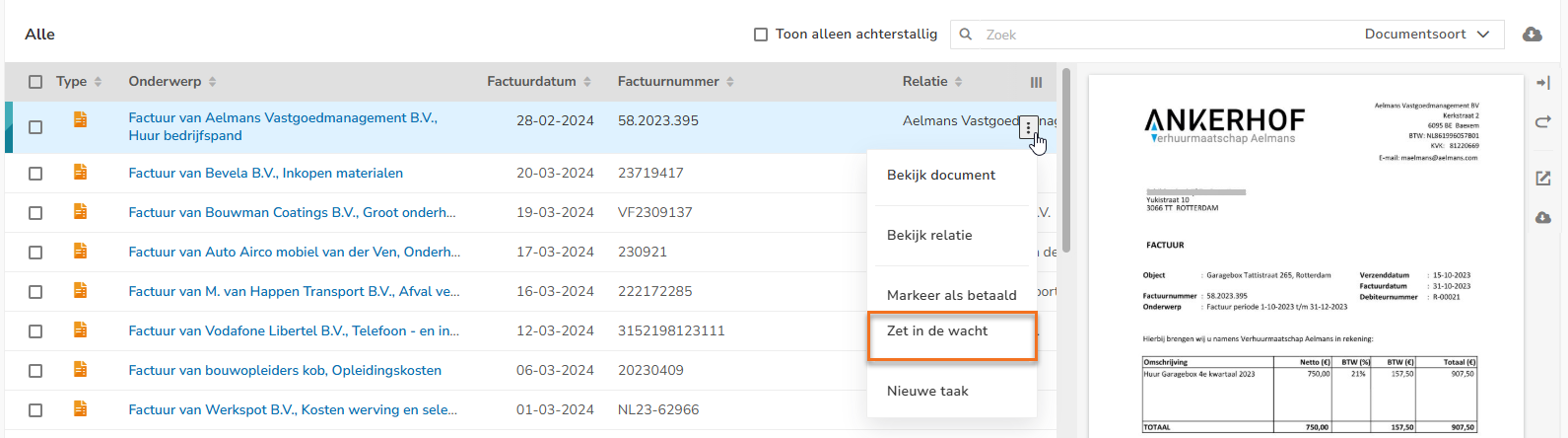
To put one invoice on hold:
- hover your mouse over the line of that invoice
- click on the button with the three dots
- then select the Put on hold menu option from the dropdown menu
Create task for invoice
To create a task for an invoice:
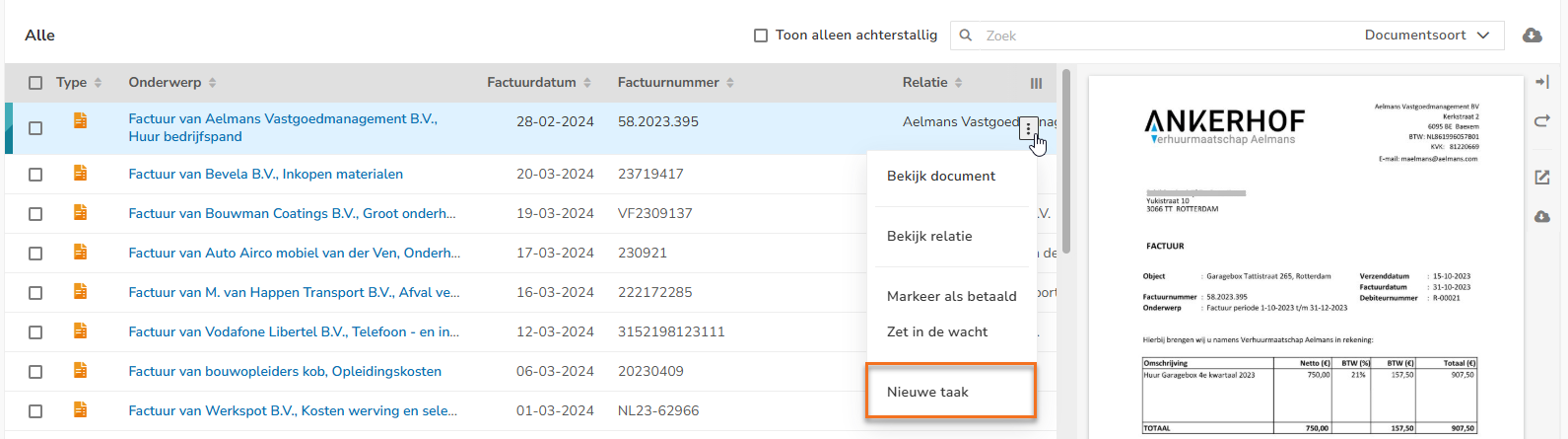
- hover your mouse over the line of the invoice in question
- click on the button with the three dots
- then select the New task menu option from the dropdown menu
The following screen is opened:
- select the required task type for the invoice
- fill in missing data if necessary
- then click on the Save button
Was this article helpful?
That’s Great!
Thank you for your feedback
Sorry! We couldn't be helpful
Thank you for your feedback
Feedback sent
We appreciate your effort and will try to fix the article